



























How to use Windows Backup to move data to new Windows 11 PC effortlessly

Windows 11’s updated Windows Backup makes it easy to transfer files and settings to a new PC over a local network with secure pairing, saving time and eliminating costly tools.
Microsoft has made transferring files and settings from an old PC to a new one much easier. With the updated Windows Backup, users can quickly move all their files and folders across devices via their local network, making the process hassle-free and streamlined. Expensive services are no longer necessary for PC migration. Let’s explore how this works and what requirements need to be met for a smooth transfer.
What do you need to transfer data from an old Windows PC to a new one?
- The old computer must be running Windows 10 or Windows 11 with the Windows Backup app installed.
- The new PC must be running the latest version of Windows 11 to enable this feature.
- Both the computers must be connected to the same local network, through WiFi or Ethernet, for faster transfers.
Step-by-step guide
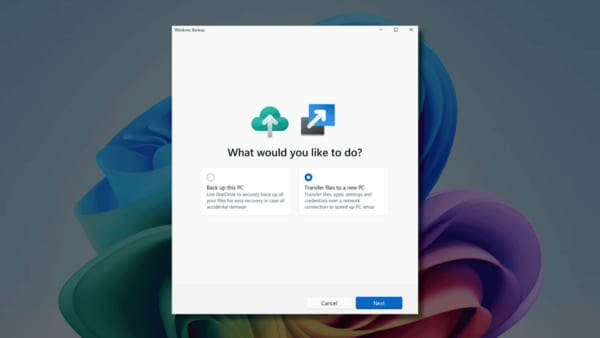
- On your old PC, open the Windows Backup and select the “Transfer to a new PC” option. The computer name will be displayed for the pairing process for the transfer.
- While setting up the new computer, connect it to the same network as your old PC. You will be asked to transfer data from your old PC.
- Enter the PC name which appeared on the old PC. A pairing code will appear to pair the computers.
- Once paired, you will see a list of all the files and folders that can be transferred to the new PC.
- You can select the files and folders and start the transfer.
- The transfer will begin and you will see the progress on the screen.
- Transfer will take time, depending on the maximum bandwidth available on the local network.
Not everything will be transferred through this process; you still need to manually reinstall apps and software on your new PC. Still, this is a hassle-free and quick method to transfer your files to a new PC without paying for expensive apps. We recommend that you to use either an Ethernet connection or a faster Wifi connection to reduce the transfer time.
Please sign in
Login and share