


















Screenshot , Screen recording & S - Capture feature in iQOO

• Quick Screenshot
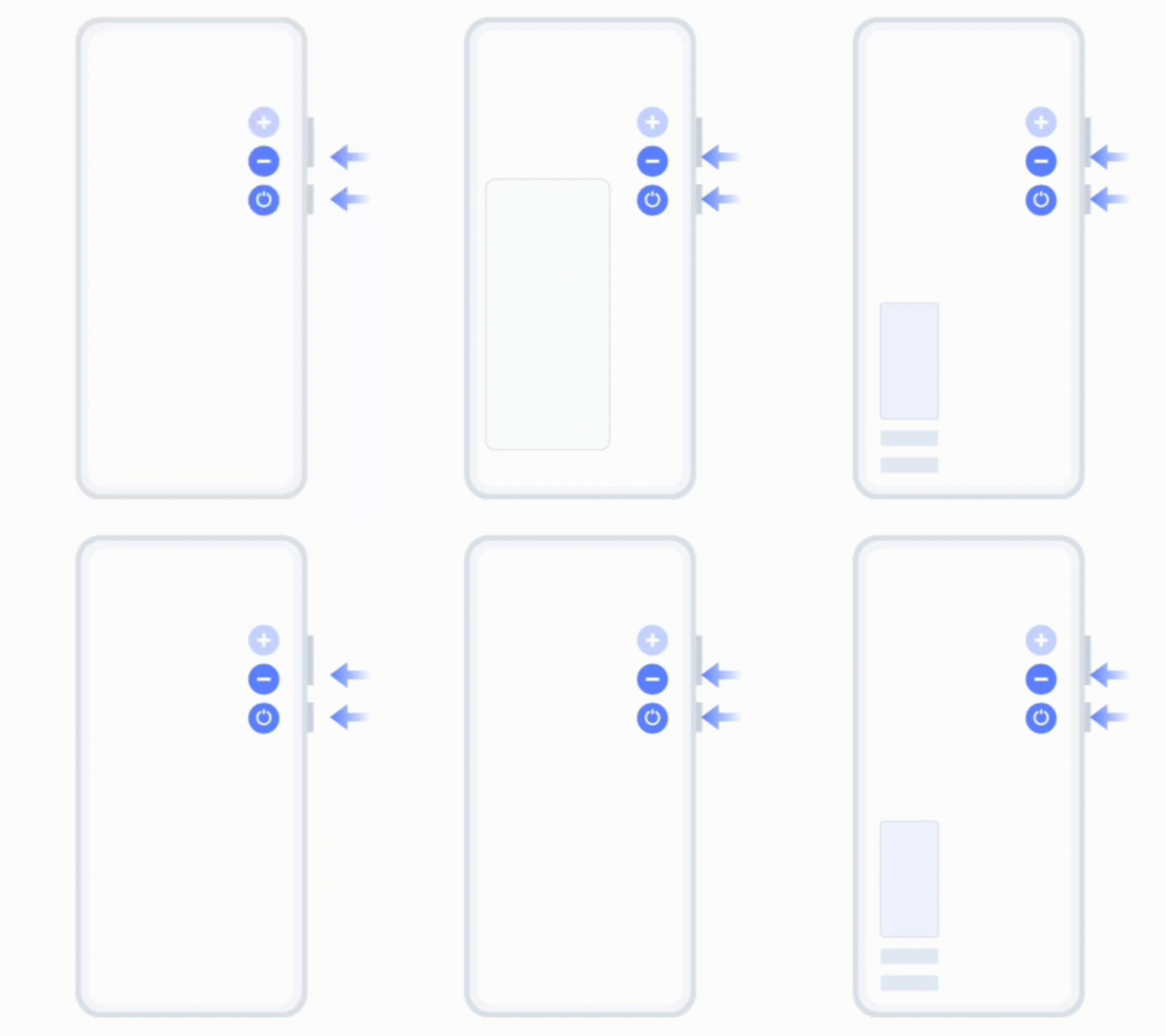
Press and hold the Power and Volume buttons to take a quick screenshot.
• 3 Finger Screenshot
Activate 3 finger screen shot by the way of :
Go to main settings - Select shortcuts and accessibility option from the list - Turn on slide down with three fingers to take a screenshot option.
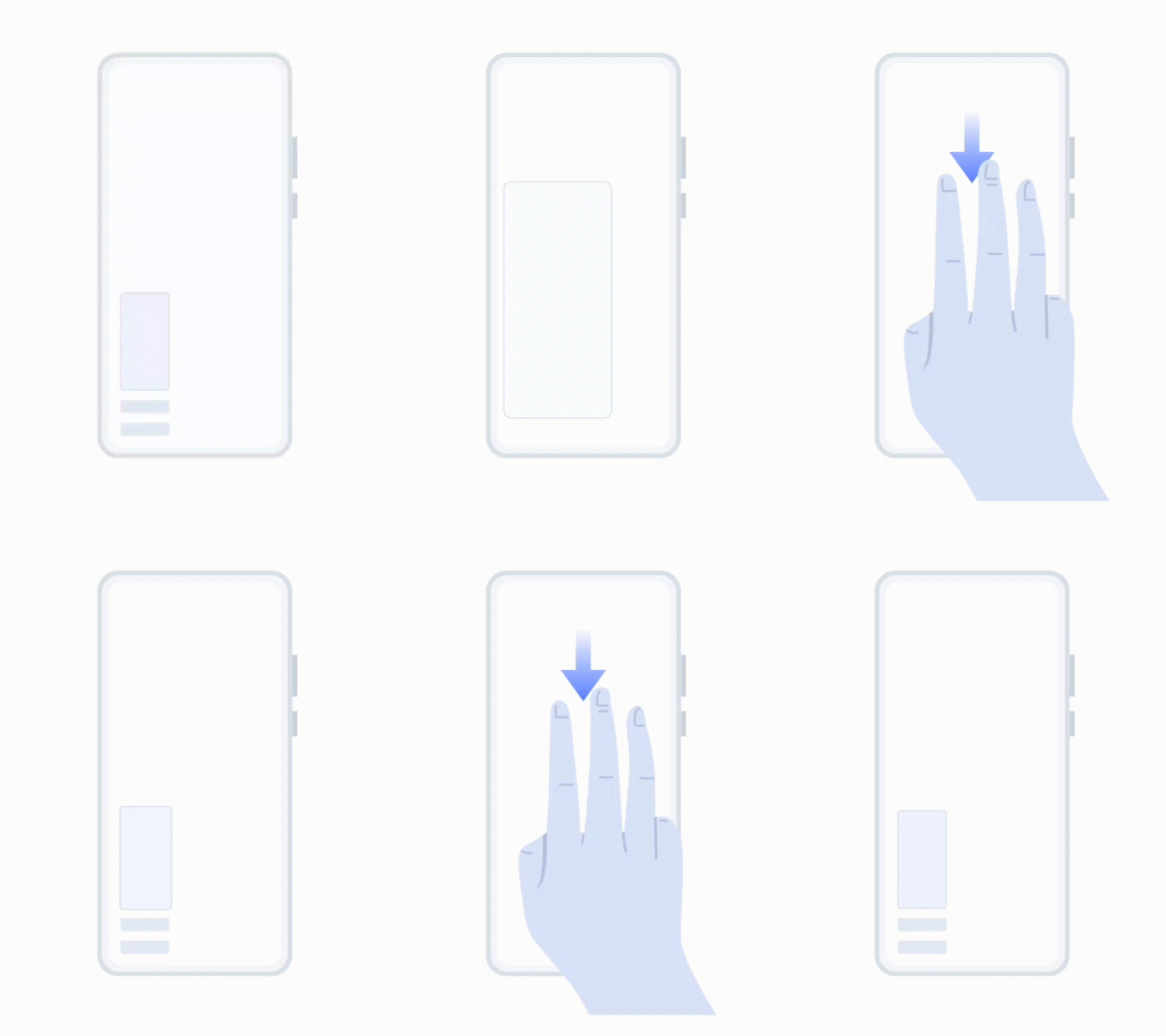
Slide down with three fingers to take a screenshot
• Screenshot floating window
After activating floating window option through this path (Main settings - Shortcuts and accessibility - S Capture - Turn on Screen floating window option) a floating window appears after you take a screenshot .
You can use it to quickly share and edit your screenshot.
• Long screenshot
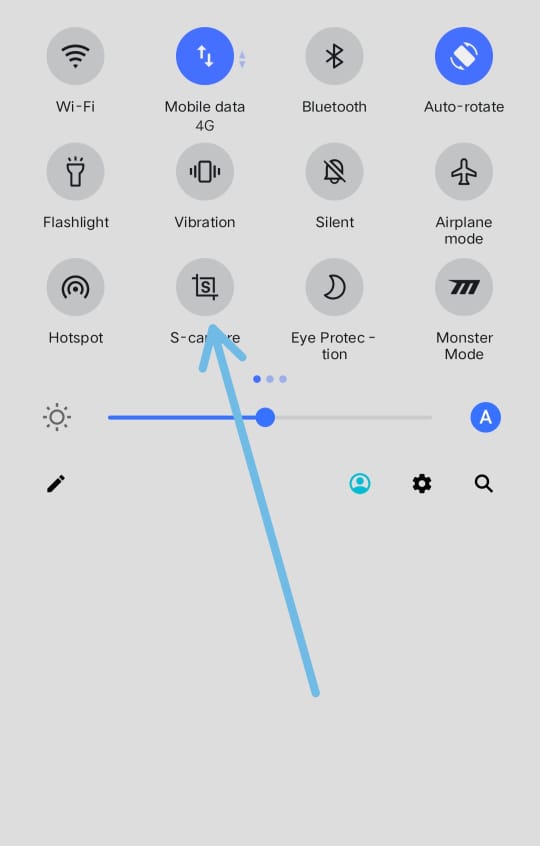
👉Method 1 : Swipe down quick settings and tap on S- Capture button then select long Screenshot option from the floating window appears on the screen .
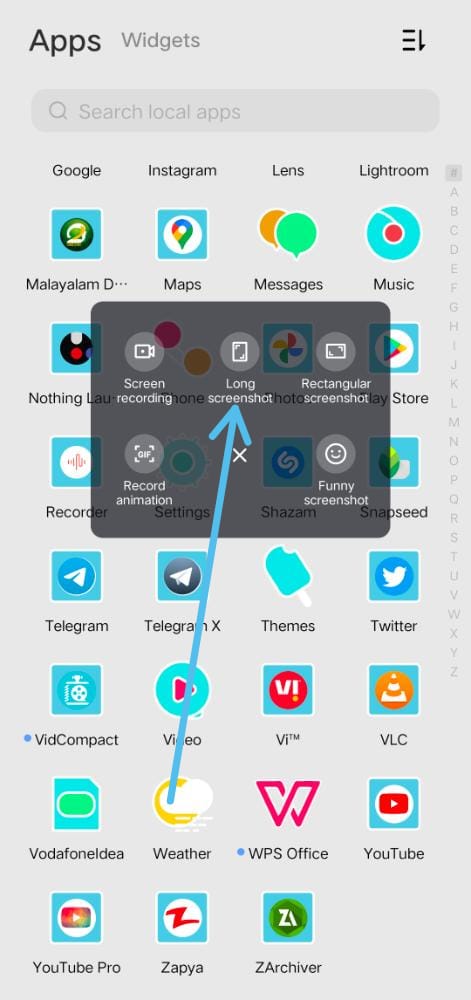
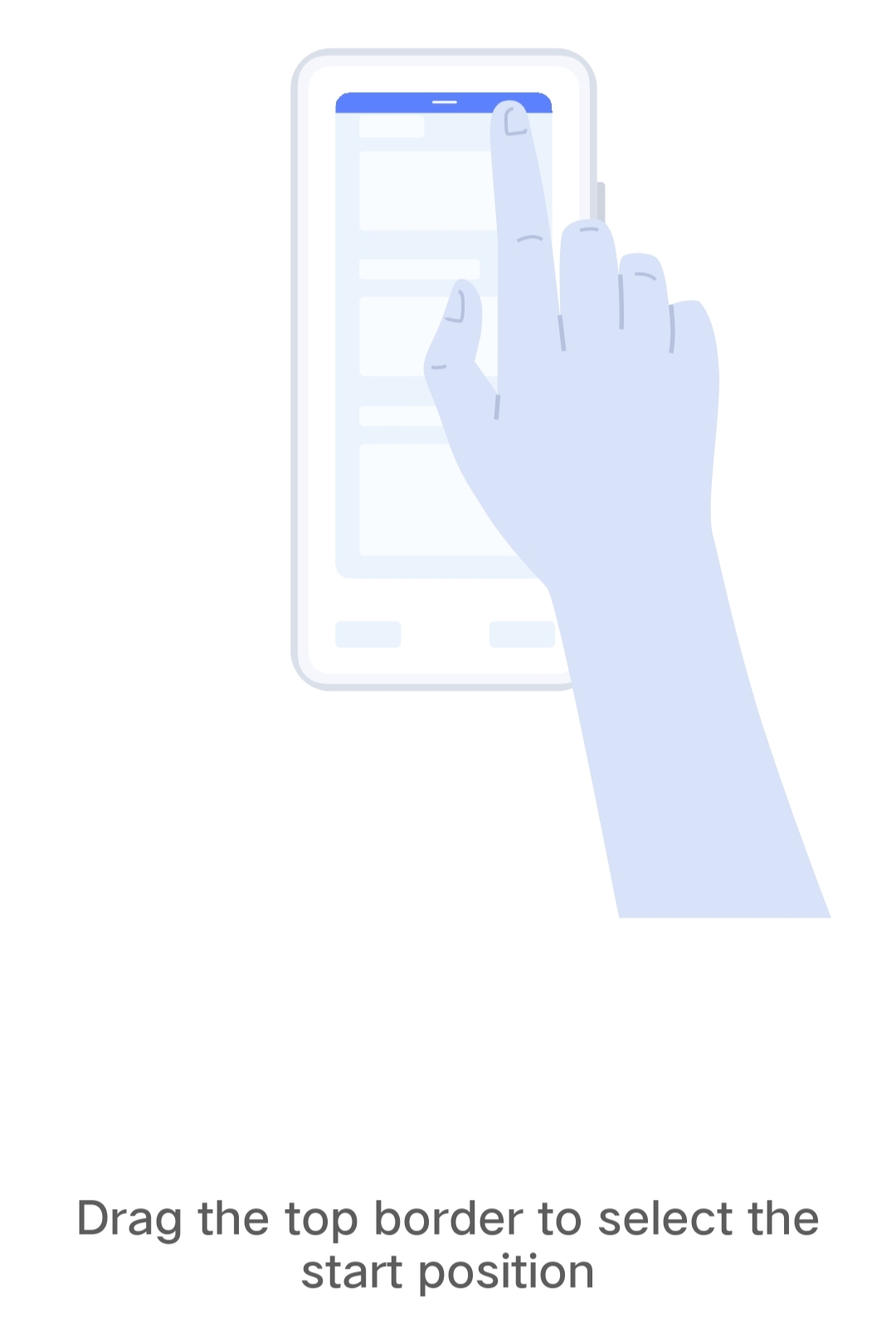
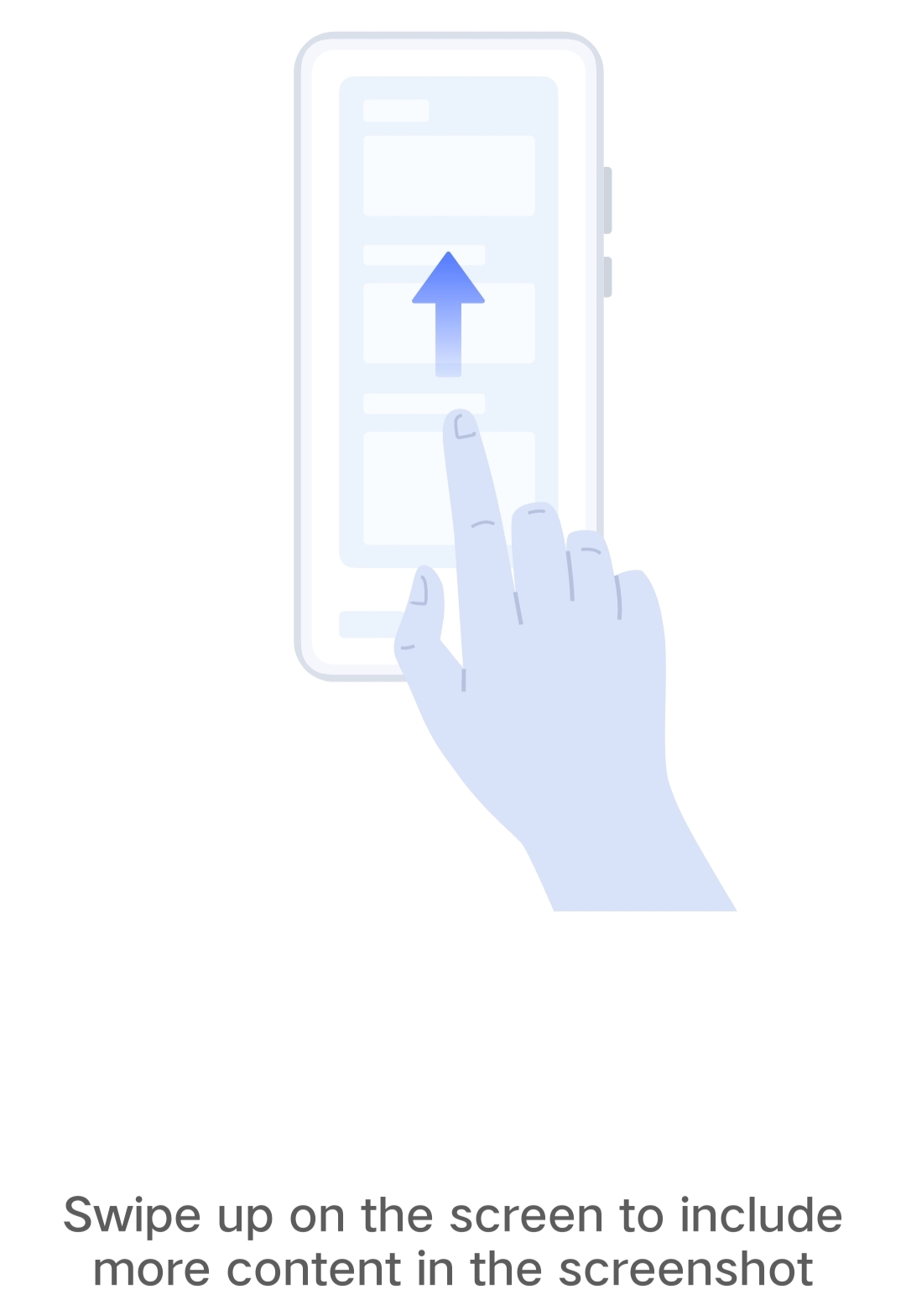
👉Method 2 : Take normal screenshot , if you are already enabled "screenshot floating window" option then a floating window appears on the screen with long screenshot and share option. Click on the long screenshot option .
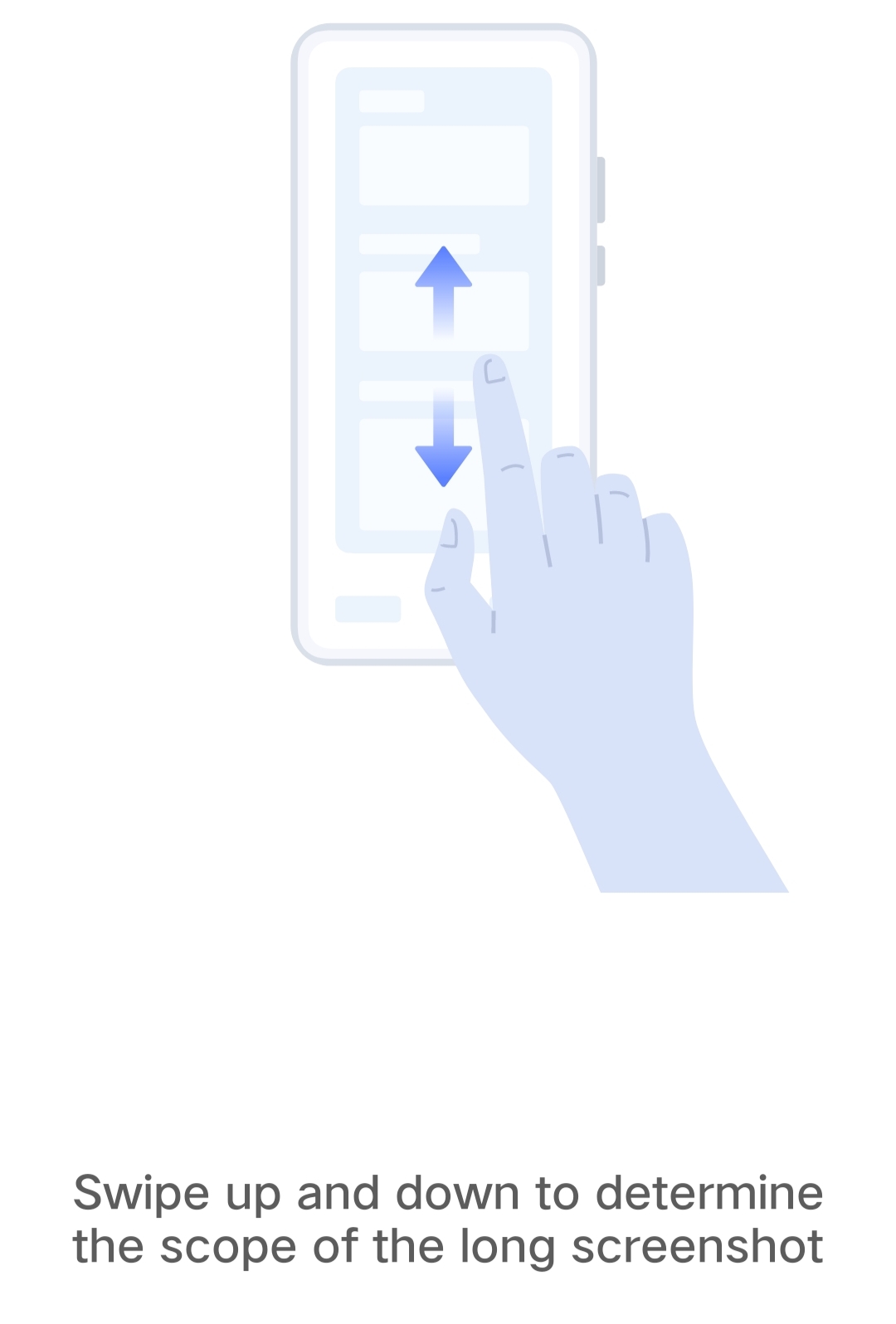
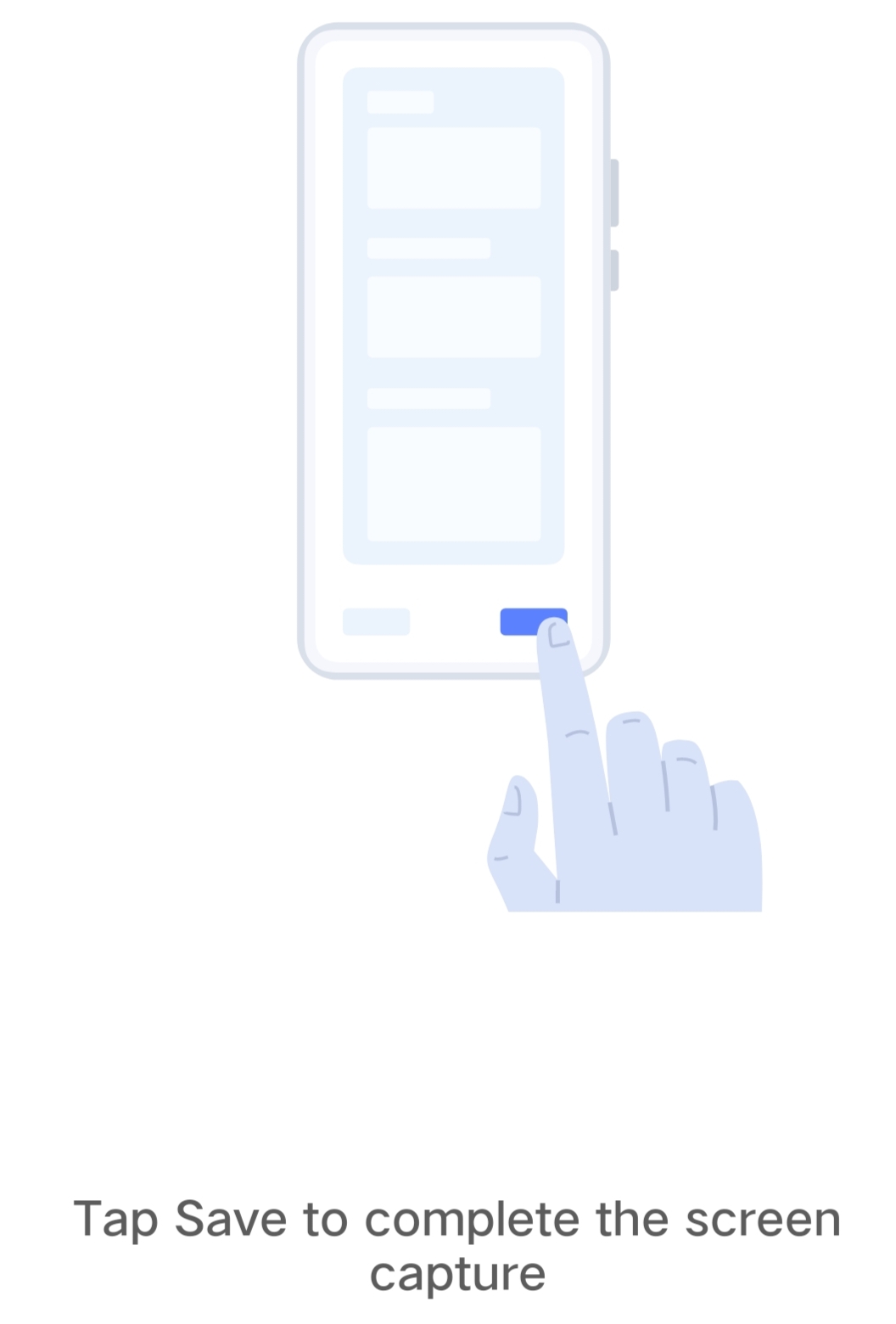
• Rectangular screenshot
Swipe down quick settings and tap on S- Capture button then select "rectangular screenshot" option from the floating window appears on the screen .
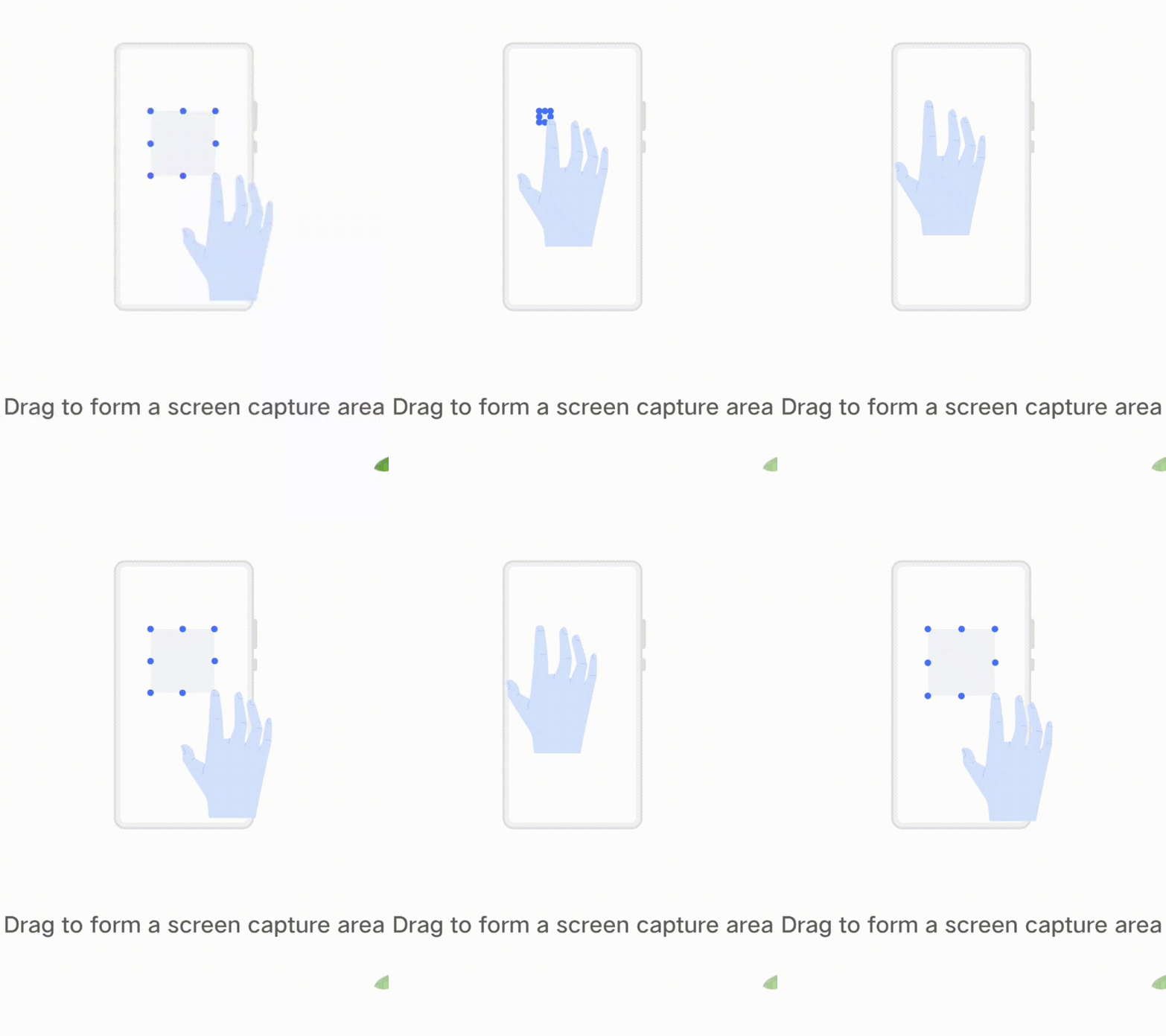
• Shaped screenshot
Swipe down quick settings and tap on S- Capture button then select "funny screenshot" option from the floating window appears on the screen ,after that select
shaped screenshot option from floating window appears on the bottom of the screen,then select a shape( You can also adjust the size of the shaped screenshot).
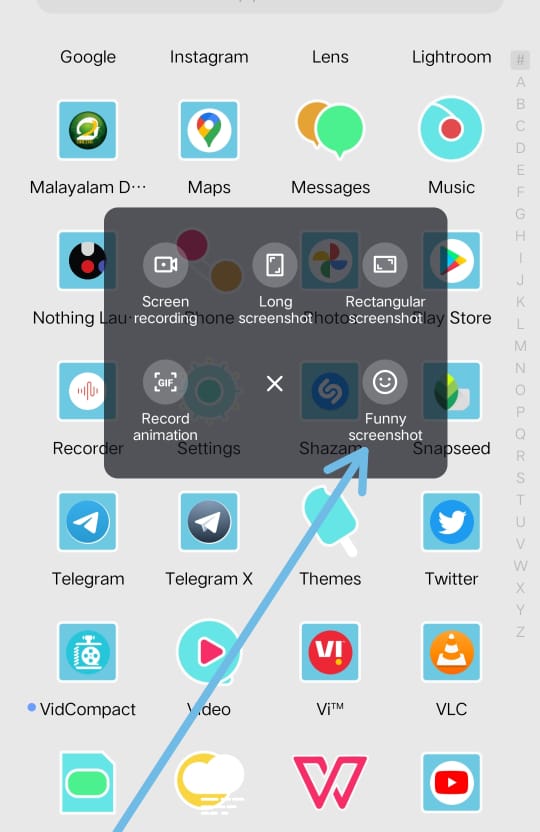
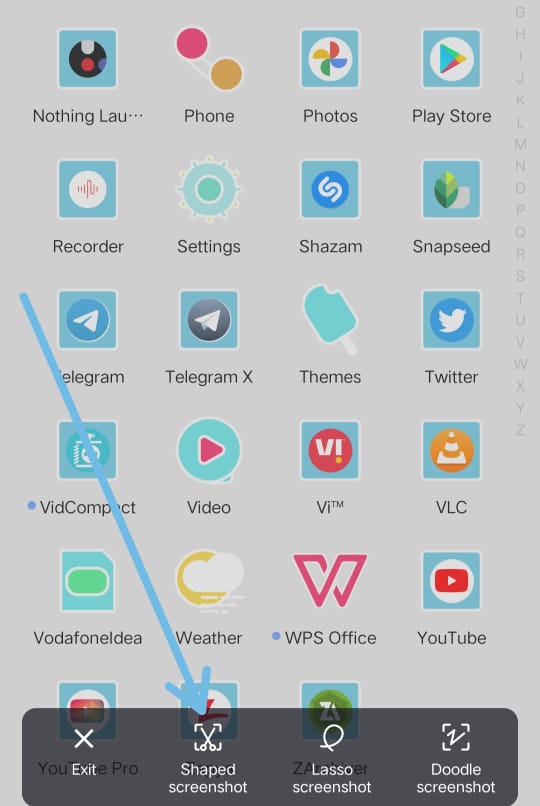
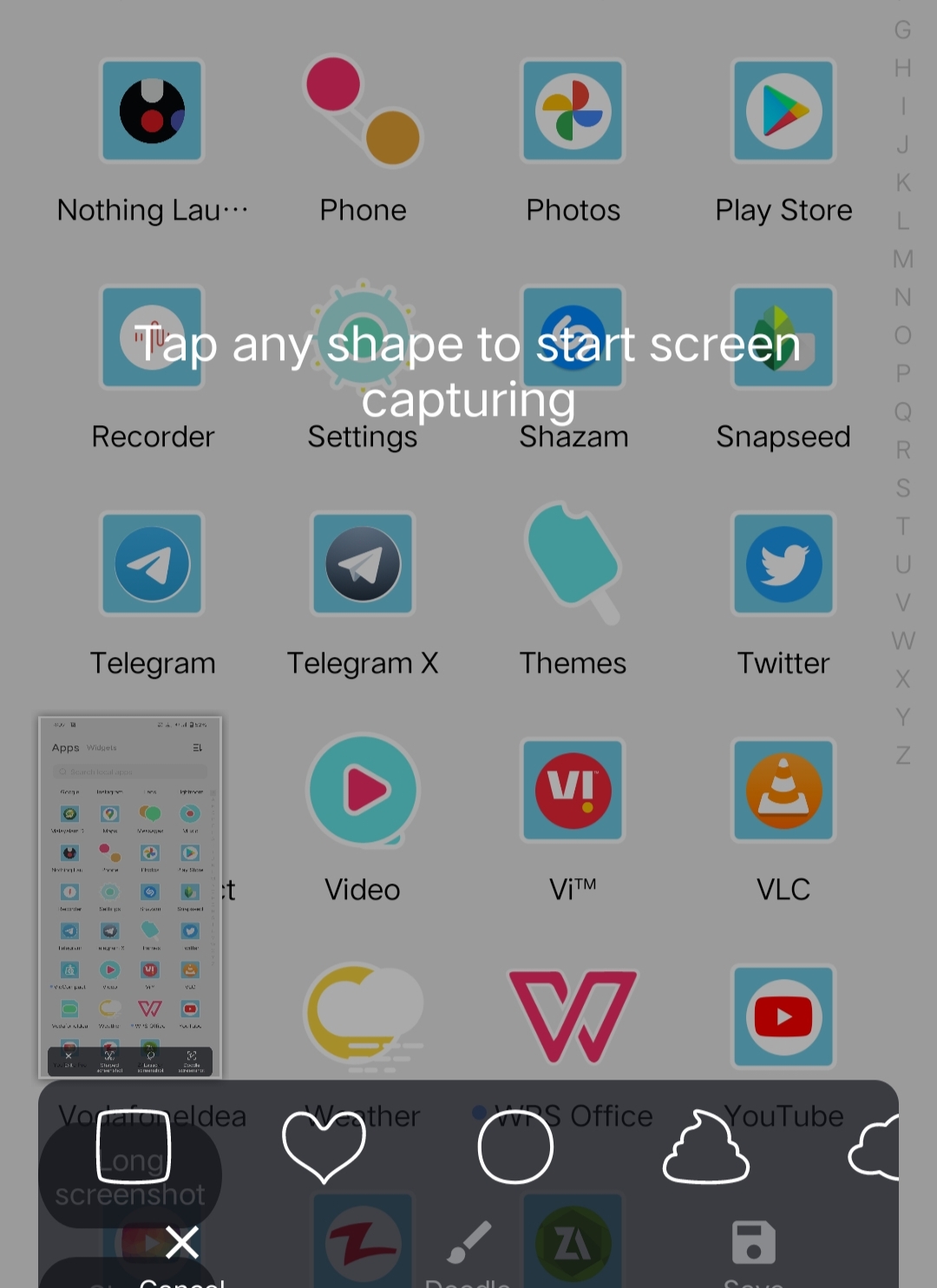
• Lasso screenshot
Swipe down quick settings and tap on S- Capture button then select "funny screenshot" option from the floating window appears on the screen ,after that select
"Lasso screenshot" option from floating window appears on the bottom of the screen.
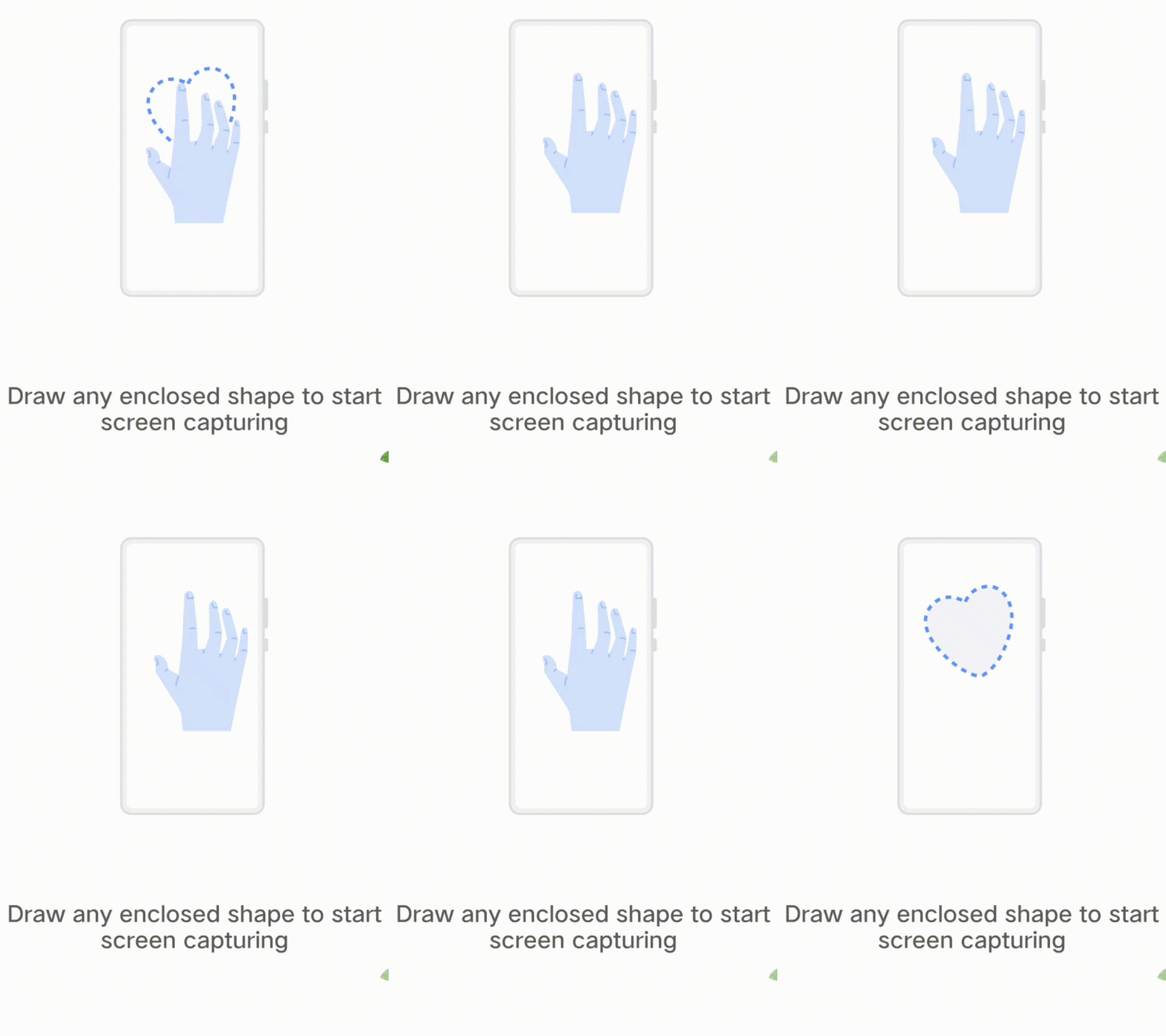
• Doodle screenshot
Swipe down quick settings and tap on S- Capture button then select "funny screenshot" option from the floating window appears on the screen ,after that select
"Doodle screenshot" option from floating window appears on the bottom of the screen.
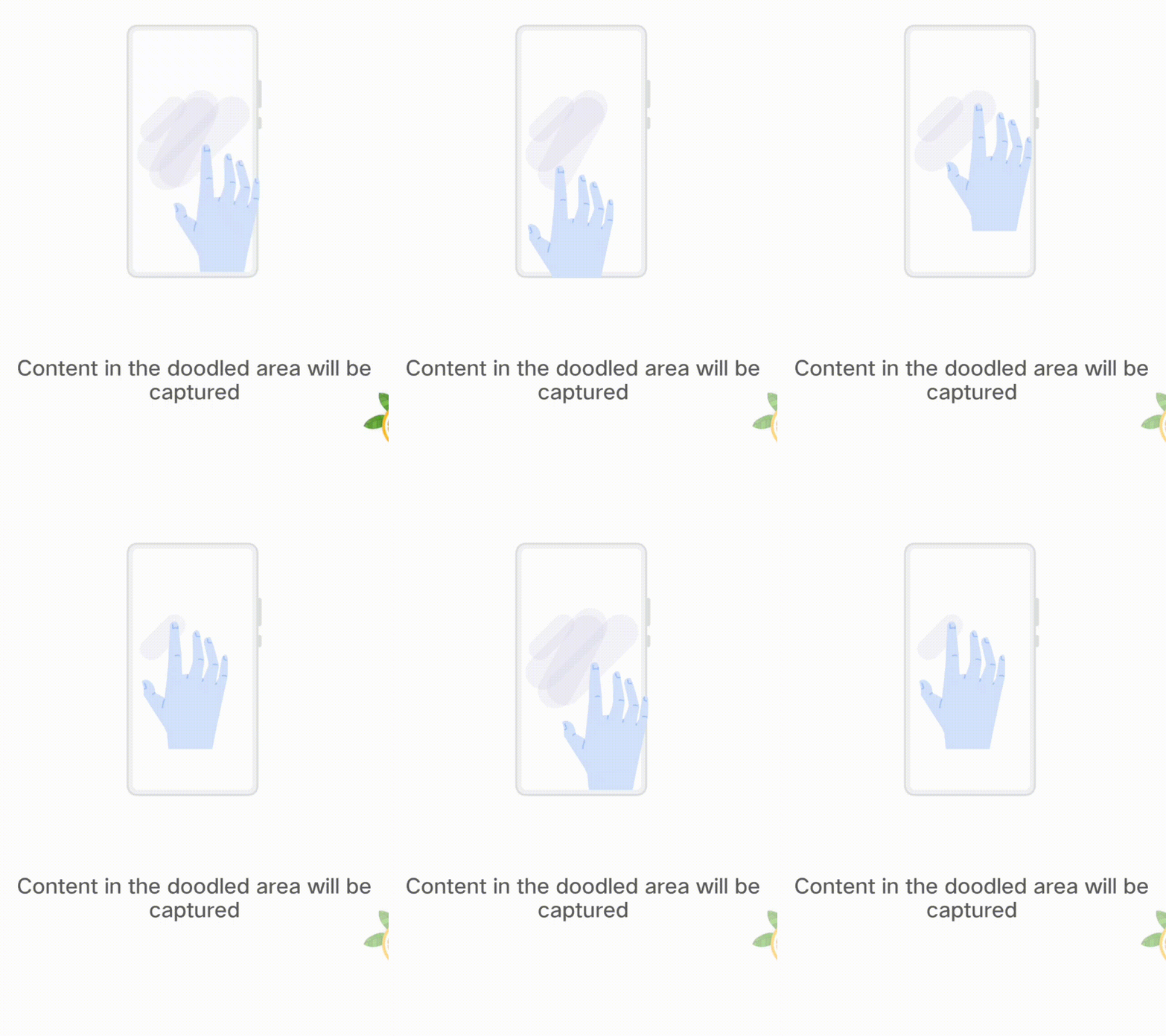
• Screen recording
From the screen recording interface, open Shortcut Center, and select S-capture > Screen recording to start recording the screen.
To finish the recording, tap the End button in the screen recording floating window or tap End in the Recording screen notification.
To pause the recording, tap the Pause button in the screen recording floating window or in the notification bar. Tap again to continue recording.
The recording will be stopped and saved
automatically when the duration reaches 59 min and 59 s or when the screen is off for 60 s duringt he recording.
In the Shortcut Center, tap and hold S-capture to quickly enter the S-capture settings interface.
Please sign in
Login and share