



























[T²: Tech Tips] How to Use Gemini AI Chatbot in Google Messages?


Hello, everyone!
Messaging apps like WhatsApp and Telegram dominate, but Google Messages remains popular for Android users. Now, with Gemini AI integrated, you can chat with Google's chatbot right inside Messages—without setting it as your default assistant. Here's how to use it, along with its pros and cons.
What is Gemini in Google Messages?
Gemini is Google's AI chatbot, built into the Messages app. It can draft texts, answer questions, generate images, plan tasks, and more. However, it won't work if you're under 18, using a Workspace/Family Link account, or don't have RCS enabled.
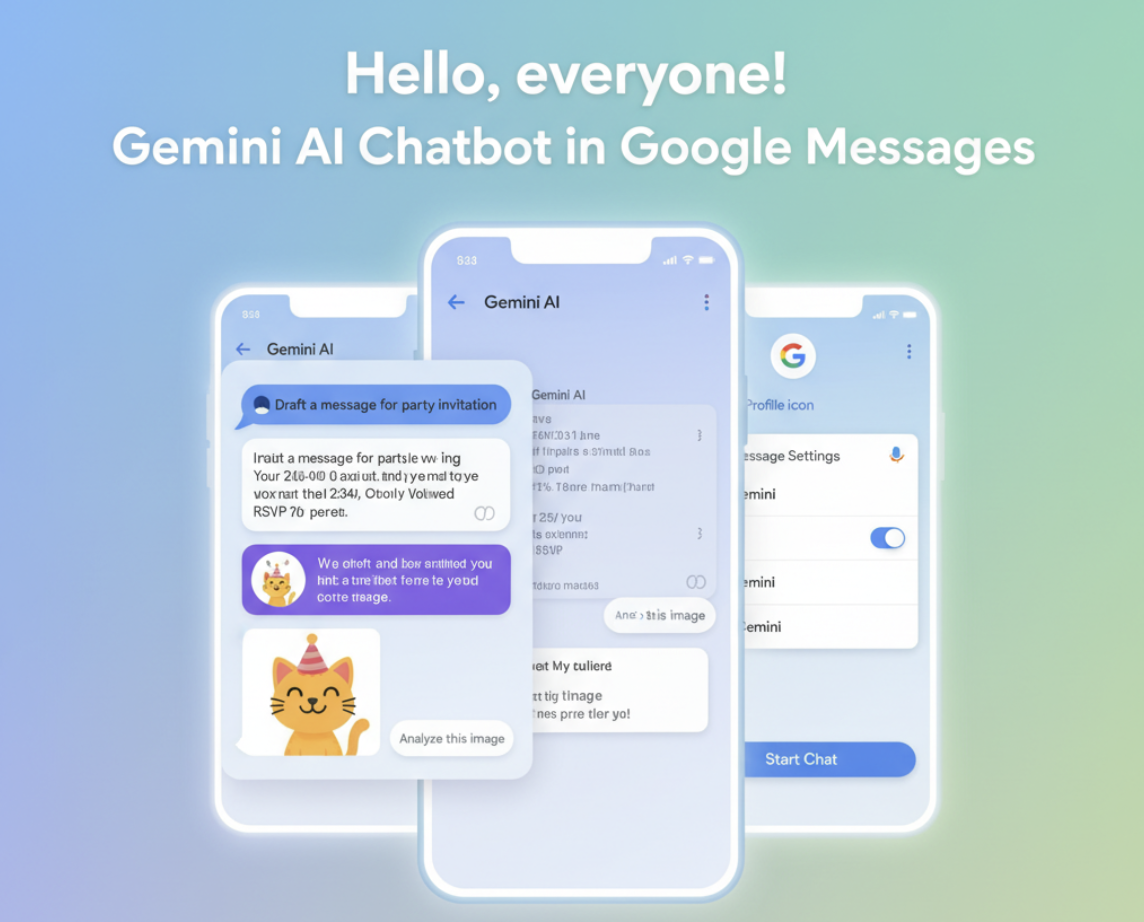
How to Start Chatting with Gemini
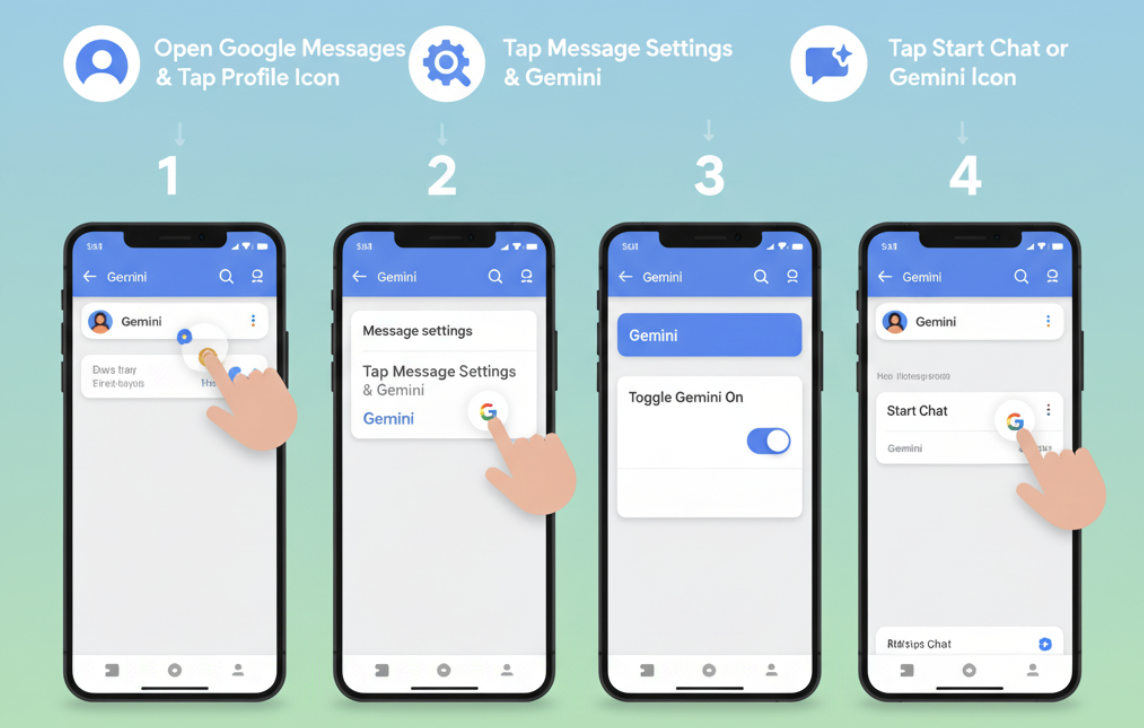
- Open Google Messages on your Android phone.
- Tap your profile icon → Message Settings → Gemini.
- Toggle Gemini on.
- Tap Start Chat or the Gemini icon.
- Type your prompt (or attach an image) and hit send.
Note: Chats with Gemini are not end-to-end encrypted.
Sending Messages via Gemini
Direct SMS from Gemini inside Messages isn't supported yet. You'll need the Gemini app, where you can write a text and ask it to send via Google Messages (if enabled).
Deleting or Removing Gemini
- To delete chats: open Gemini chat → three dots → Delete.
- To remove Gemini from Messages: Profile → Settings → Gemini → Toggle Off.

Pros of Gemini
- Generates and analyzes images.
- Helps draft and refine messages.
- Quick access without leaving Google Messages.
Cons of Gemini
- Chats lack end-to-end encryption.
- Limited to English and certain regions.
- Doesn't work in regular SMS threads.
- No web version access.
That's all for this thread! Stay tuned for the FAQs in our upcoming thread.
Ciao!
Signing off,
~just like you!
Please sign in
Login and share