
























✅Tips & Tricks Part -9 : Cool Chrome Flags That Unlock Secret Browser Powers 🧠

Hey Questers! 🌐
I am Manab I hope you all are fine In today tips & tricks Part -9 I want to dicuss with you about 🚀 Cool Chrome Flags That Unlock Secret Browser Powers 🧠
Did you know your Google Chrome browser hides secret experimental features that can supercharge your browsing experience? 🤯
These are called Chrome Flags, and today I’ll reveal some of the coolest ones you must try!
What is a Chrome Flag?
Chrome Flags are experimental features that Google hasn’t released yet, but you can access and test them. Just remember, these aren’t ready for an official release just yet. This means they may not work very well all of the time. You may encounter the occasional hiccup, bug, or crash.
How do you access Chrome Flags settings?
No matter how much you dig into menus and options, you won’t find them in the settings unless you know how to access this section. You need to know your way in!
How to access the Chrome Flags page:
1 Open Chrome.
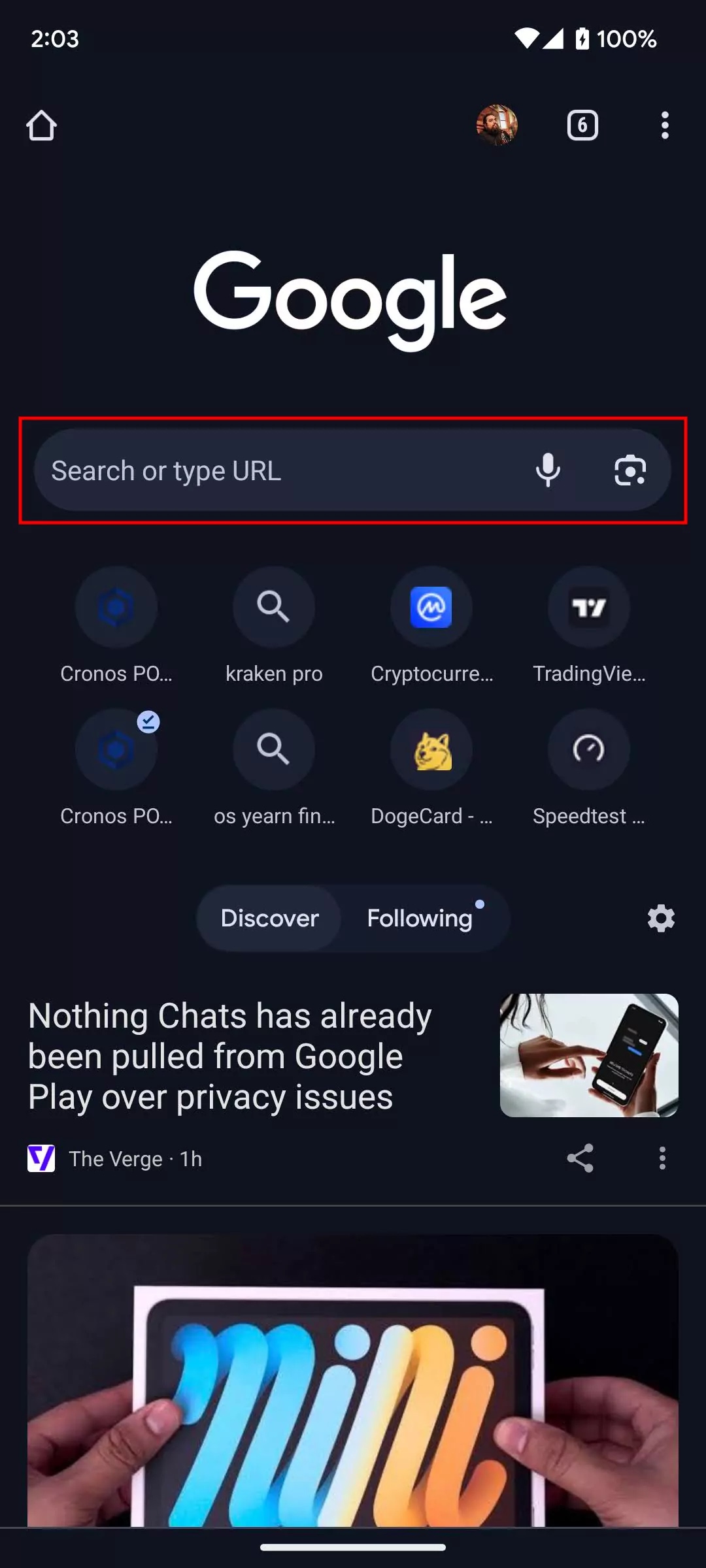
2 Click on the address and delete any URL that might be in it.
3 Type the following in the address bar:
“chrome://flags/” (without quotation marks).
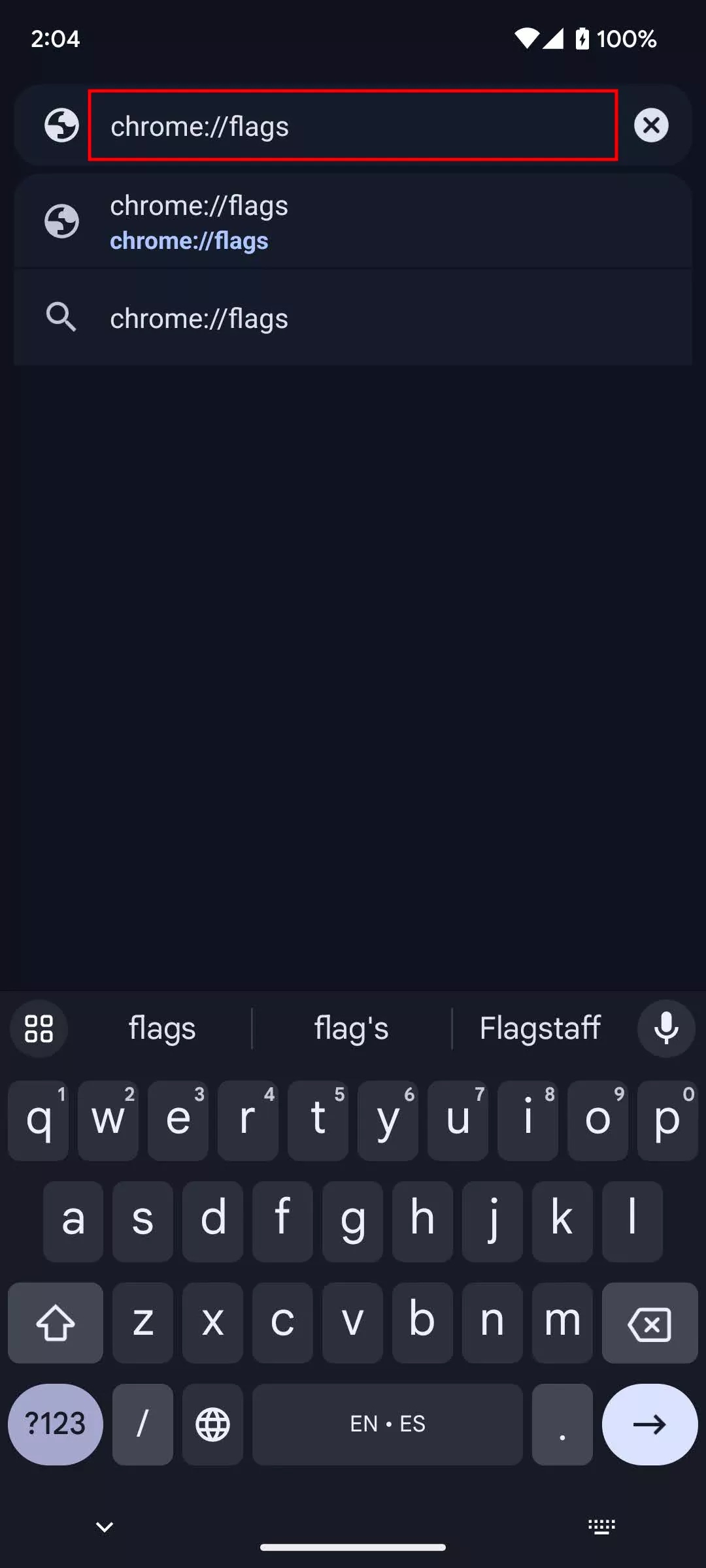
4 Press Enter.
5 You are in!
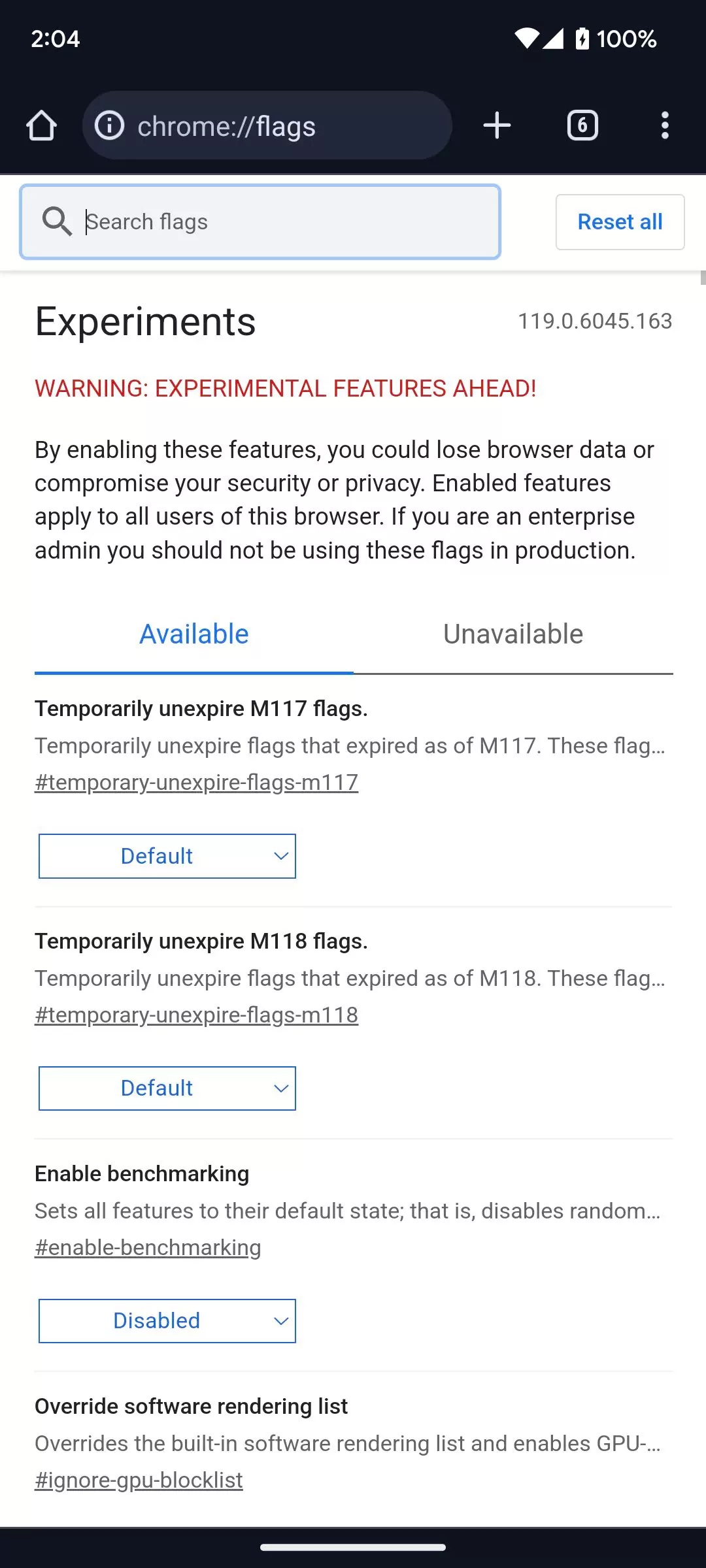
By the way, these steps work both on mobile and desktop. That said, not all Chrome Flags are available for all platforms. There are two primary tabs on the page: Available and Unavailable. Some of these experimental features are only available on specific devices. You can’t use features made for Android on devices like a laptop, for example.
How to enable a Chrome Flag:
1. Once you find yourself within the page, go ahead and search for the Chrome Flag you want to try out.
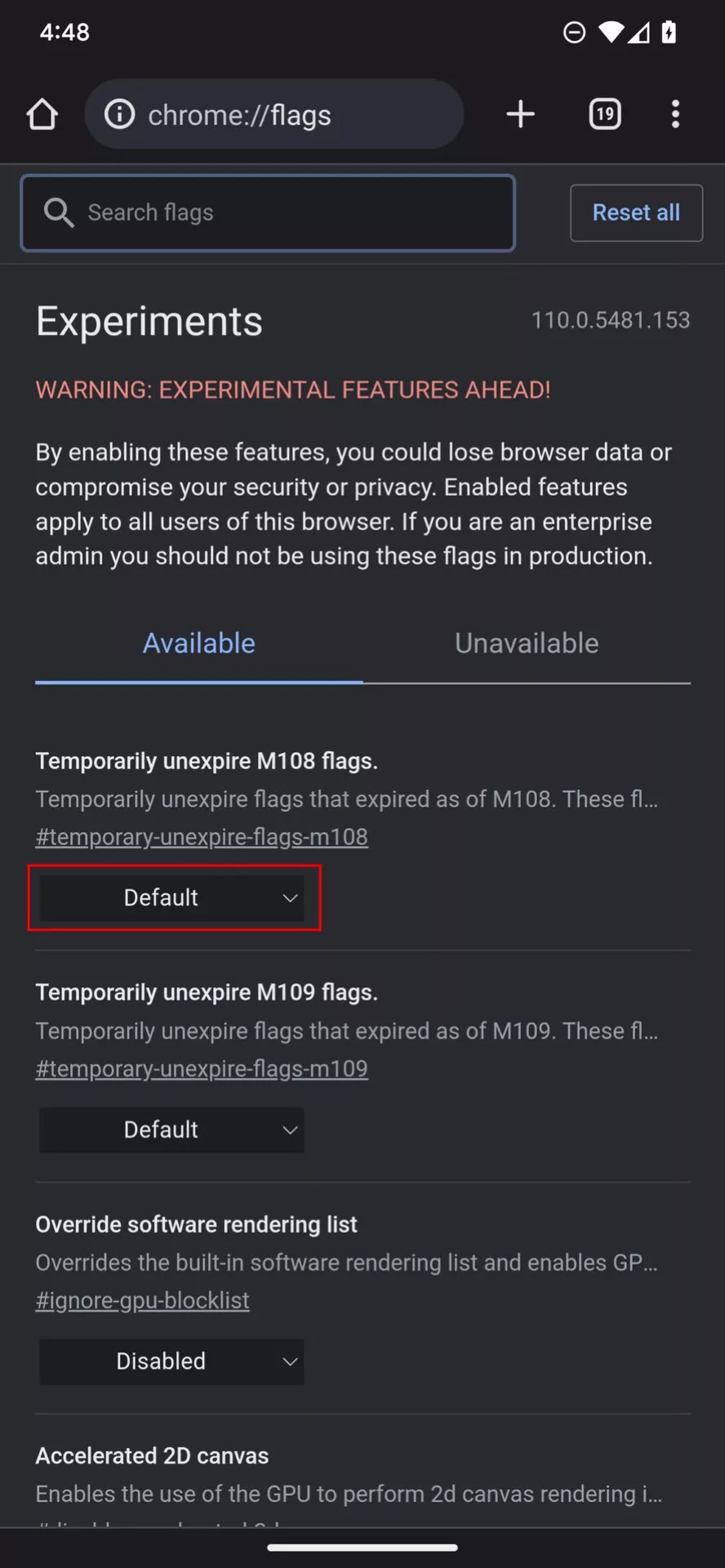
2 Select the drop-down menu under the Flag you want to use. It usually reads either Default or Disabled.
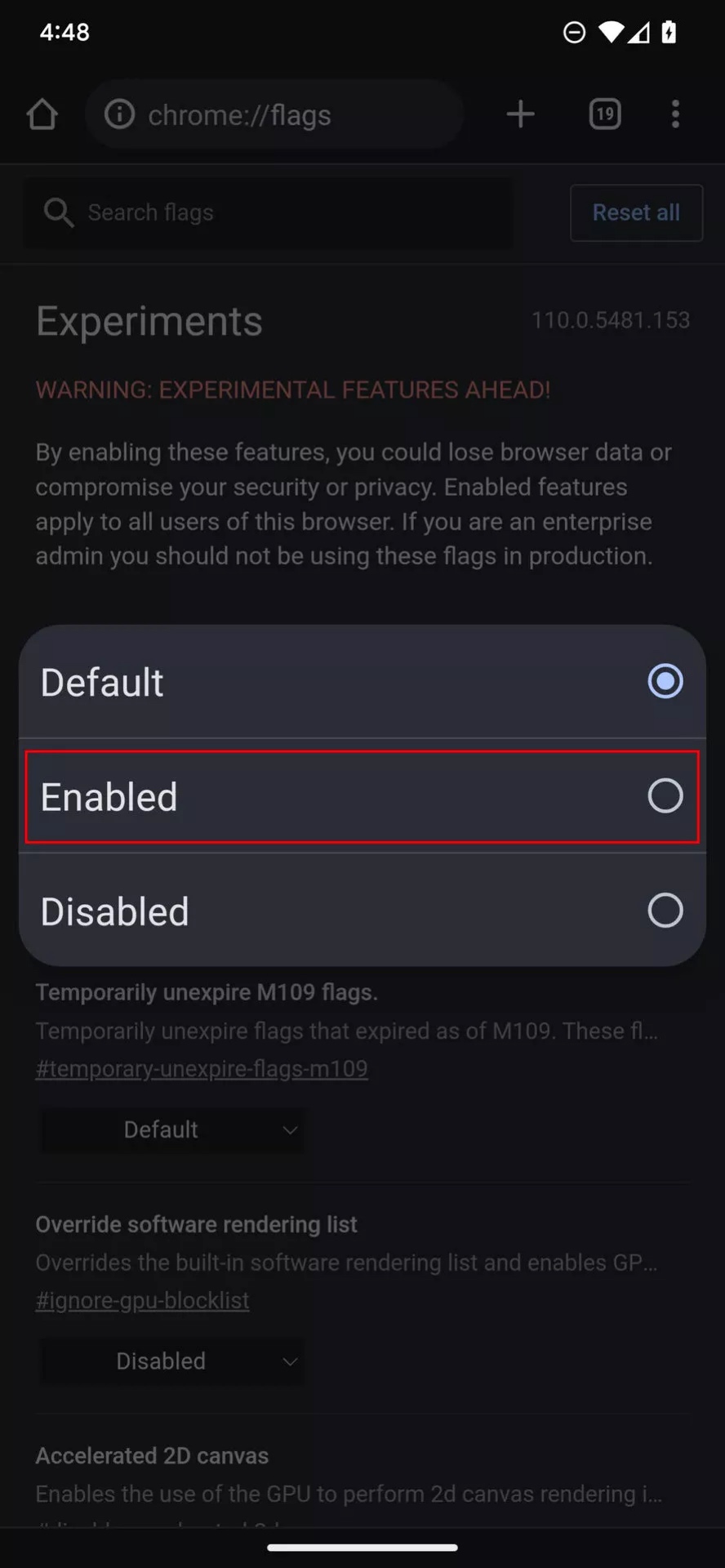
3 Select Enabled.
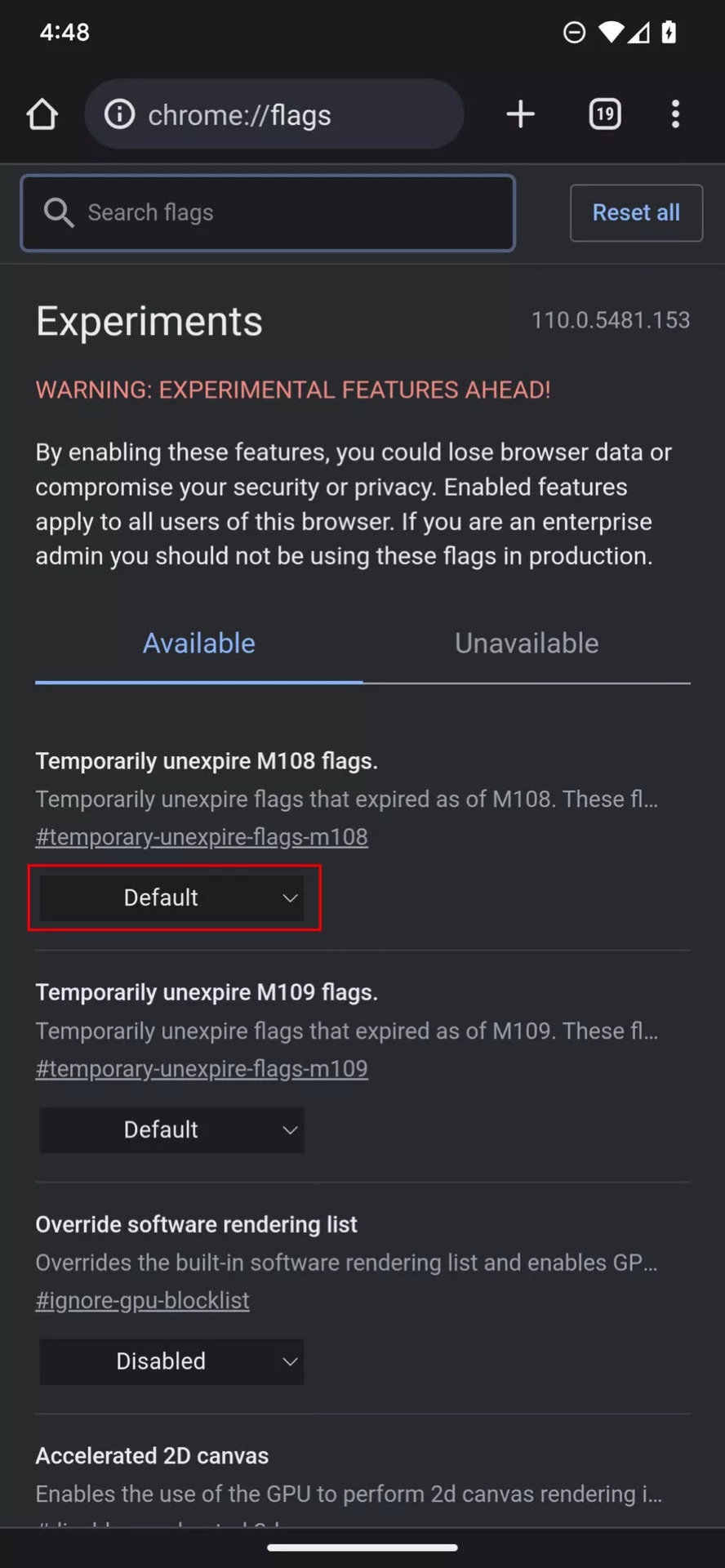
4 You’ll need to relaunch Chrome most of the time. Hit Relaunch if the option shows up.
Lets Explore 🔥
Chrome is known for its simplicity and speed. Despite this, it has many extra tools under the hood, including several experimental features that can be accessed through special Chrome Flags.
Considering these are all test features that might not even make it to the stable version of Chrome, bugs are expected. Nonetheless, if you are willing to go through the occasional hiccup, some enable an improved browsing experience. Let’s take a look at some of our favorites.
Smooth Scrolling
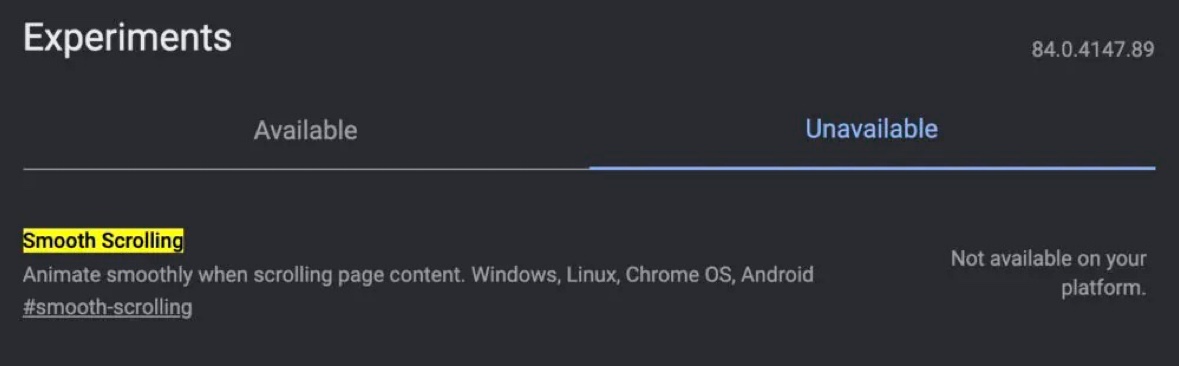
Ever notice your scrolling stutter or that it can get a bit sluggish? There could be many reasons it’s happening, but this Chrome Flag will likely improve the situation. Search for “Smooth Scrolling” in the search bar and enable the feature. It’s a great feature Android users should enable, but you can also use it on Windows, Linux, and Chrome OS.
Touch UI Layout
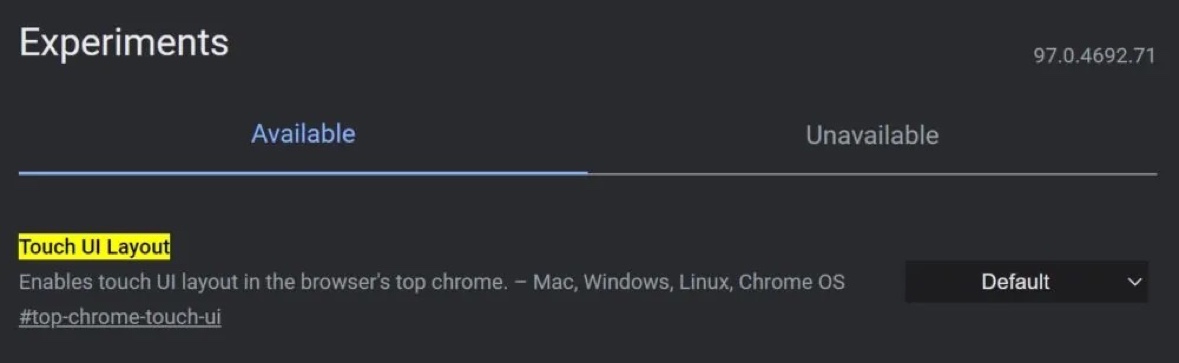
Many convertible laptops, Windows tablets, and other devices now come with capable touch screens. This makes it possible to interact with content more naturally. Sometimes, the desktop interface doesn’t work well with touch commands, though. The browser has a touch-optimized UI hidden in the Chrome Flags.
In the search bar, search for “Touch UI Layout.” Click on the drop-down menu next to it and select Enabled.
Experimental QUIC Protocol
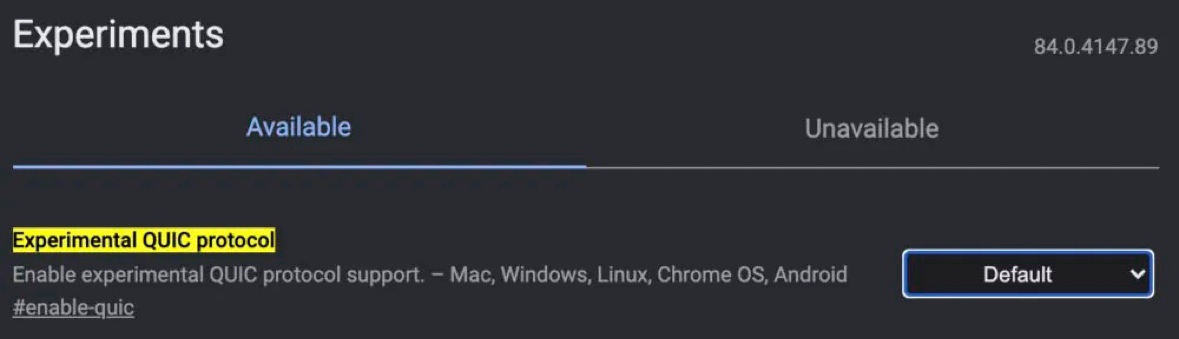
Certain Chrome Flags speed up your browsing experience. QUIC is Google’s protocol, and it’s designed to make the web faster. Enabling this one will speed things up, but only when websites have been optimized for it. Something is better than nothing, though!
On the main page, search for “Experimental QUIC Protocol.” Click on the drop-down menu next to it and select Enabled.
Enable Zero-copy rasterizer
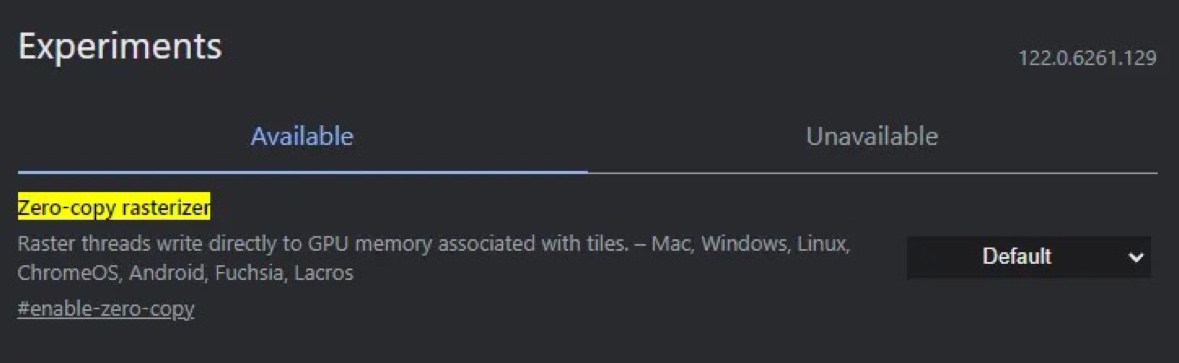
If you want Chrome’s general performance to be faster, one neat trick is to enable Zero-copy rasterizer. This will allow Chrome threads to write directly to the GPU for tile management. In turn, Chrome should operate faster, at least theoretically. Whether you’ll actually notice a difference is another story. Also, it makes Chrome more prone to crashes. You can definitely give it a try, though.
Search for “Zero-copy rasterizer” and enable it in the drop-down Chrome Flags menu.
Auto Dark Mode for Web Contents
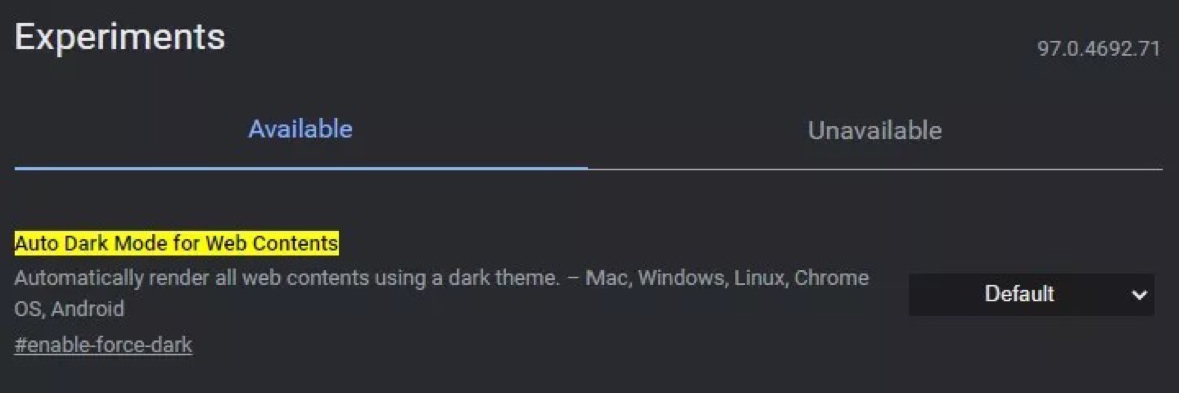
Dark Mode is pretty cool, both aesthetically and for eye comfort reasons. If you are also a fan of it, you want all website content to support it. Sadly, not all websites cooperate, but a secondary option forces the option on all websites.
Open the Chrome Flags page and search for “Auto Dark Mode for Web Contents.” Then, using the drop-down menu next to it, enable the feature.
Parallel Downloading Chrome Flag
Waiting for large files to download can be a hassle. Let’s cut delays by dividing downloads into multiple files to be downloaded simultaneously.
Search for “Parallel Downloading” and enable the feature using the drop-down menu to the right.
Show autofill predictions
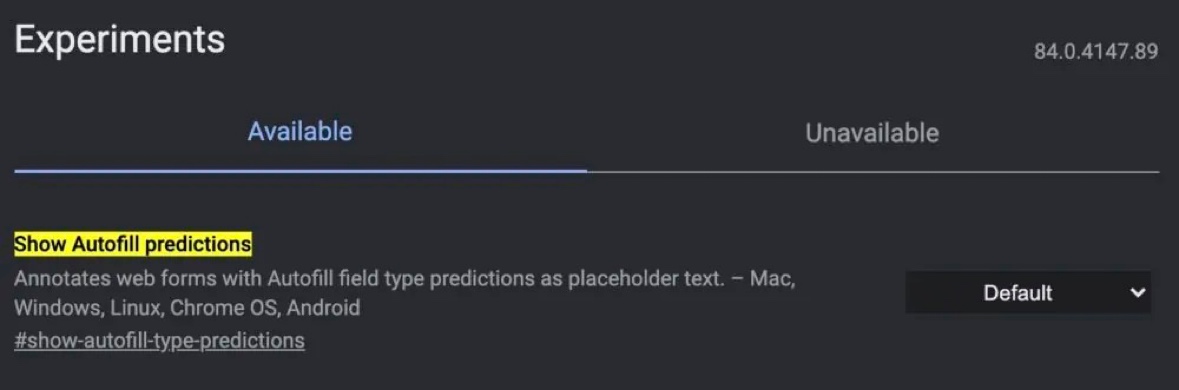
Nobody likes filling out forms, so Google simplifies this process using autofill. Still annoying? You can automatically have Chrome autofill form information by enabling the “Show autofill predictions” feature.
Search for “Show Autofill Predictions” and enable the feature using the drop-down menu to the right.
Autofill your buy now pay later info
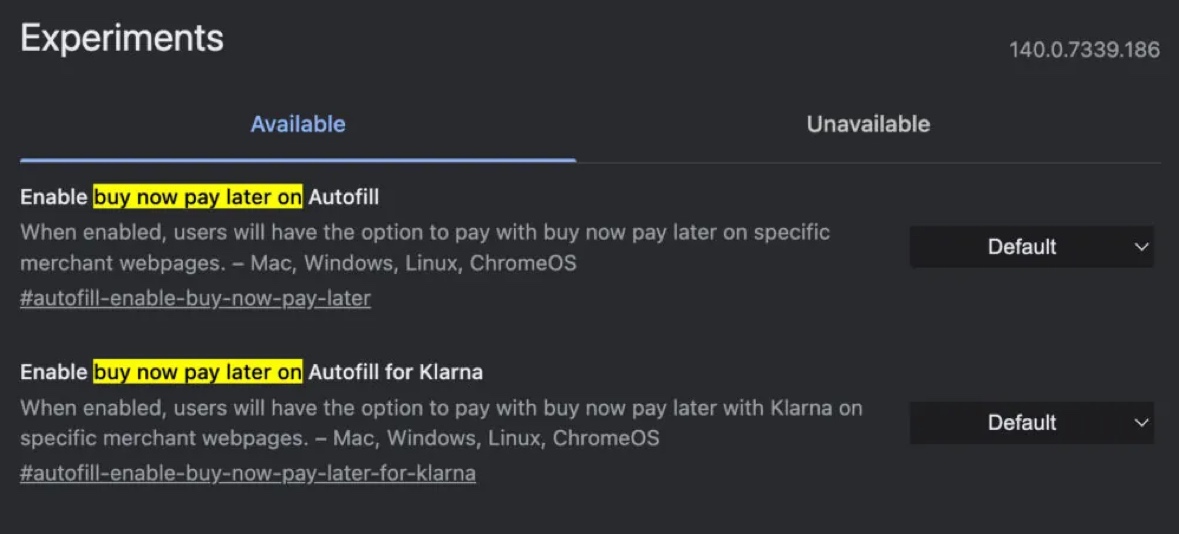
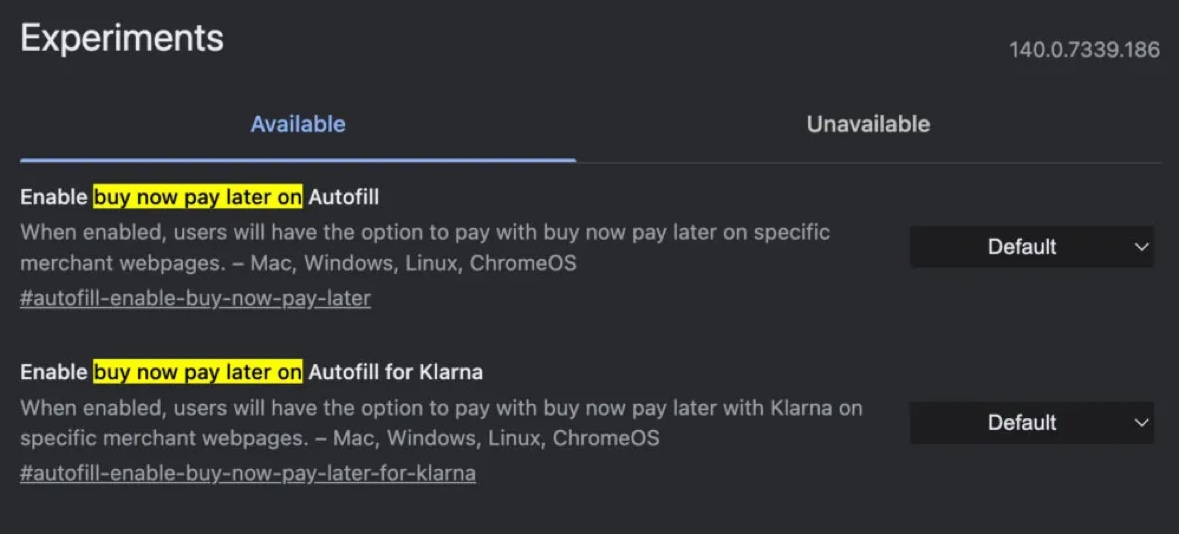
Are you a fan of buy now pay later services? You’ll quickly find out your info won’t commonly be automatically filled. This is why the Google team has introduced both the general and the Klarna-specific autofill Chrome flags. It won’t work on all websites, but it is a step in the right direction if you use these services often.
Search for “buy now pay later on” and enable the Chrome flags.
GPU Rasterization
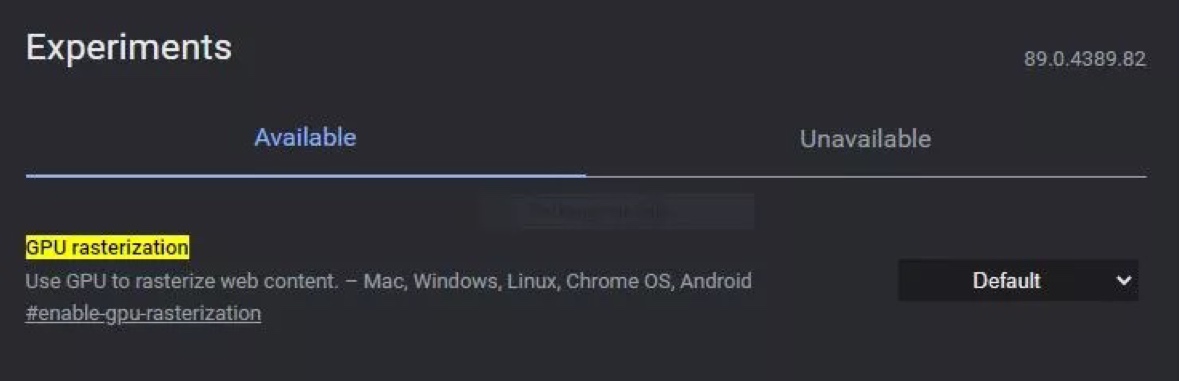
Is Chrome simply not fast enough for you? We know how you can harness the full power of your computer to speed things up. There’s a trick, though; you need to have a dedicated GPU for this one to make any improvements to Chrome’s performance. GPU Rasterization allows Chrome to take some of the workload off the CPU and have your GPU take care of it.
Here’s how to do it. Search for “GPU rasterization” and enable the feature using the drop-down menu.
Tab Scrolling
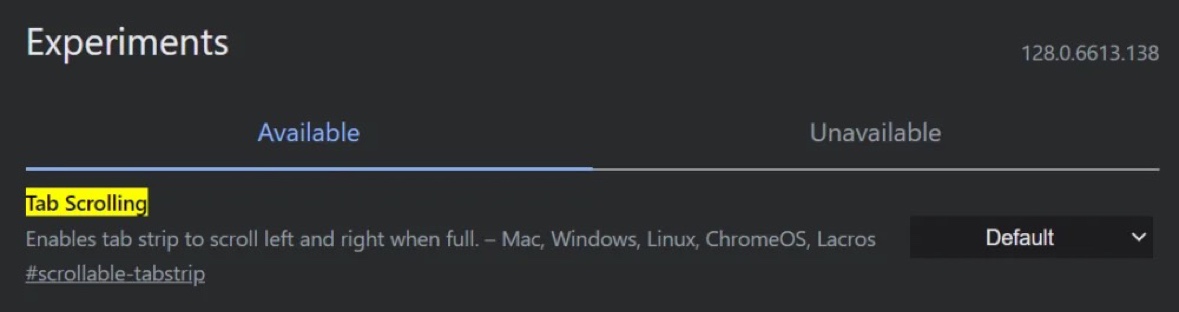
I like keeping my tabs in check, but we know many of you like to have a bunch of tabs open at all times. This results in a row of what seems like a million tiny tabs that become unrecognizable, and I have no idea how anyone can figure out which tab is which. The Chrome UI just wasn’t made for so many tabs, but Google is starting to change this with scrollable tabs. This keeps them larger, but allows you to scroll through all open tabs, giving you at least a bit of readability.
Go to the Chrome Flags, look for “Tab Scrolling,” and then use the drop-down menu to enable the feature.
Override software rendering list
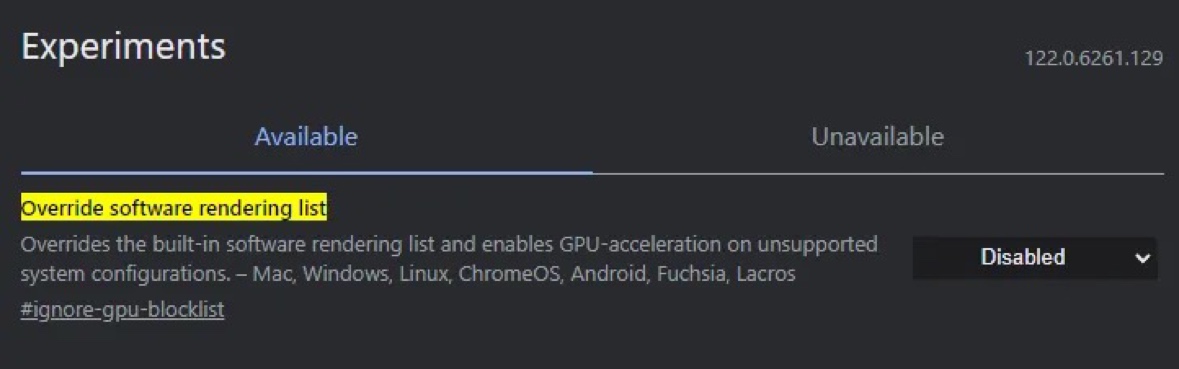
GPU acceleration on Chrome is usually only available for supported devices. But, of course, there is a Chrome Flag for nearly everything. You can force Chrome to use GPU acceleration, even on unsupported devices. Just be warned that this may cause compatibility issues, as systems are often not supported for a reason.
Just look for “Override software rendering list” and enable the Chrome Flag.
Partial swap
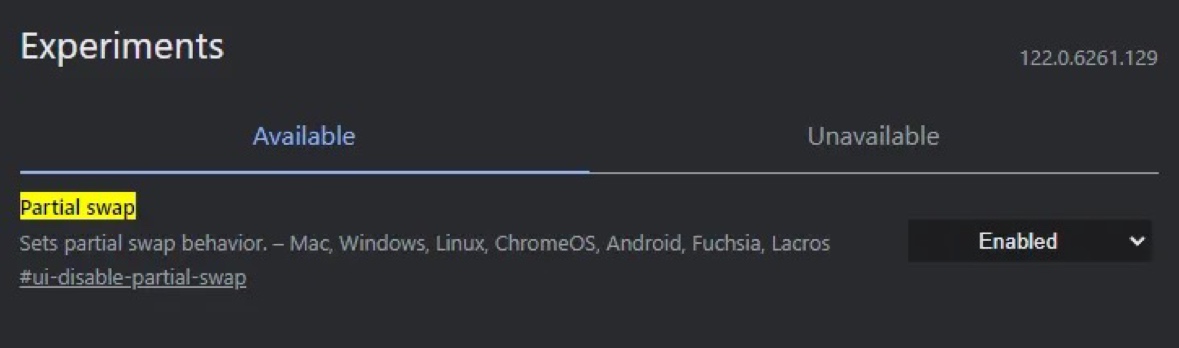
Partial Swap improves memory management, and can supercharge your browser’s performance. It basically swaps memory usage, prioritizing tabs and tasks you are using at the moment. The thing is, this can also cause issues from time to time.
Partial swap comes enabled by default, so search for “Partial swap” to disable it. Or, if it’s disabled, you can try to enable it and see if it helps.
Are Chrome Flags safe?
Once in the Chrome Flags settings, you will see a warning message telling you about the dangers of using them. This is because experimental features can cause issues and hiccups in the browser. They are usually not too unstable, but some can be. Regardless, you can easily disable them. The worst that could happen is you’ll encounter the occasional crash or bug, so they are safe to use.
⚠️ A Little Warning!
These features are experimental, so some might be unstable.
If Chrome acts weird after enabling them, just click “Reset all” at the top of the Flags page. 🧹
🎯 Pro Tip:
When Experiment with one or two flags at a time.You’ll soon discover how powerful Chrome can truly be! 💻✨
Source 🔗 - Chrome flags
💬 Your Turn!
Which Chrome Flag blew your mind? Or do you know any secret ones?
Drop it below ⬇️ and let’s make browsing smarter together! 🌐💬
Thanks @iQOO Connect ❤️
Signing Off
Your Relentless Quester
Manab ✍️

Please sign in
Login and share