



























🚀 Stealth Mode ON: Encrypt and Hide Your Personal Apps for Ultimate Privacy!

Hello Questers 👋,
Like me, everyone loves the sheer speed and power of our iQOO devices, but security and privacy are just as crucial. Ever wish you could make certain apps, like your banking, social media, or private photo albums, vanish from plain sight?
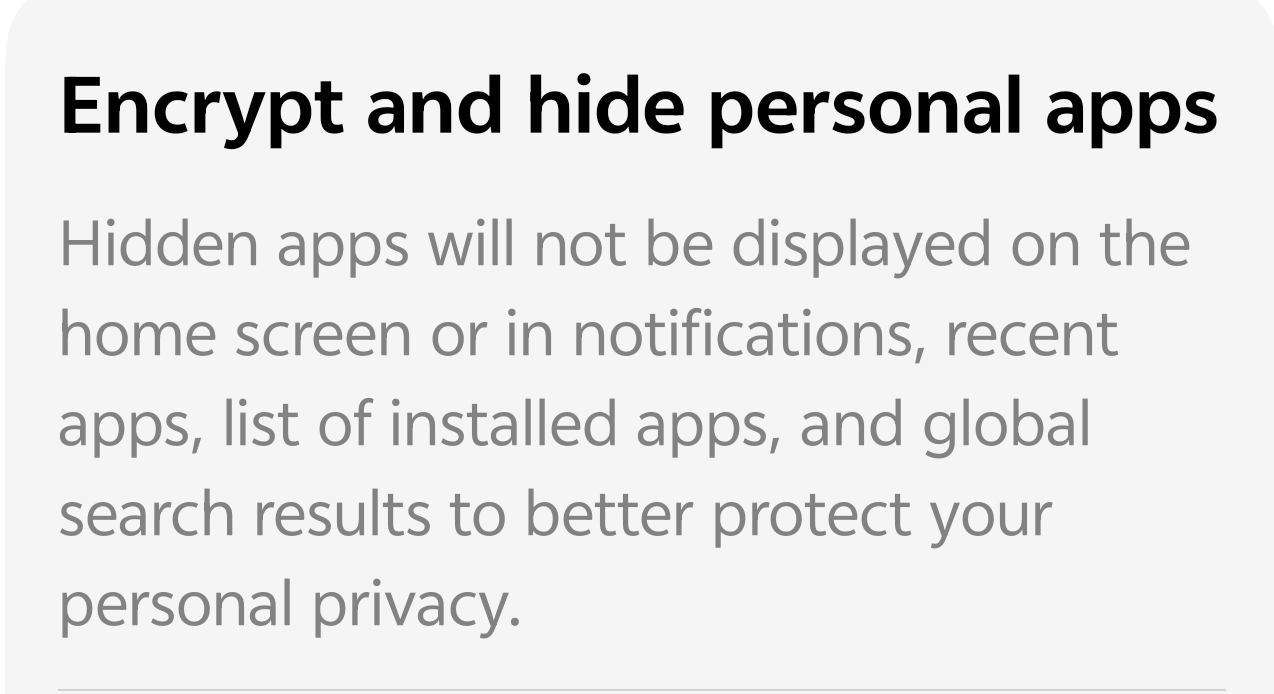
Good news! Latest OriginOS offers a powerful App Hiding feature that lets you do exactly that, ensuring your most personal data stays protected and completely invisible to curious eyes.
🛡️ Why Hide Your Apps?
The Encrypt and hide personal apps feature is a game-changer for privacy. When an app is hidden, it's not just gone from your home screen; it's protected across the entire phone:
A) Invisible on Home Screen: No app icon to be seen.
B) Zero Notifications: Hidden apps won't display notifications that could give them away.
C) Not in Recent Apps: No trace in your recent task list.
D) Excluded from Search: They won't appear in the global search results.
E) Absent from Installed Lists: They are even removed from the general list of installed applications.
This creates a digital vault for your most sensitive applications, adding a critical layer of personal security!
⚙️ How to Master App Hiding on Your iQOO Device
Setting up this digital cloak is quick and easy. Follow these steps:
1. The Setup (Hiding the Apps)
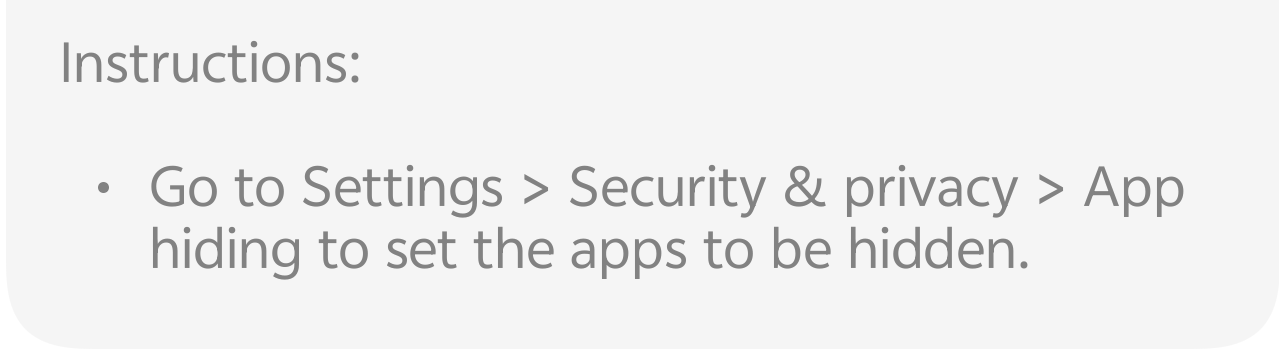
• Go to Settings.
• Navigate to Security & privacy (or just Security or Privacy on some models).
•Look for App hiding (or Privacy & app encryption > Hide App).
•Set a Privacy Password: If you haven't already, you'll be prompted to set a privacy password. Do not forget this! You'll need it to access your hidden apps.
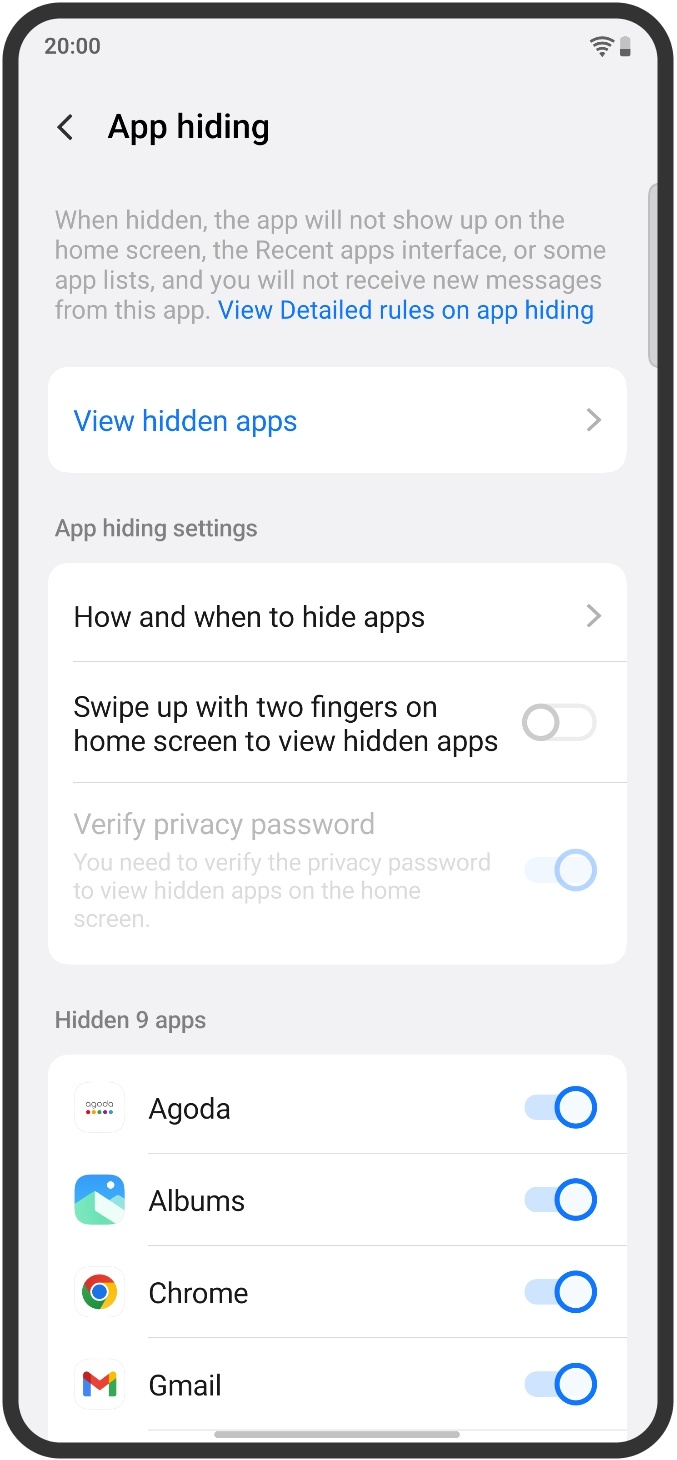
• Choose Your Apps: You will see a list of all your installed apps. Simply toggle the switch ON for every app you want to hide (like Agoda, Albums, Chrome, and Gmail in the example image).
2. The Access (Viewing Hidden Apps)
Once hidden, how do you get them back? The best part is the super-cool, discreet gesture!
• Enable the "Swipe up with two fingers on home screen to view hidden apps" option in the App Hiding settings.
• Now, whenever you want to open your secret apps, simply swipe upward with two fingers on your home screen.
• You will be prompted to enter your Privacy Password (or use your Fingerprint/Face ID).
• Your hidden app drawer appears, giving you secure access to all your protected
applications.
💡 Pro Tip for iQOO Users
Make sure to enable "Verify privacy password" for an added layer of security. This ensures that even after viewing your hidden apps once, you'll need the password again the next time you use the two-finger swipe gesture.
Give this powerful privacy tool a try and let me know which apps you've locked down in the comments!👇
Follow me ➡️ @TechieGuyfor more such amazing content 🤘 🤩.
Please sign in
Login and share