



























🚀 Quick Tip: Master Multitasking with Small Windows on your iQOO Devices!!

Hey Questers 👋,
If you're all about speed and multitasking, you need to be using the Small Window (also known as Floating Window) feature on your iQOO device! This lets you run an app in a miniature, movable window over your main screen, which is perfect for checking a quick message, doing a calculation, or watching a short video while you're gaming or browsing.
Here's an simple, step-by-step guide to launch a Small Window from the Recent apps interface :
👆 The Quick-Launch Method (Requires Full Screen Gestures)
This method is for those of you who have "Full screen gestures" enabled in your system navigation settings.
1. Open Recent Apps: From the bottom of your screen, Swipe up and Pause for a moment. This will bring up the "Recent apps" interface (the card view of all your currently open apps).
2. Select Your App: Look for an app that supports the Small Window mode (like Calculator, Messages, or many social/utility apps).
3. Tap to Open: Tap the small down-arrow icon (or sometimes the app's logo) at the top of the app's card preview.
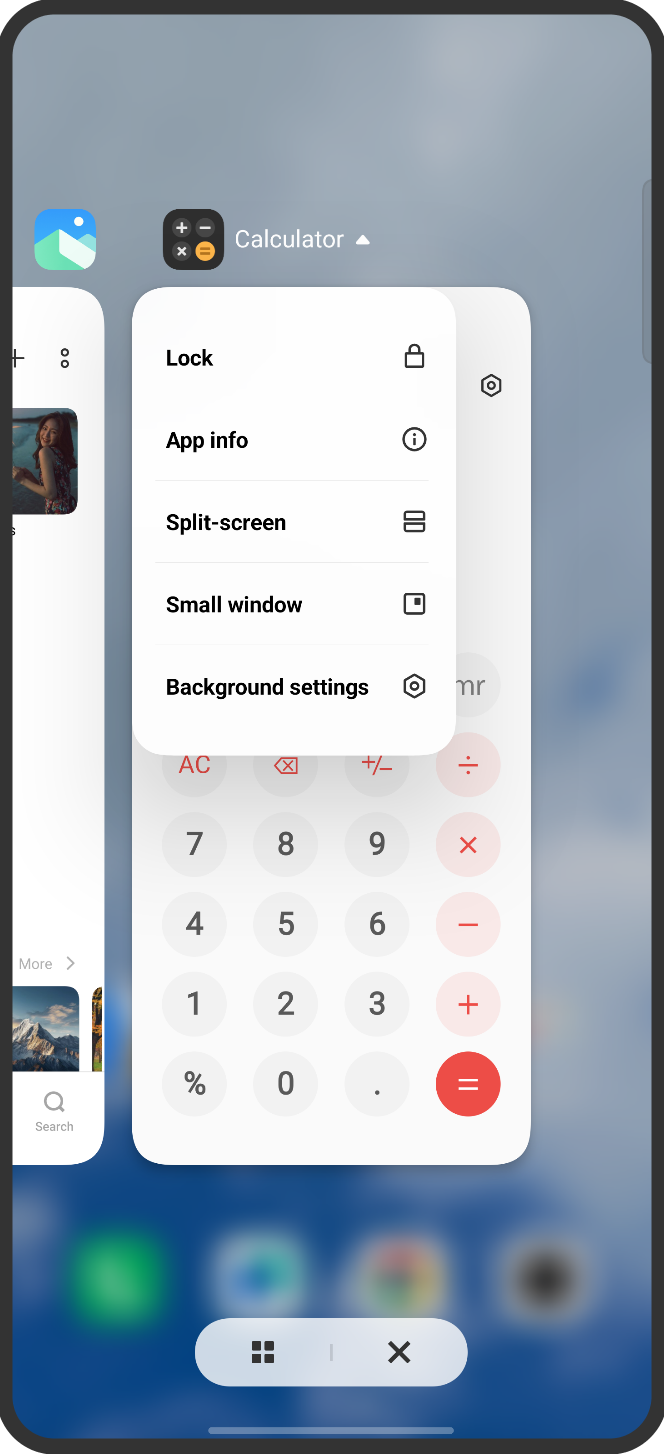
4. Select Small Window: A menu will pop up.
Tap on "Small window" to launch the app in a floating window.
Voila! Your app will now be floating, ready for some next-level multitasking!
🎨 What You Can Do with a Small Window
• Move It: Drag the window's top bar to position it anywhere on your screen.
• Resize It: Drag the corners or edges to make the window bigger or smaller.
• Hide It: Tap the minimize icon or drag the window towards the side of the screen to minimize it into a small floating icon.
• Exit It: Tap the 'X' button to close the small window and return to your main app.
• Enter Split-Screen: For some apps, you can drag the small window to the top or bottom edge of the screen to quickly enter Split-Screen mode.
💡 Why Use Small Windows?
• Never Miss a Beat: Check a crucial message without leaving your game.
• Quick Calculations: Have your Calculator open while you're shopping or working on a document.
• Reference Material: Keep notes or a recipe open while you're using a different app.
Follow me ➡️ @TechieGuy for more such amazing content 🤘 🤩.
Please sign in
Login and share