



























🔒 The Ultimate Privacy Trick: Lock Your Android Phone to a Single App

Hello Questers!
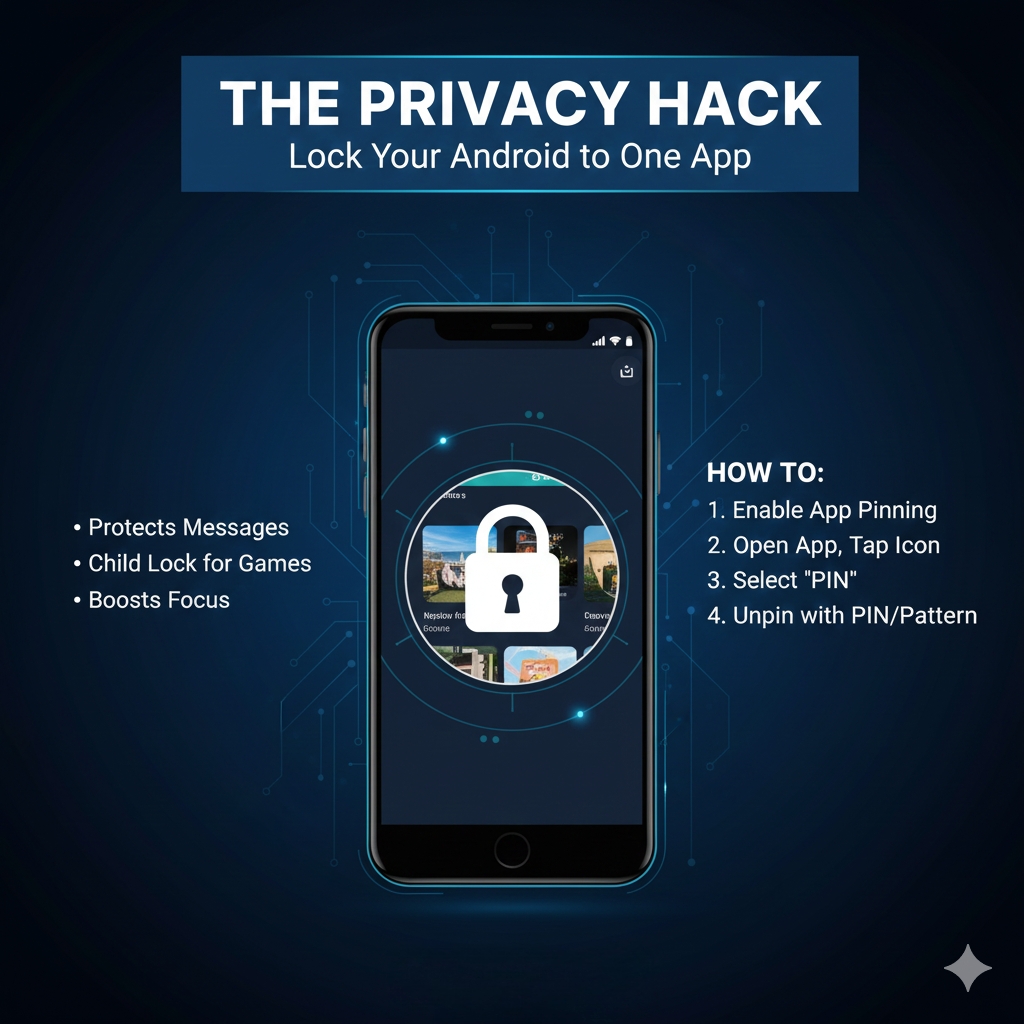
Have you ever handed your smartphone to a friend to show them a photo, only to watch them immediately swipe into your private messages or open your gallery? It’s an instant breach of privacy that many of us try to avoid.
Fortunately, modern Android phones have a powerful, yet often overlooked, feature called App Pinning (or Screen Pinning). This simple security measure allows you to temporarily lock your device to a single application, ensuring that the person holding your phone cannot switch to any other app, access your home screen, or snoop through your notifications.
What is App Pinning and Why Use It?
App Pinning effectively turns your phone into a single-purpose device until you unlock it. The primary benefits are:
* Privacy Guard: The main reason. It prevents prying eyes from accessing your texts, emails, or personal apps when you briefly lend your phone to someone.
* Child Lock: Perfect for parents. Pin a game or a video app to prevent children from accidentally making calls, changing settings, or purchasing content.
* Focus Tool: It can be used as a personal productivity hack to lock yourself into a work-related app (like a document editor) without the distraction of switching to social media.

How to Enable and Use App Pinning (Android)
The process involves two quick steps: first, enabling the feature in settings, and second, using the feature on the fly.
Step 1: Turn On the Feature
* Open your phone's Settings.
* Search for "App Pinning" or navigate to Security > More security settings (or similar on your device).
* Toggle the switch to turn App Pinning (or Screen Pinning) On.
* Crucially: Enable the option to "Ask for PIN/pattern/password before unpinning." This ensures that only you can unlock the phone after the app is pinned.
Step 2: Pin an App
* Open the app you want to share (e.g., your Photos app or a YouTube video).
* Go to your Recents/Overview screen (by swiping up from the bottom and holding, or tapping the square navigation button).
* Tap the App Icon (or the three-dot menu) at the top of the app's preview window.
* Select "Pin" or "Pin this app."
Your phone is now locked to that single screen. The user cannot access the Home screen, Recents, or the notification panel.
How to Unpin the App
To exit the pinned app, you need to perform a specific gesture that varies slightly depending on your Android navigation type (Gesture or 3-Button):
* Gesture Navigation: Swipe up from the bottom of the screen and hold for a few seconds.
* 3-Button Navigation: Simultaneously press and hold the Back and Overview (Recents) buttons.
Once the correct action is performed, your phone will lock and require your PIN, pattern, or fingerprint to fully unpin the app and return to normal operation.
Thanks for reading!
Pramod Singhal
QUESTER
@iQOO Connect @parakram_h @TechieGuy @NITIN @TechSAM009 @NipunMarya @ShankarSingh
Please sign in
Login and share