


Master Your Stream: Connecting Your iQOO 15 to the Game Live Streaming Assistant

Hey Questers,
Get Ready to Dominate the Stream!
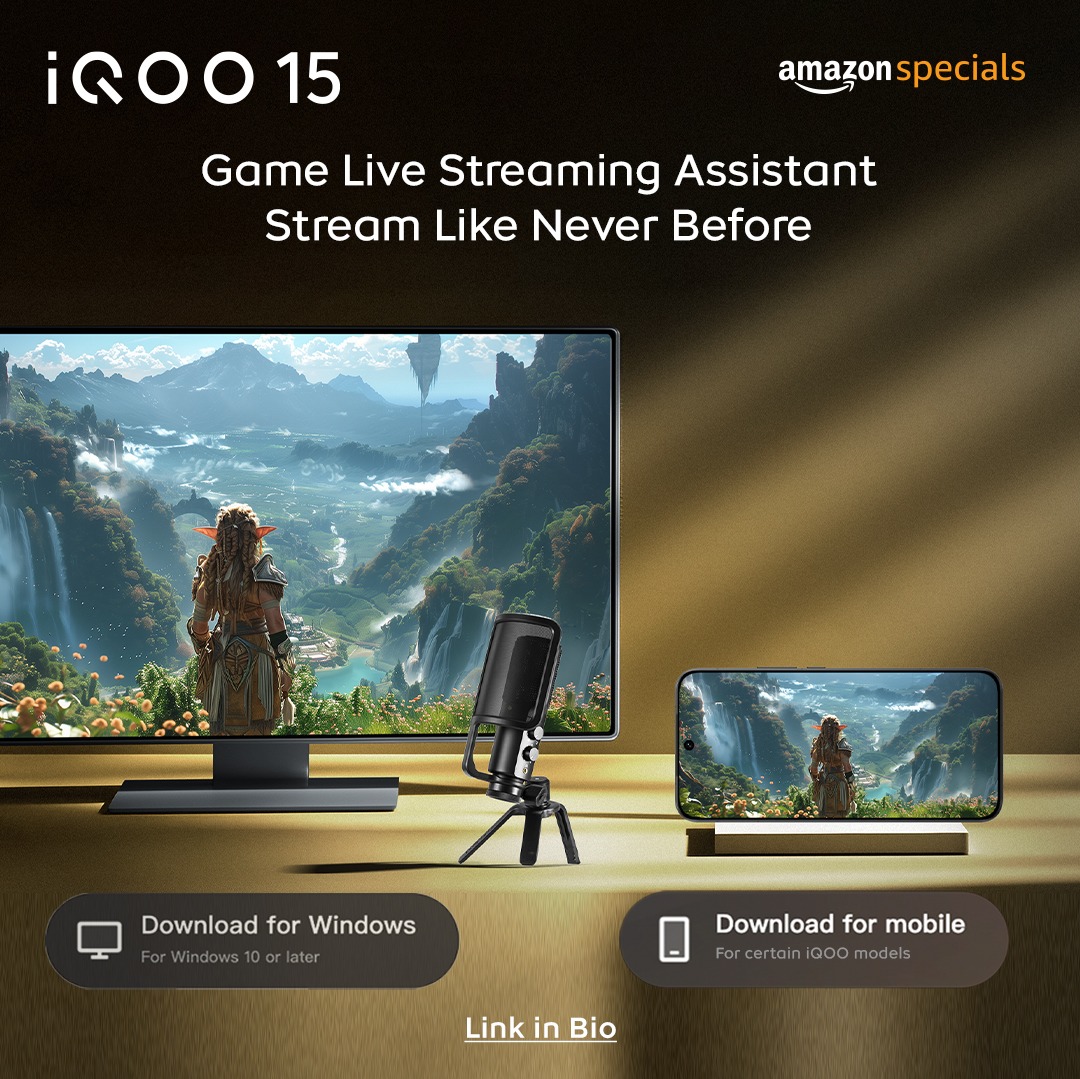
You're armed with the powerful iQOO 15 and the game-changing Live Streaming Assistant. Let's ditch the capture card and instantly bridge your phone to your PC for seamless, high-performance 2K, 60 FPS mobile streaming!
Official Link for Downloads: Game streaming assistant
Essential Downloads (If You Haven't Already!)
Before connecting, ensure you have both parts of the assistant installed:
On your PC (Windows 10+): Download the desktop client. Download PC Client
On your iQOO 15: Download the mobile APK (if it's not pre-installed within Game Space/OriginOS). Download Mobile APK
Install both applications before proceeding.
Launch Both Applications
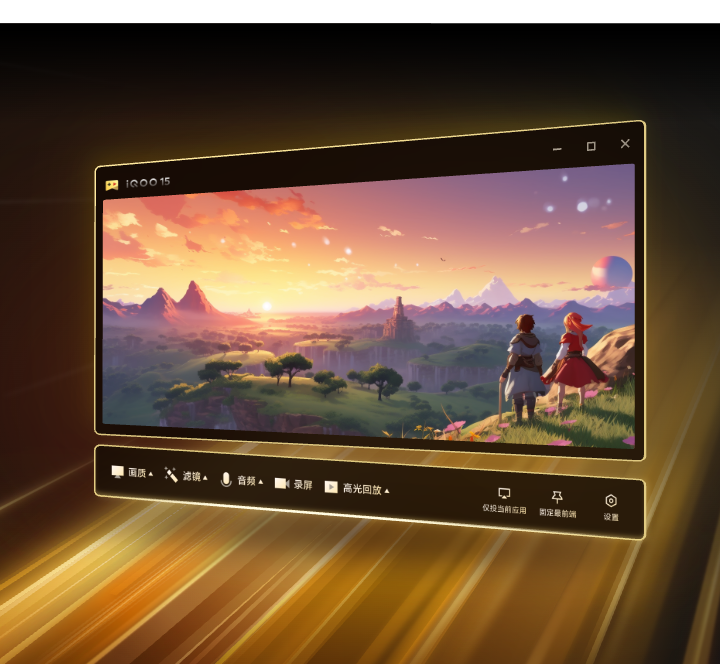
- On your PC: Open the "Game Live Streaming Assistant" desktop application.
- On your iQOO 15: Open the "Game Live Streaming Assistant" mobile app. (You might find it in your App Drawer or integrated within "Game Space").
Choose Your Connection Method
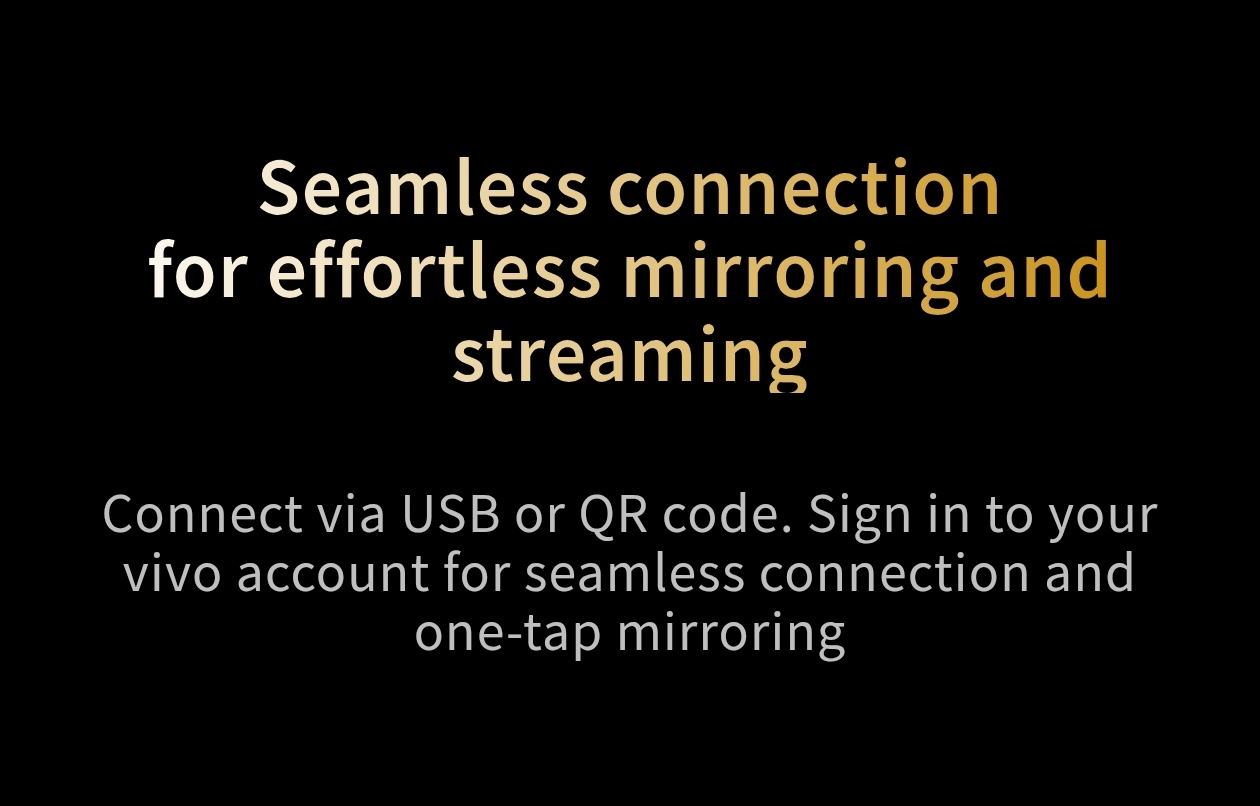
The assistant offers two robust ways to connect. Pick the one that suits your setup best:
- USB Cable (Recommended for Maximum Stability)
- Connect your iQOO 15 to your PC using a high-quality USB-C cable.
- Ensure USB debugging is enabled in your phone's Developer Options for optimal performance. (You may need to enable Developer Options by tapping your build number 7 times in About Phone).
Wireless Connection : QR Code (Convenient & Flexible)
- On the PC client, you'll see a QR code displayed.
- On your iQOO 15's Game Live Streaming Assistant app, select the "Scan to Connect" option.
- Scan the QR code with your phone's camera. Ensure both devices are on the same Wi-Fi network for this to work.
Steps to connect the Game Streaming assistant
- Launch any game your preferred to play
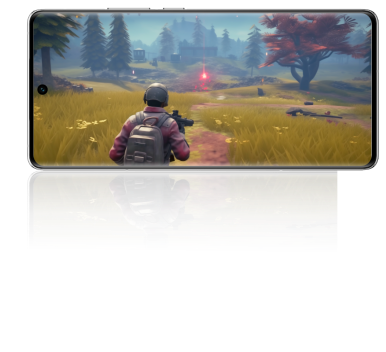
Sign In for Seamless Sync
For the easiest connection, it's highly recommended to:
- Sign in to your Vivo/iQOO account on the PC client.
- Sign in to the same Vivo/iQOO account on the mobile app.
This ensures the devices can communicate securely and quickly.
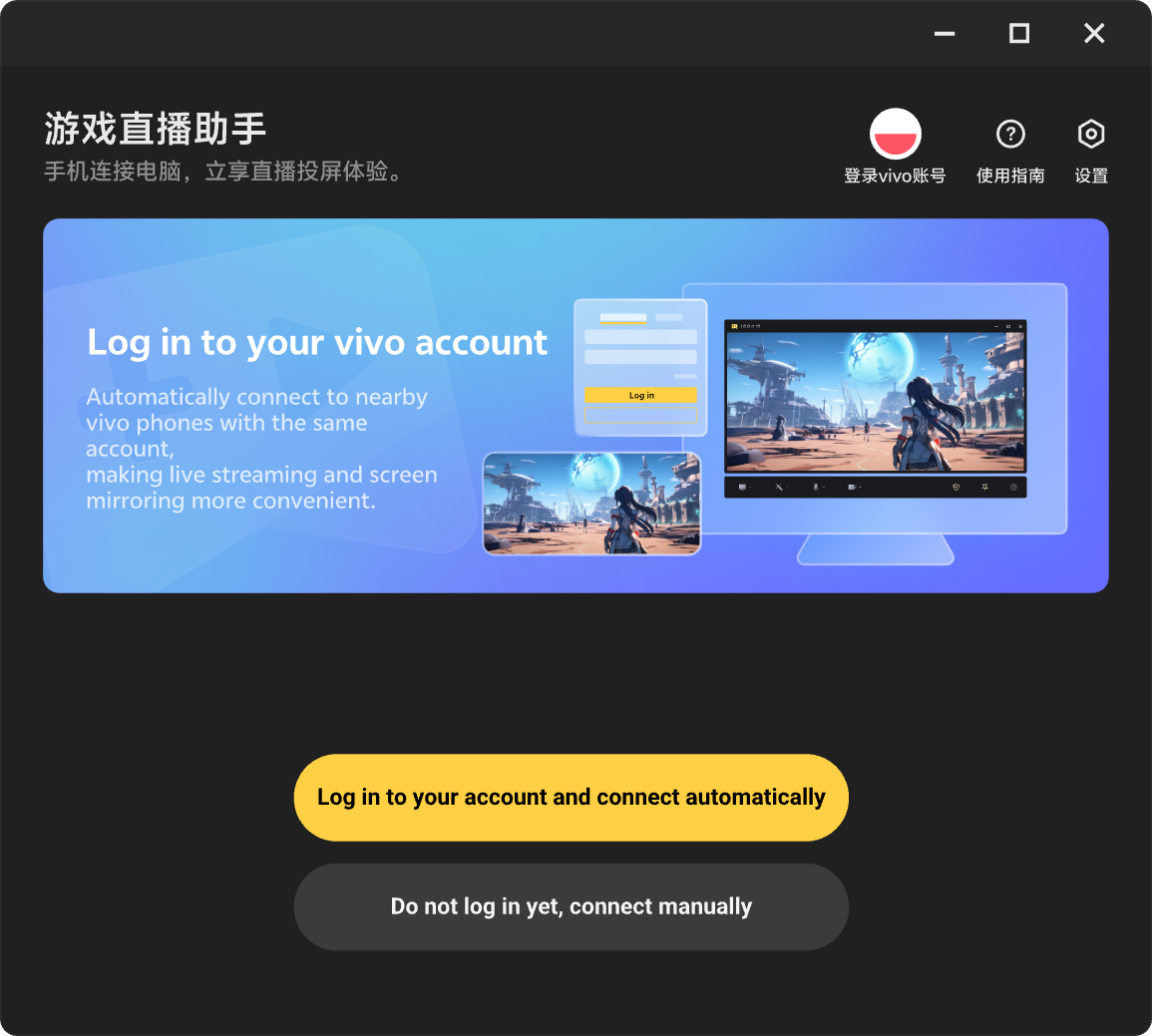
One-Tap Mirroring
Once connected (either via USB or QR code):
- On your iQOO 15 app, you should see an option like "Start Mirroring" or "Go Live." Tap it!
- Your phone's screen will now be mirrored in real-time onto your PC client.
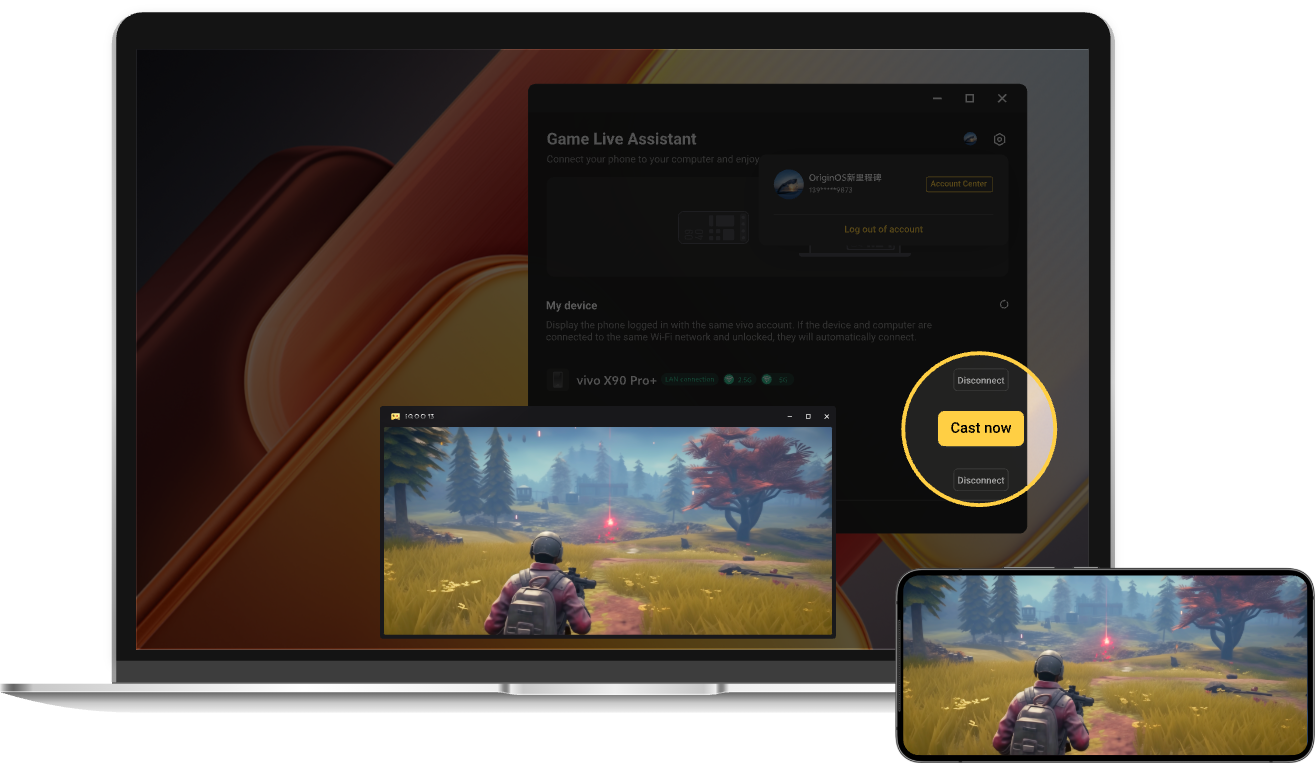
Integrate with Your Streaming Software
Now that your iQOO 15's display is on your PC:
- Open your preferred streaming software (e.g., OBS Studio, Streamlabs Desktop).
- Add a "Window Capture" source and select the Game Live Streaming Assistant window.
- Configure your stream settings (overlays, alerts, etc.) and you're ready to Go Live to Twitch, YouTube, or Facebook!
With your iQOO 15 and the Assistant connected, you are ready to unleash true 2K, 60 FPS streaming power.
Thanks
Please sign in
Login and share