



























🤩 Unleash the Power of Multitasking: Experience Seamless App Mirroring on Your

Hey Questers 👋,
We all love the thrill of high-performance gaming and the smooth experience our iQOO devices deliver. But what if you could take your productivity and entertainment to the next level, without interrupting what you're doing on your phone? Get ready to meet a feature that's a game-changer for the modern multi-tasker: App Mirroring!
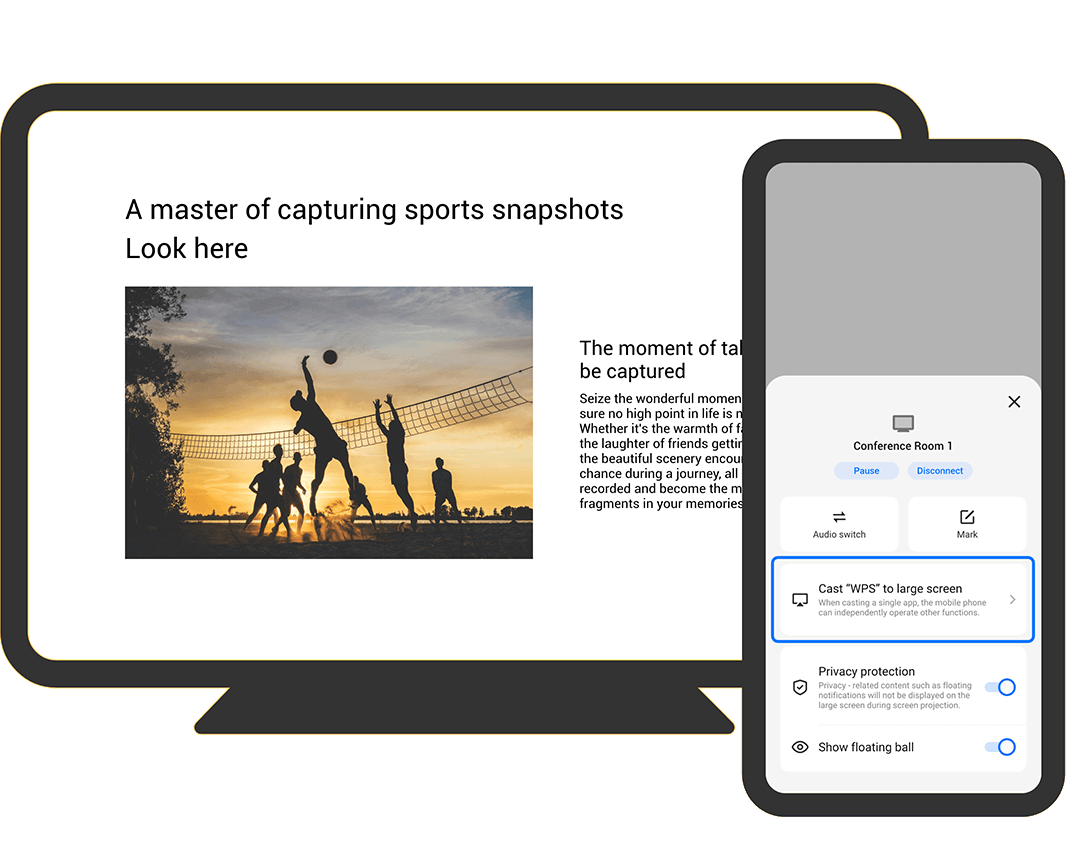
App Mirroring allows you to project a specific application onto a larger display (like a TV or PC monitor) while keeping your phone's screen free for other tasks. It's truly the best of both worlds!
🧠 What is App Mirroring?
Simply put, App Mirroring is the smarter evolution of traditional screen casting.
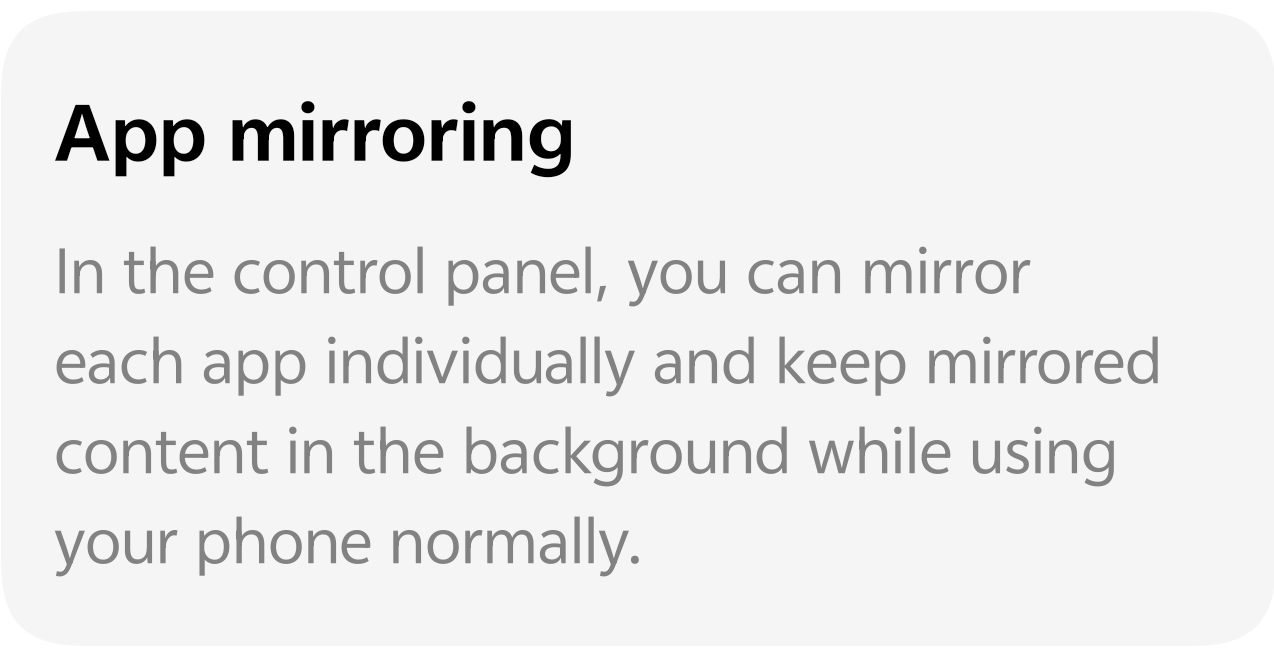
Unlike standard screen mirroring, which duplicates your entire phone screen, App Mirroring lets you choose just one app to project. The best part? The mirrored content runs seamlessly in the background on your phone, allowing you to switch to other apps, reply to messages, or browse the web on your mobile screen,all while the mirrored content continues uninterrupted on the big screen!
✨ Key Scenarios Where App Mirroring Shines
💼 Master Your Presentations:
Mirror your presentation slides onto the conference room display.
While your presentation runs, use your phone's main screen to view speaker notes, check emails, or manage other documents privately without disrupting the projected view.
🎮 Level Up Your Co-op Gaming/Streaming:
Mirror a co-op game or a live streaming interface for friends to watch on a large screen.
Use your phone's main screen for in-game chat, strategy guides, or quick social media checks without displaying your private activity to the audience.
🎬 Uninterrupted Entertainment:
Mirror a movie or a YouTube video to your TV.
Get a new text message? Quickly reply on your phone without pausing the movie or showing your chat to everyone watching! The movie keeps playing on the big screen.
💡 How to Find and Use App Mirroring
While the exact steps might vary slightly depending on your device model and OS version, you'll generally find this powerful feature ready to go:
Access the Control Panel: Swipe down from the top of your screen to open the Quick Settings/Control Panel.
Find the Feature: Look for a tile named Smart Mirroring, Screen Cast, or similar. (You might need to swipe right or edit your panel to find it).
Connect: Select your target device (Smart TV, PC, etc.) from the list of available devices.
Engage App Mirroring: Once connected, you will often find the option in a floating ball or a pop-up menu that lets you choose to mirror each app individually.
Follow me ➡️ @TechieGuyfor more such amazing content 🤘 🤠.
Please sign in
Login and share