





















Never Miss a Moment: Unleash Your Gaming Glory with iQOO 15's "Highlights"

Ever been in the heat of battle, pulled off an impossible clutch, or scored a game-winning shot, only to realize you forgot to hit record?
We've all been there. Those legendary gaming moments often happen spontaneously, leaving us with nothing but epic memories and a "you had to be there" story. But what if you could capture those spontaneous triumphs, even if you weren't actively recording?

Enter the iQOO 15 and its game-changing "Highlights" feature. This isn't just another screen recorder; it's your personal gaming historian, always ready to save those incredible plays with a single tap, even after they've happened!
What is the "Highlights" Feature?
The iQOO 15's "Highlights" feature is a dedicated tool within the Ultra Game Mode that continuously buffers your gameplay in the background. Think of it as a short-term memory for your gaming.
When something amazing occurs, you can instantly retrieve and save the last 15 or 30 seconds of your gameplay to your gallery. No more "trust me, bro" stories – you'll have the undeniable video proof!
This is a godsend for mobile gamers who want to:
- Show off to friends: Instantly share those incredible headshots, multi-kills, or strategic plays.
- Create social media content: Easily capture shareable clips for YouTube Shorts, or Instagram Reels.
- Analyze gameplay: Review your best (or worst) moments to learn and improve.
- Preserve memories: Keep a digital scrapbook of your most exciting gaming achievements.
How to Master "Highlights" on Your iQOO 15: A Step-by-Step Guide
Getting started with the "Highlights" feature is incredibly simple. Here's a step-by-step guide to ensure you never miss another epic moment:
Step 1: Launch Your Game
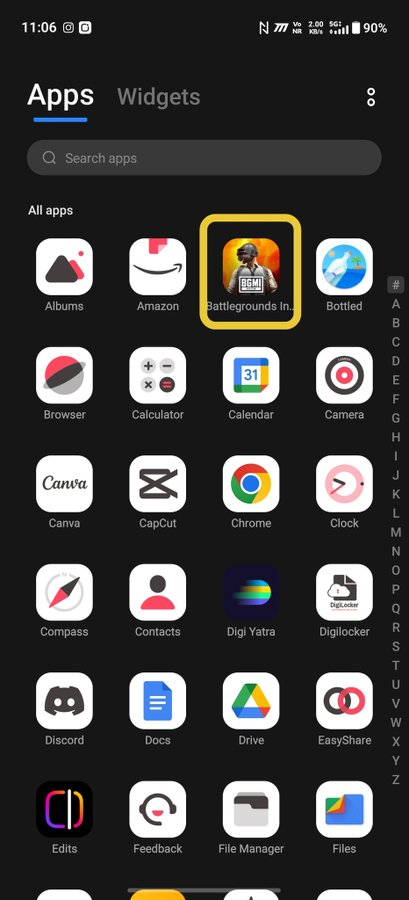
First things first, fire up your faorite, graphically intensive game. Whether it's the fast-paced action of BGMI, the stunning open world of Genshin Impact, or the competitive intensity of COD Mobile, the iQOO 15's powerful Snapdragon 8 Elite Gen 5 processor ensures smooth gameplay while the "Highlights" engine works its magic in the background.
Step 2: Access Ultra Game Mode 🛠️
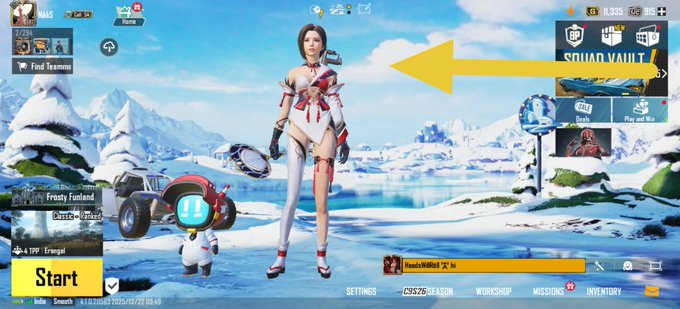
Once you're in-game, discreetly swipe inward from the left or right edge of your screen. This gesture will bring up the Ultra Game Mode sidebar, your central hub for all gaming-specific enhancements and tools.
Step 3: Find 'Highlights' 🔍
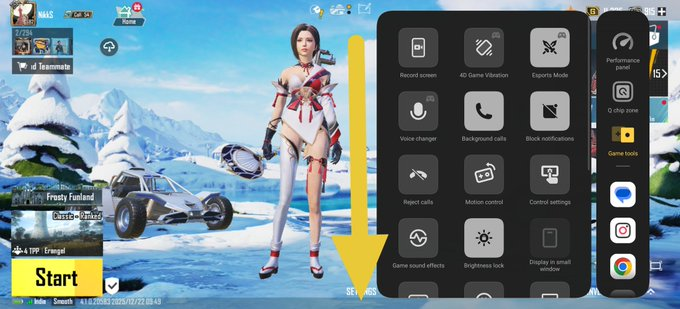
Navigate through the options presented in the sidebar menu. Look for the distinct 'Highlights' icon (it is separate from the 'Record Screen' button). This is your portal to capturing those unexpected gaming triumphs.
Step 4: Highlights Menu
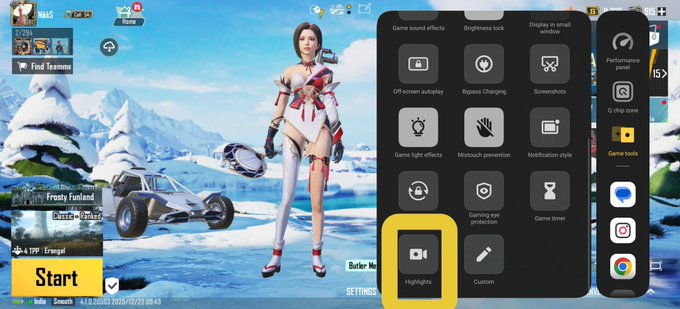
Tap on the 'Highlights' icon to enter the highlights menu, where you can customise the settings as required
Step 5: Enable the Feature ⚡
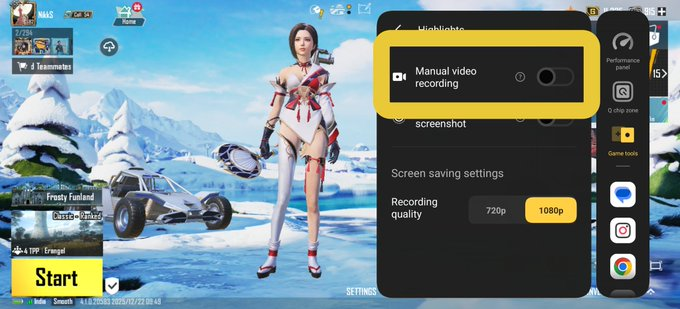
Tap on the 'Switch' icon to activate it.
You can choose if you want video clips or live photos.
As soon as it's enabled, the iQOO 15 begins its "rolling buffer" process. Don't worry, this isn't actively saving large files; it's simply keeping the most recent seconds of your gameplay in temporary memory, ready to be pulled at a moment's notice.
Step 6: Customize the Duration ⏱️
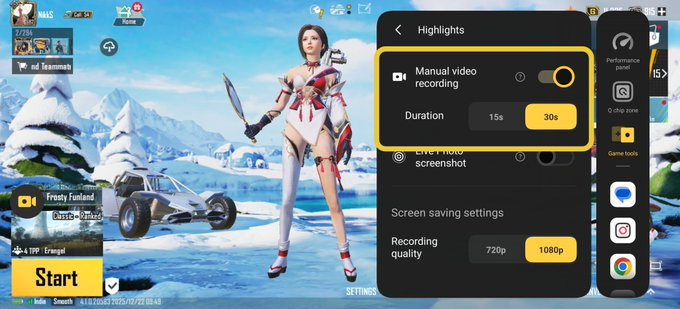
Within the 'Highlights' settings, you'll find an option to select the clip duration. You can typically choose between a 15-second or 30-second recording. Opt for the 30-second option if you want to capture more of the context and buildup to your legendary play, or stick with 15 sconds for just the crucial moment.
Step 7: Play Your Heart Out 🕹
Now that the feature is set up, close the sidebar and dive back into your game with full focus. You don't need to be concerned about the feature impacting your device's performance or filling up your storage. The iQOO 15's dedicated Q3 Supercomputing chip is designed to handle such background processes seamlessly, ensuring your Frame Rate Per Second (FPS) remains consistently high.
Step 8: The "Tap" Moment 🎯
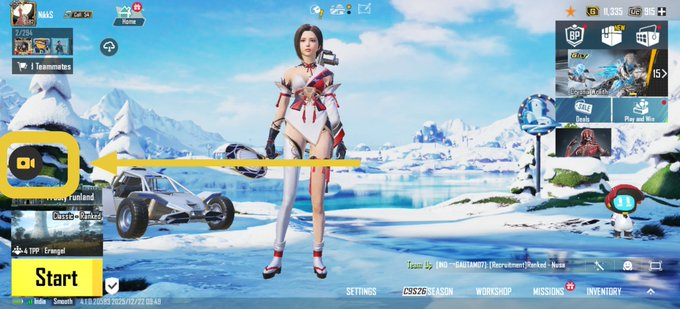
The game-changing moment has arrived! You just aced that impossible clutch or landed a crucial shot. Instead of despairing that you didn't record, calmly tap on the record/capture button on your screen!
The phone will instantly retrieve that buffered footage and save it as a high-quality video file to your gallery.
Step 9: Quick Edit & Review 🎬
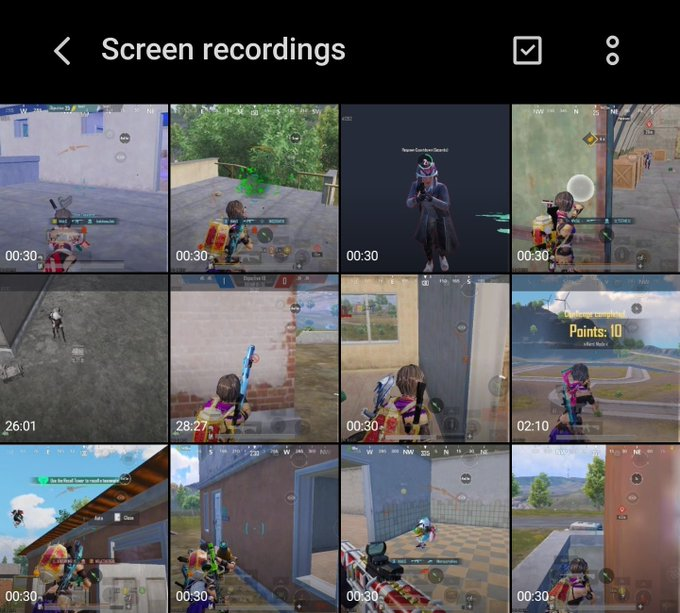
Once your gaming session is over, navigate to your Gallery app. You'll find all your clips in the 'screen recording' album.
The iQOO 15 captures these clips with a high bitrate, ensuring they look crisp, vibrant, and professional, ready for prime-time viewing.
Step 10: Share the Glory 🌐
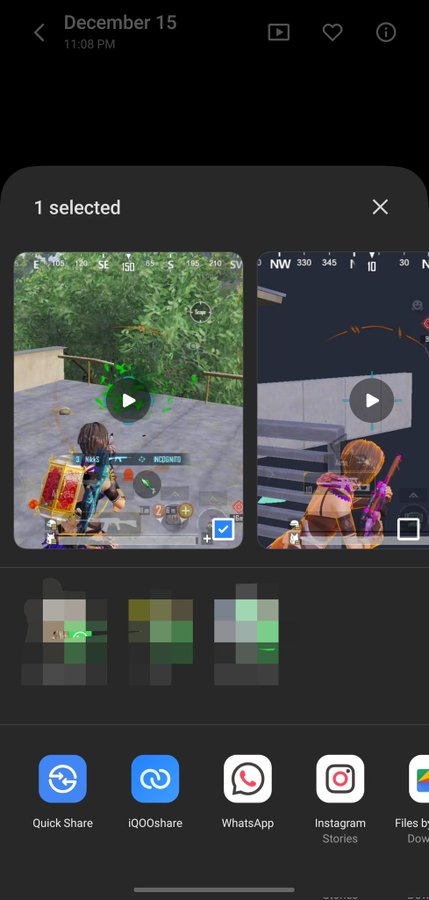
Now for the best part: sharing! Tap the share button and effortlessly send your captured masterpiece to your Discord server, WhatsApp group, or directly upload it as a captivating Reel, YouTube Short, or TikTok. No more relying on anecdotes; you have the irrefutable evidence of your gaming prowess!
The iQOO 15's "Highlights" feature is more than just a convenience; it's an empowerment tool for every mobile gamer.
It ensures that every single one of your exceptional plays, surprising comebacks, and hard-earned victories are preserved and celebrated. So go ahead, game on, and let your iQOO 15 capture the glory!
What's your most memorable gaming moment you wish you had recorded?
Share as a thread, and don't forget to tag me!!
Please sign in
Login and share