



























Stream Like a Pro: Mobile Games on PC with iQOO 15's Game Streaming Assistant!

Mobile gaming has evolved, becoming a powerhouse of immersive experiences and competitive action. But sometimes, the small screen just doesn't do justice to your epic plays, especially when you want to share them with the world.
Wouldn't it be amazing to stream your iQOO 15 gameplay directly to your PC, complete with crisp visuals and low latency, without needing expensive capture cards?
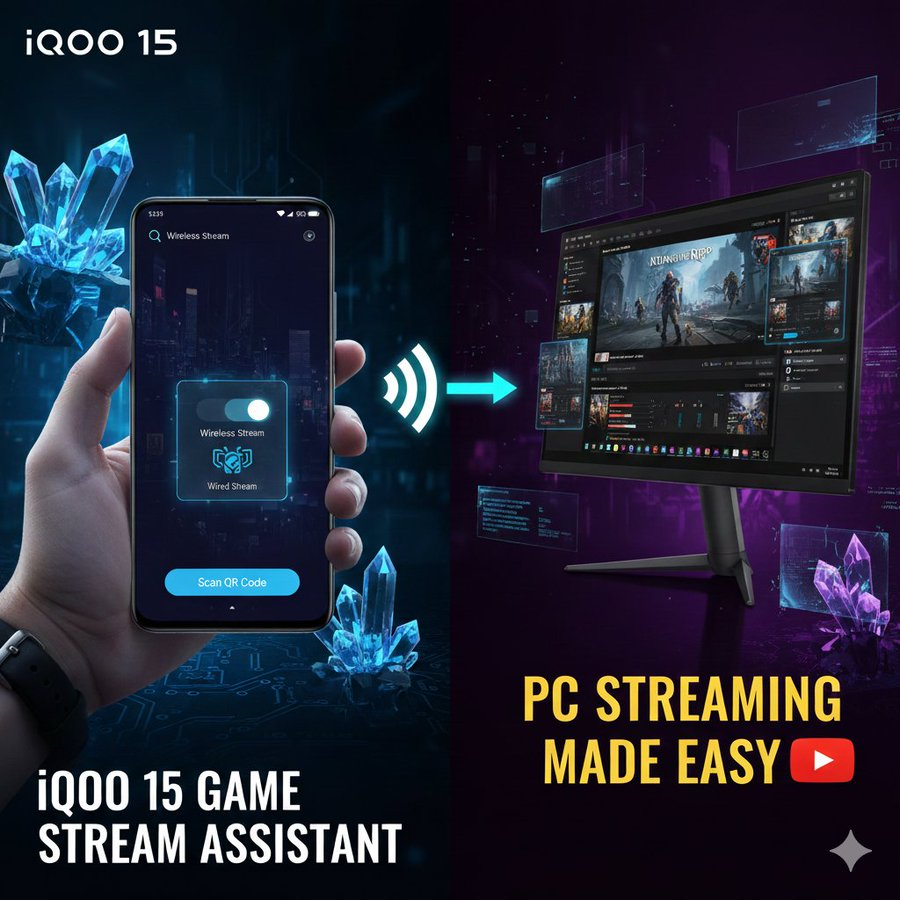
The iQOO 15's Game Streaming Assistant makes this dream a reality! This dedicated feature allows you to seamlessly mirror your phone's screen to your Windows PC, enabling professional-grade live streaming on platforms like Twitch, YouTube, and Facebook Gaming.
Forget complicated setups and laggy workarounds. With the iQOO 15, going live from your mobile device is intuitive and accessible. Let's dive into how you can transform your mobile gaming sessions into engaging PC streams!
Step-by-Step Guide: Setting Up Your iQOO 15 for PC Streaming
I've broken down the process into easy-to-follow steps, ensuring you get from unboxing to "Going Live" with absolute clarity.
Part 1: Setting Up Your PC
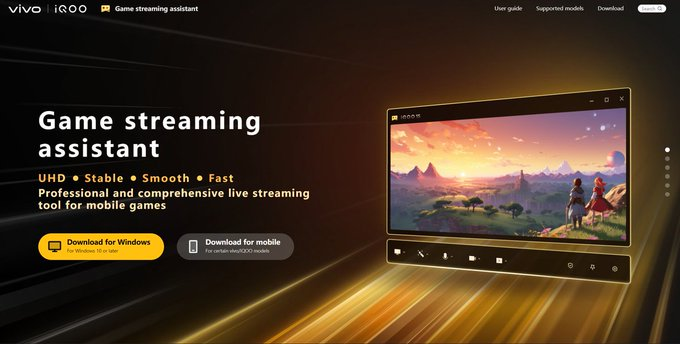
- Visit the Official Portal:
- Start your journey by opening your web browser on your Windows PC or laptop and navigating to live.vivoglobal.com. This is your central hub for the Game Streaming Assistant.
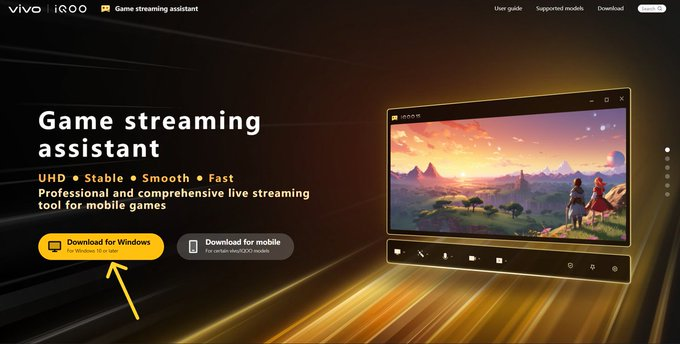
- Download the PC Client:
- On the website, locate and download the "Game Streaming Assistant for Windows." This optimized software is designed for seamless interaction with your iQOO 15.
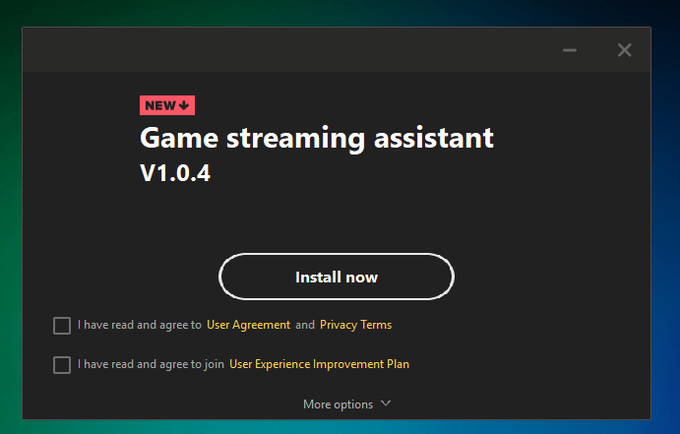
- Install & Launch:
- Run the downloaded .exe file and follow the straightforward on-screen instructions to install the application. Once the installation is complete, launch the Game Streaming Assistant on your PC.
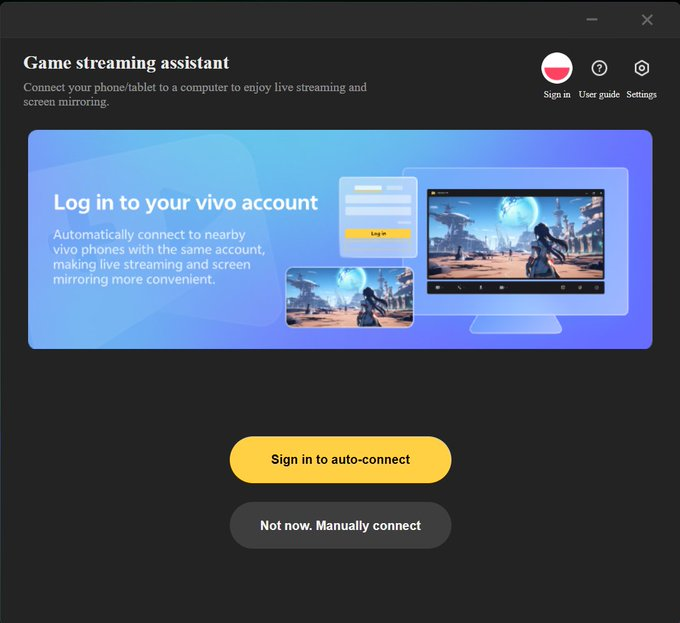
- Sign In (Optional but Recommended):
- For the most convenient experience, log into your iQOO Account within the PC application. Using the same account on both your phone and PC allows for automatic device detection.
Part 2: Setting Up Your iQOO 15
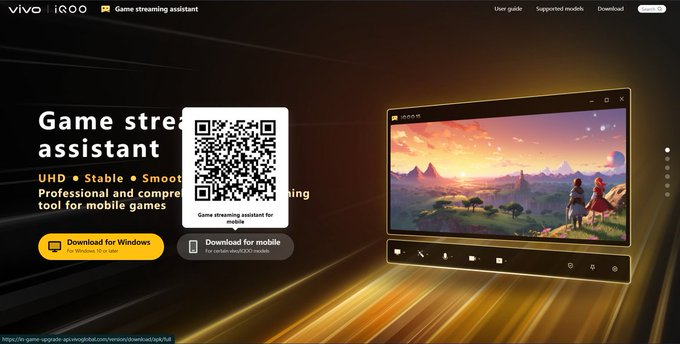
- Get the Mobile App:
- The PC application will display a QR Code. Grab your iQOO 15, open its camera or a QR scanner app, and scan this code to download the mobile version of the Game Streaming Assistant. Install the app on your phone.
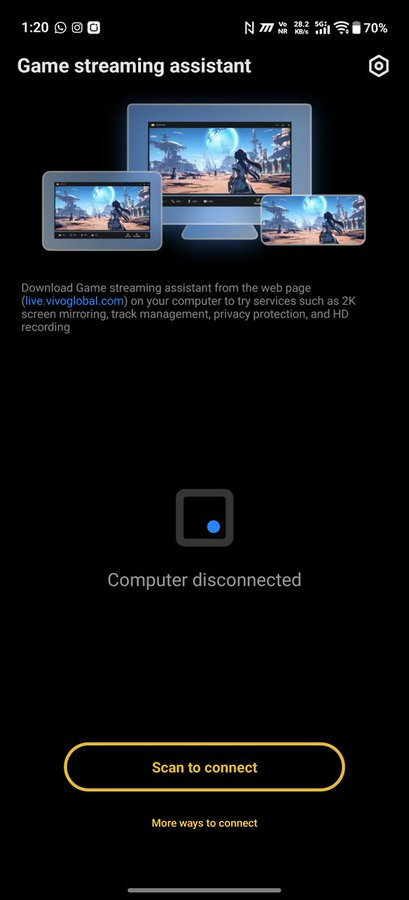
- Mobile Login:
- Open the newly installed app on your iQOO 15. If you're already logged into your iQOO account in your phone's settings, the app should automatically detect and sign you in, making the process even smoother.
Part 3: Connecting Your Devices (Choose Your Method!)
You have two excellent options for connecting your iQOO 15 to your PC:
Wireless for convenience or Wired for ultra-low latency.
Method A: The Wireless Path (Freedom from Cables!)
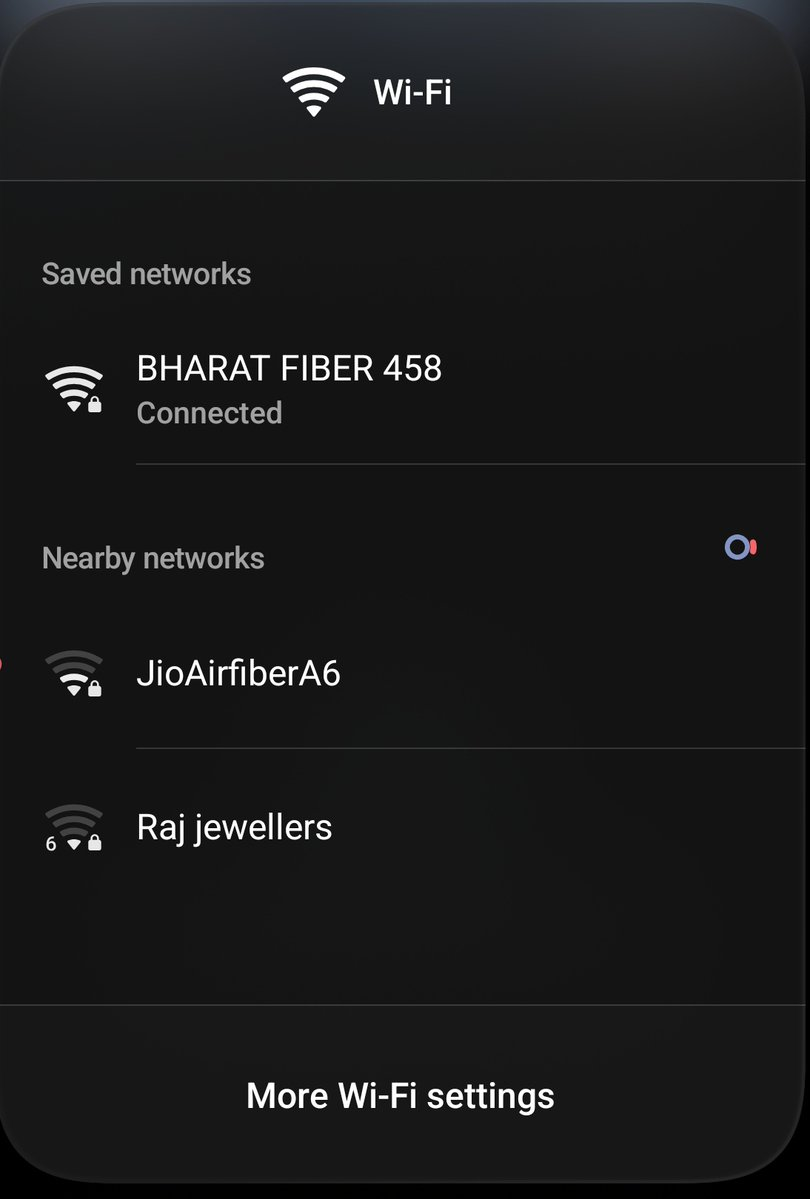
- Connect to the Same Wi-Fi Network:
- Ensure both your PC and your iQOO 15 are connected to the same Wi-Fi network. For optimal performance and minimal latency, we highly recommend using a 5GHz Wi-Fi band.
- Automatic Detection:
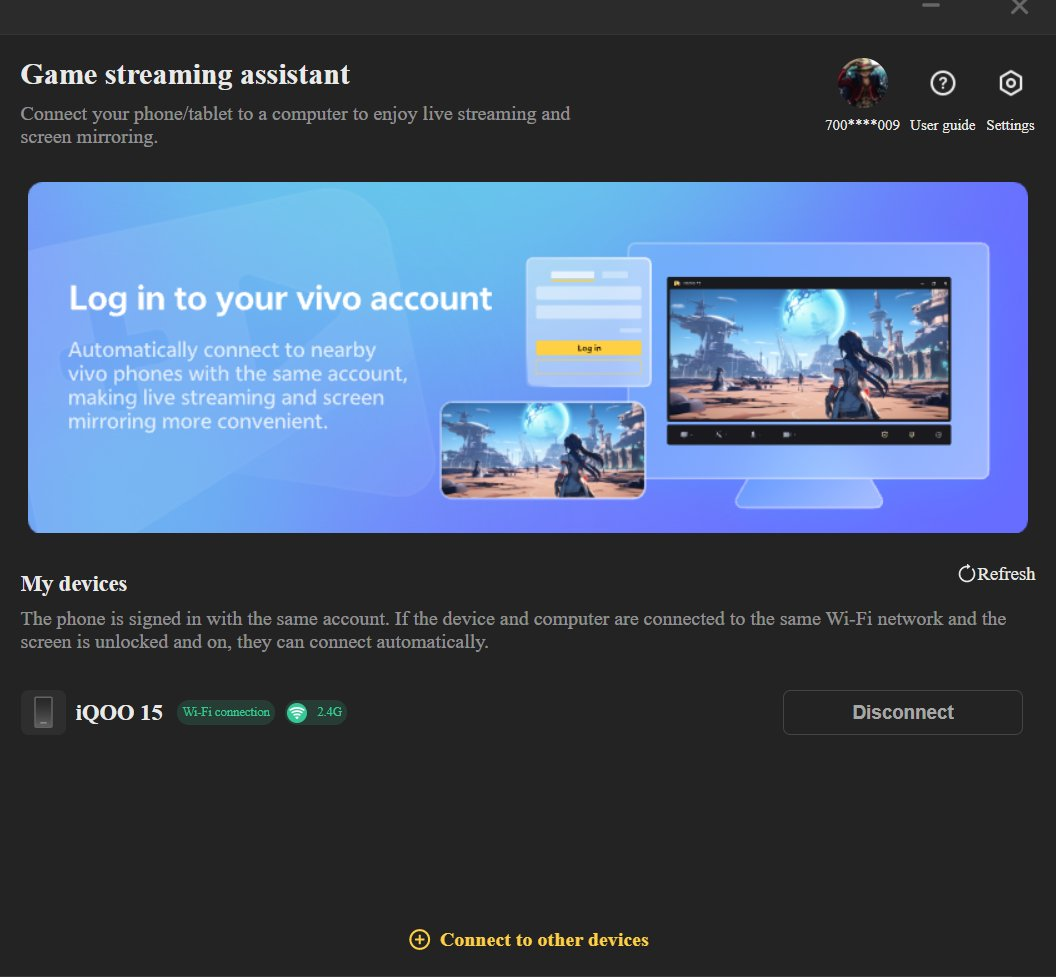
- If you're logged into the same iQOO account on both devices, your phone's name should automatically appear in the PC's Game Streaming Assistant app. Simply click on your phone's name to connect, then accept any pairing prompts on your iQOO 15.
- Manual QR Scan (Your Reliable Backup):
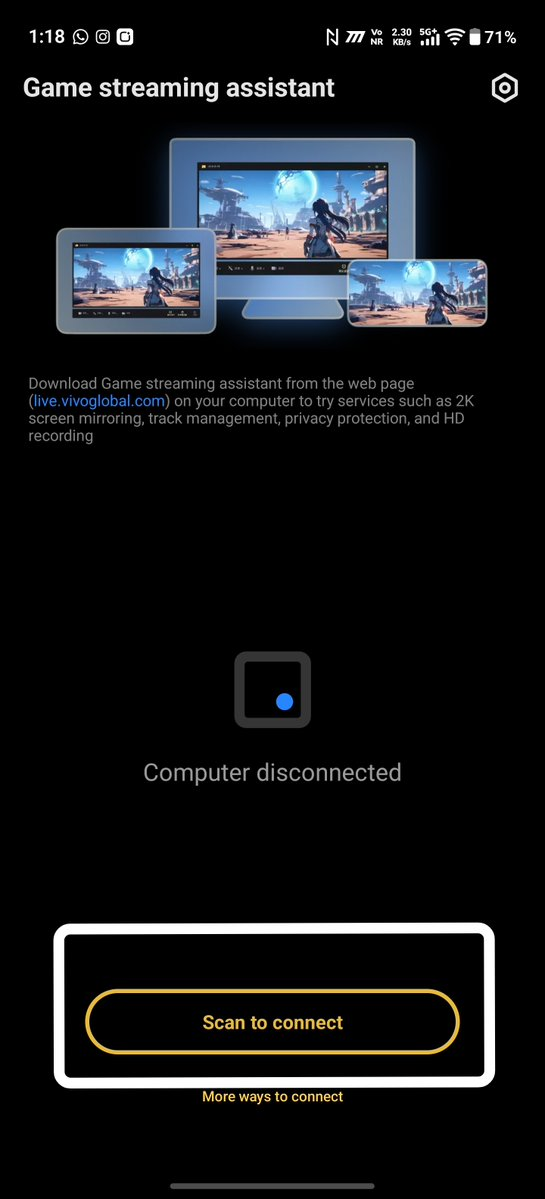
- If for any reason your phone isn't automatically detected, or if you're using different accounts, don't worry! In the mobile Game Streaming Assistant app, tap the "Scan" icon and use it to scan the QR code displayed on your PC screen. This creates an instant and direct connection.
Method B: The Wired Path (Zero-Lag Pro Mode)
- Plug and Play with USB-C:
- For the absolute lowest latency, ideal for competitive gaming, connect your iQOO 15 directly to a USB 3.0 port on your PC using the high-quality USB-C cable that came with your phone.
- Enable Developer Secrets:
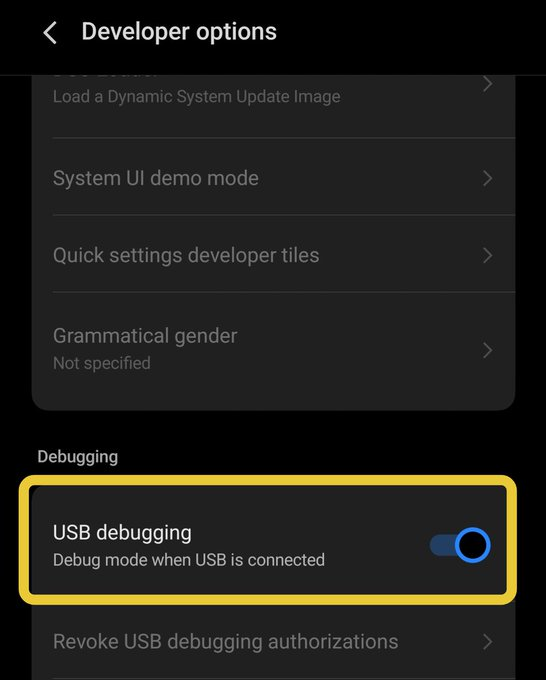
- On your iQOO 15, go to Settings > About Phone and tap on the 'Build Number' seven times. This will unlock Developer Options. Now, navigate to System > Developer Options and toggle 'USB Debugging' to ON.
- Trust the Connection:
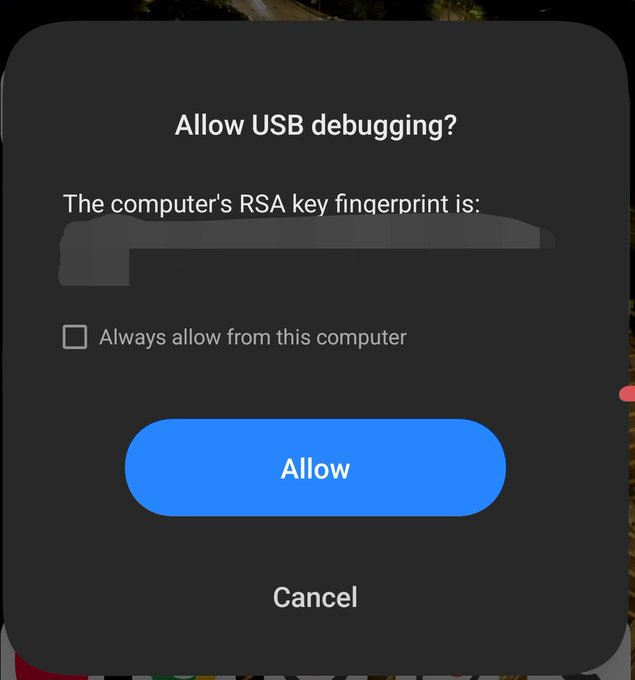
- As soon as you connect your phone, a pop-up will appear on your iQOO 15 asking to "Allow USB Debugging." Check the box for "Always allow from this computer" and tap Allow. Your phone's screen will immediately mirror to your PC.
Part 4: Going Live!
- Integrate with OBS Studio:
- Open OBS Studio (or Streamlabs OBS) on your PC. Add a new source, select "Window Capture," and choose the Game Streaming Assistant window. Your mobile gameplay is now captured and ready for broadcasting!
- Audio & Stream!:
- The Game Streaming Assistant automatically transmits your game audio to your PC. Add your microphone, set up any desired overlays, and hit "Start Streaming." Congratulations, you're now a professional mobile streamer!
The iQOO 15, with its powerful hardware and the seamless Game Streaming Assistant, removes all barriers to sharing your mobile gaming prowess with a wider audience. Whether you prefer the freedom of wireless or the precision of a wired connection, you're now equipped to stream like a pro.
What game are you most excited to stream from your iQOO 15? Share your thoughts in the comments below!
Please sign in
Login and share