



























How to Recall a Message in Outlook: A Step-by-Step Guide

Hey iQOO Fans,
Outlook's Recall feature isn't a universal undo button, but it can prevent an email from being read under the right conditions.
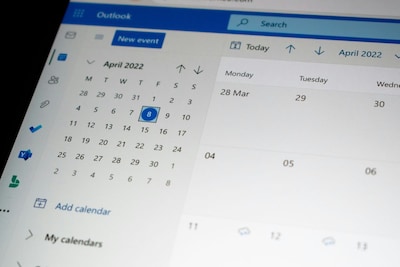
The recall feature works mainly within organisations that use Microsoft Exchange or Microsoft 365, and it depends on factors. Because of these limitations, recalling an email in Outlook requires more than just a quick click. You need to understand how the feature works, who it works for, and why it sometimes fails. In this guide, we'll walk through how to recall a message in Outlook, what to expect when you try it, and when it's better to follow up with a correction instead.
How to Recall a Message in Outlook Desktop (Classic)
- Start by opening Outlook and going to the Sent Items folder, where you'll find the email you want to recall.
- Next, double-click the message to open it in a new window, and make sure you do not use the Reading Pane.
- Once the email opens, look at the top menu and click the Message tab. From there, select Actions and choose Recall This Message.
- You can also access the same option by clicking File, then Info, followed by Resend or Recall, and finally Recall This Message.
- After selecting the recall option, Outlook will ask you how you want to proceed.
- Choose Delete unread copies of this message if you simply want to remove the email.
- If you want to correct the mistake, select Delete unread copies and replace with a new message, which lets you edit the original email before sending the updated version.
- Before you finish, tick the box to receive a notification telling you whether the recall succeeds or fails.
- When you're ready, click OK to complete the process.
How to Recall a Message in Outlook Desktop (New)
- Firstly, you will need to open the Sent Items folder from the left-hand pane so you can find the email you want to recall.
- Then double-click the email to open it in a separate window, rather than viewing it in the preview pane.
- Once the message opens, look at the ribbon at the top and select Recall Message.
- When the confirmation dialogue box appears, click OK to proceed with the recall.
- Finally, check your inbox for a notification from Outlook that tells you whether the recall attempt was successful or failed.
How to Recall a Message in Outlook on the Web (New)
- To begin with, open the Sent Items folder from the left-hand menu and locate the email you want to recall.
- Then double-click the message to open it in a separate window instead of the preview pane.
- Once the email opens, start the recall process based on the ribbon view you're using.
- If you see the Classic ribbon, select Recall message directly.
- If you're using the Simplified ribbon, click More options (the three dots) and then choose Recall message.
- When Outlook asks you to confirm the action, select OK to continue.
- After that, keep an eye on your inbox. Outlook will send you a status report telling you whether the recall was successful, is still pending, or has failed.
Limitations and Alternatives
The message recall feature in Outlook comes with several important limitations that you should keep in mind before relying on it. First, it only works with Microsoft Exchange or Microsoft 365 work or school accounts. You cannot use message recall with personal email addresses such as Gmail, Yahoo, outlook.com, hotmail.com, or live.com.
Source:gadgets360
Sumit
Quester
iQOO Community
Please sign in
Login and share