



























🎮 Game On, Call On: Master the "Small Window" Feature on Your iQOO!

Hey Questers 👋,
We’ve all been there: you’re in the middle of an intense 1v4 clutch in BGMI or a high-stakes race in Asphalt, and suddenly,your phone rings. Usually, you’d have to choose: ignore the call or risk getting kicked from the match to answer it.
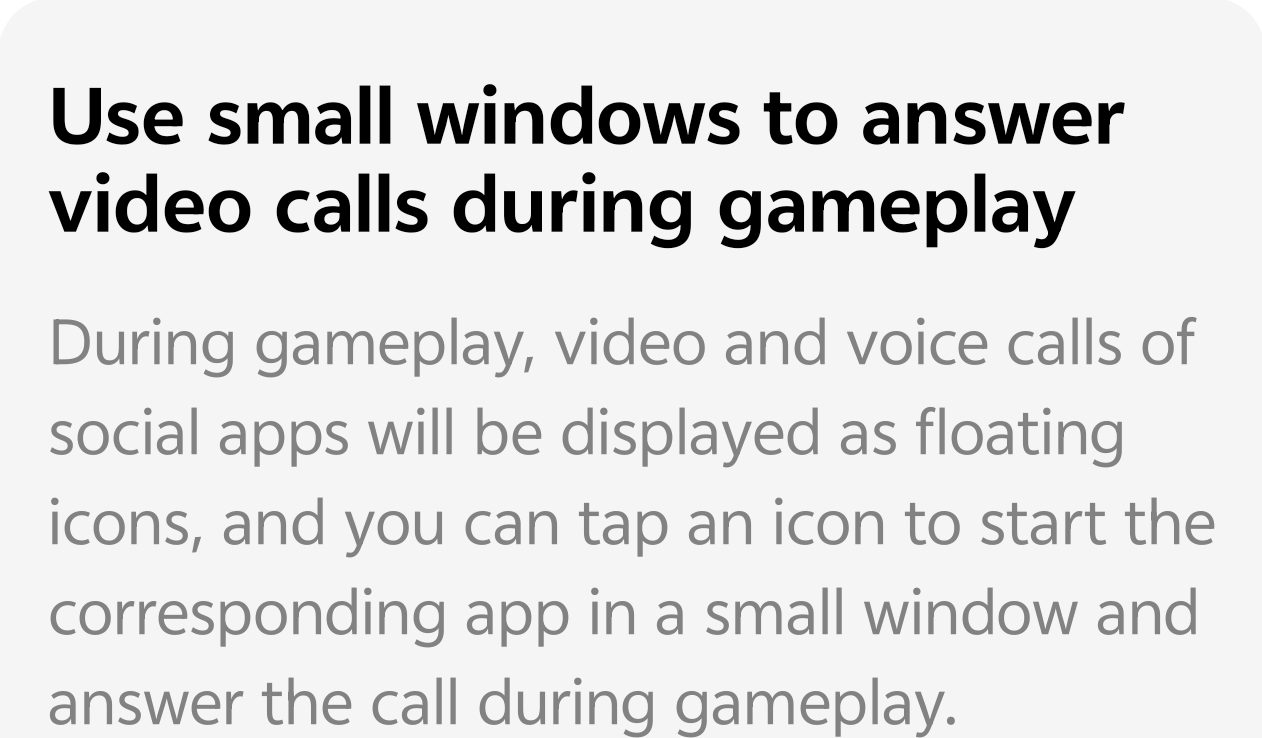
Well, thanks to iQOO’s Ultra Game Mode, those days are over! With the Small Window for Video Calls, you can stay in the game and on the call simultaneously.
🌟 What is the "Small Window" Feature?
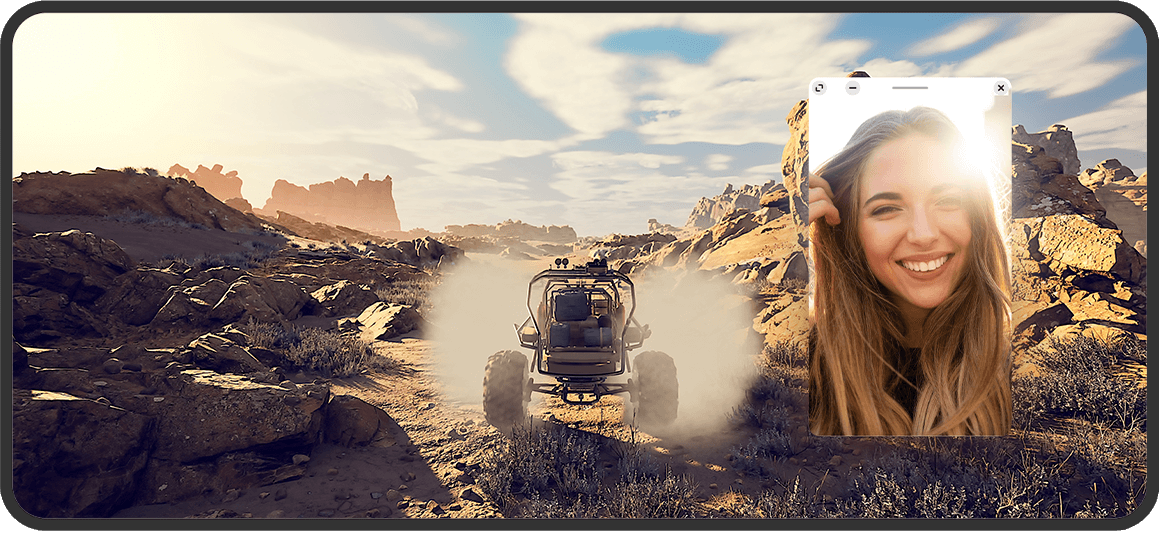
When you receive a video or voice call from social apps (like WhatsApp, Messenger, or Telegram) during gameplay, the system doesn't hijack your whole screen. Instead, it shows a floating icon.
By tapping that icon, the call opens in a resizable, movable small window on top of your game. You get to see your friends and talk to them without ever leaving the battlefield.
🛠️ How to Enable It
To make sure you're ready for the next incoming call, follow these steps:
* Open Settings: Go to your phone's main settings menu.
* Navigate to Ultra Game Mode: Search for "Ultra Game Mode" or find it under Shortcuts & Accessibility.
* Check Game Sidebar: Ensure the "Game Sidebar" is toggled ON.
* Enable Floating Notifications: Within Ultra Game Mode, look for "Game Picture-in-Picture" or "Multi-window" settings. Ensure that social apps are permitted to show floating windows.
💡 Pro-Tips for Using Small Windows
* Move It Anywhere: You can drag the small window to any corner of the screen so it doesn't block your map or controls.
* Minimize on the Fly: If the action gets too intense, you can swipe the window to the edge of the screen to turn it into a tiny "side-tab" and pull it back out when you're safe.
* Quick Reply: This isn't just for calls! You can also use three fingers to swipe up and open WhatsApp in a small window to send a quick text without closing your game.
Follow me ➡️ @TechieGuyfor more such amazing content 🤘 🤩.
Please sign in
Login and share