



























Customizing Your Home Screen Background

Hey Questers,
If you want to move away from the standard look, your device offers deep customization for the background color, transparency, and blur effects. Here is how to master these settings.
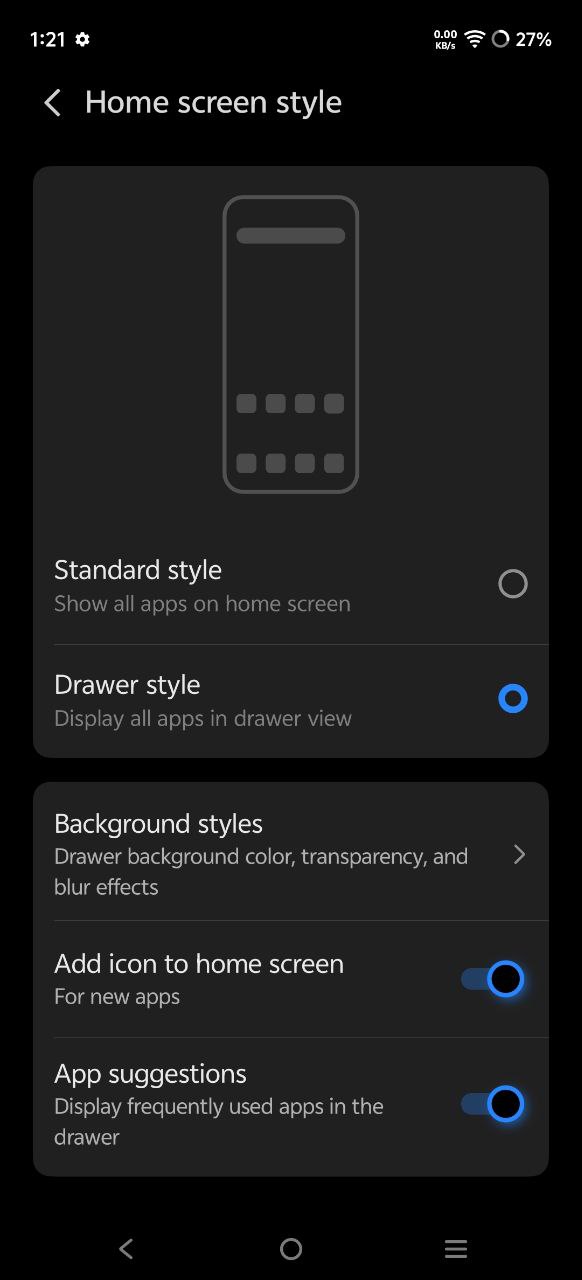
Accessing Background Styles
To get started, navigate to your home screen settings and look for Background Styles. Once inside, you have two main paths:
Follow System: This automatically adjusts the blur and dark mode based on your global phone settings.
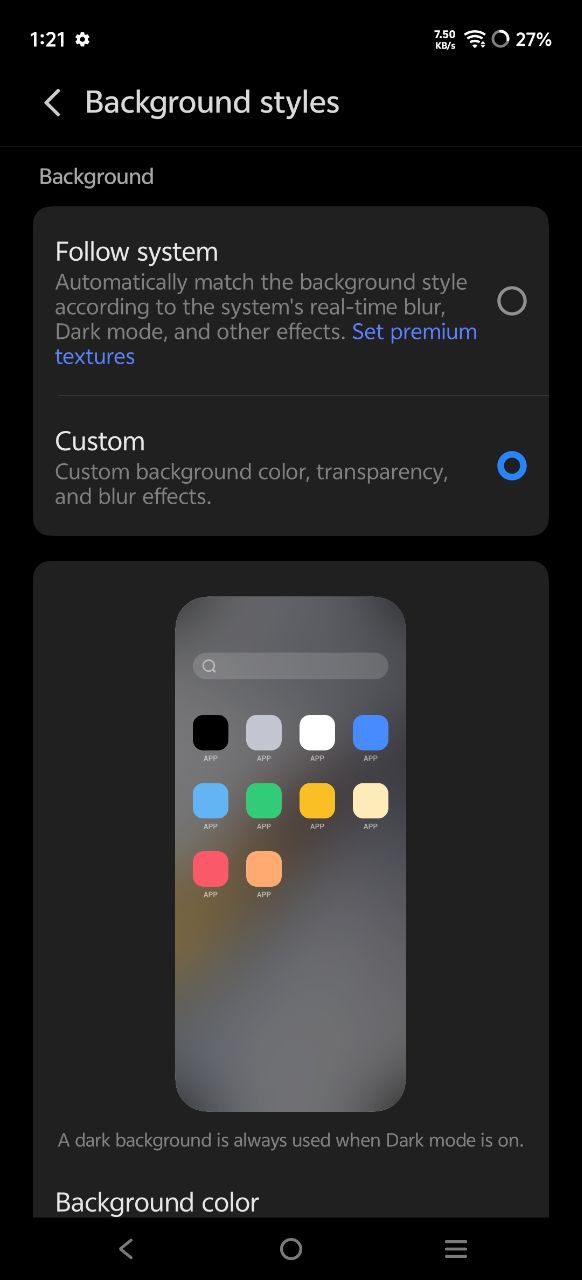
Custom: This is where the real fun starts. Selecting "Custom" unlocks the sliders and color pickers.
Fine-Tuning with Sliders
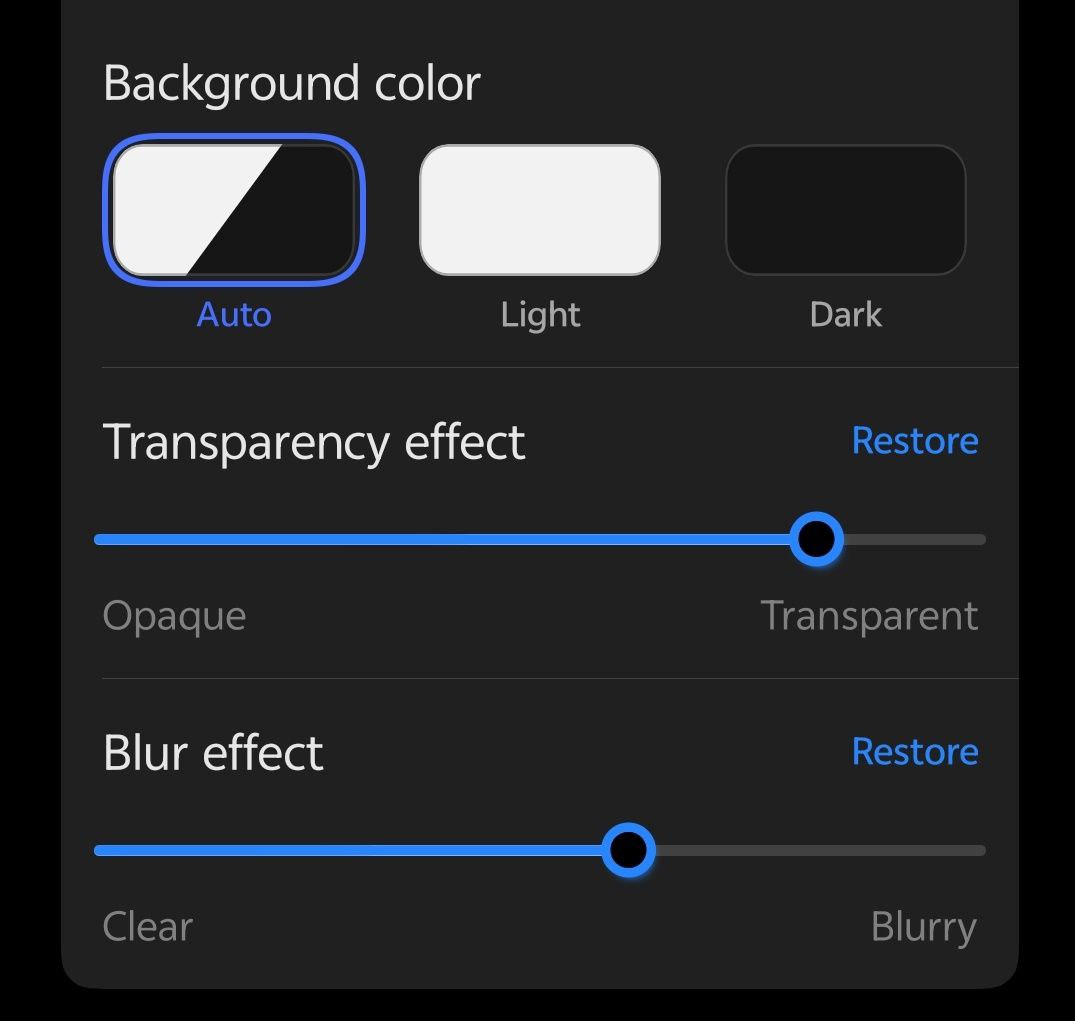
The blue slider at the bottom is your most powerful tool. Depending on your specific OS version, this typically controls:
Transparency: Move it to the left to make your app drawer completely see-through, showing your wallpaper behind the icons.
Background Dimming: Move it to the right to add a solid color overlay for better legibility.
Advanced Effects: Blur & Textures
Set Premium Textures: If available, this adds a "glass-morphism" effect, making the background look like frosted glass.
Runtime Blur: This ensures that as you swipe, the background blurs dynamically, keeping the focus on your app icons.
Do check out the latest version and update your device and explore the new background styles.
Thanks
Please sign in
Login and share