



























Use of Digital Wellbeing Features

Use Digital Wellbeing Features
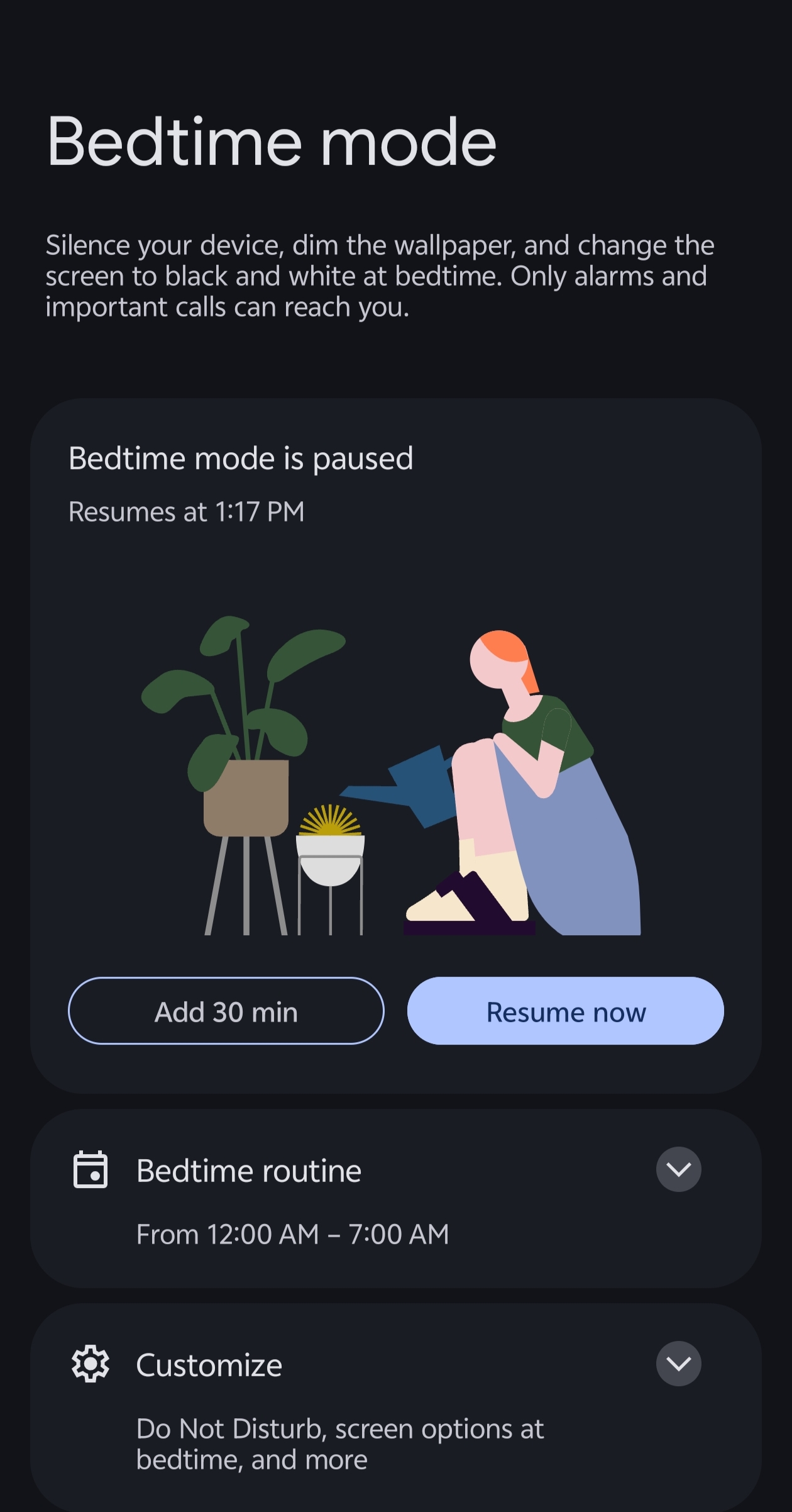
It’s not the healthiest thing in the world to stay up all night texting and doomscrolling. Android's Bedtime mode is part Google's Digital Wellbeing initiative. Not only does it silence your phone at a set time, it also changes the screen to grayscale, in case you must look at the screen after hours.
You can also swap to Dark Theme during Bedtime mode, or just outright set your phone screen dark and enjoy some peace. There’s a Pause option in the dropdown menu if you need more time before retiring. If you're looking for more sleep tips, you should read our feature on how tech can help (and hurt) your sleep.
Focus Mode
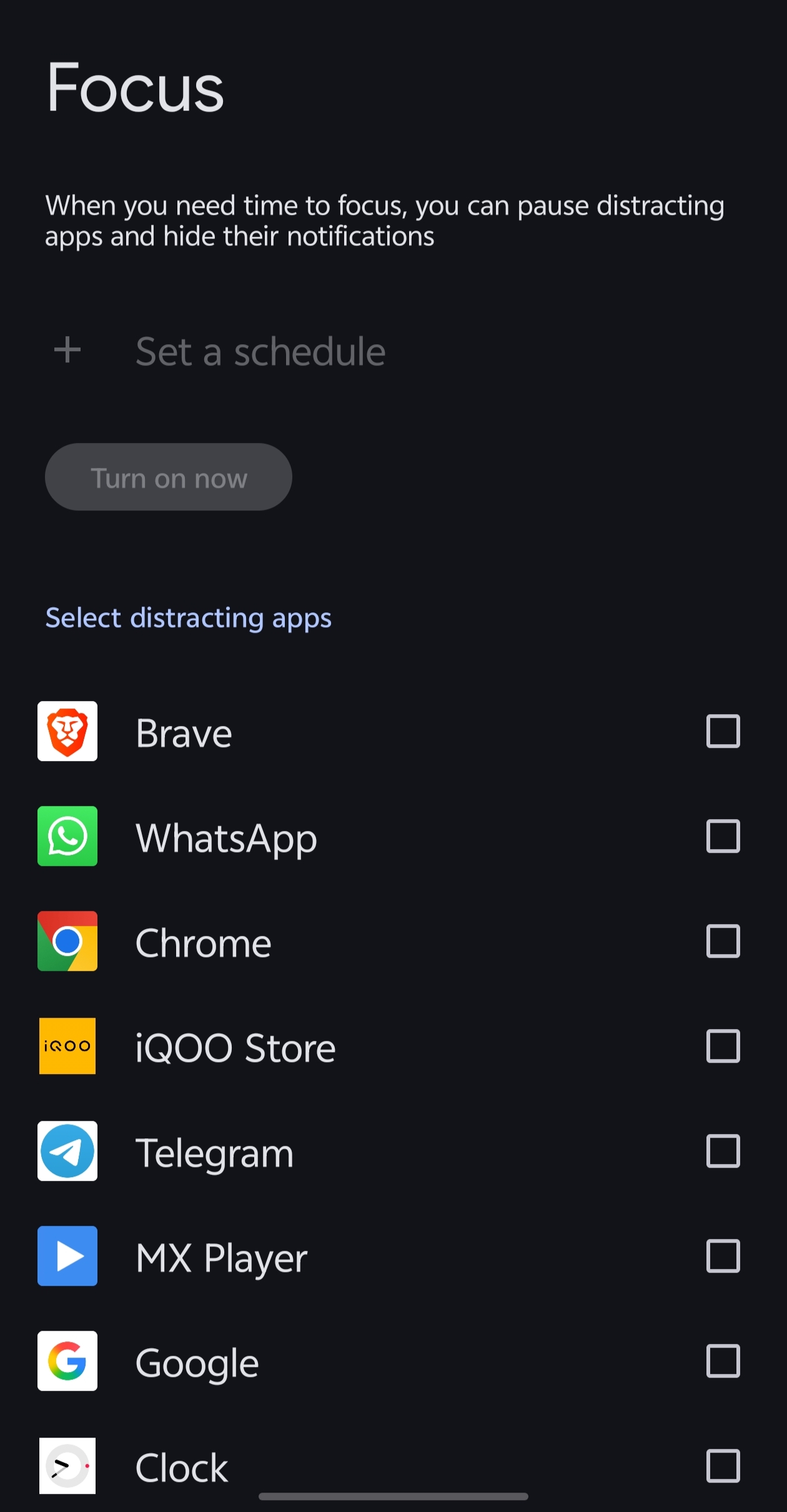
Another recommended Wellbeing feature is Focus mode, which silences noisy apps’ notifications for a time you schedule. Some phones, turn on Do Not Disturb mode when you set them down with the screen facing down—a quick and easy way to get relief from disturbances.
App activity details
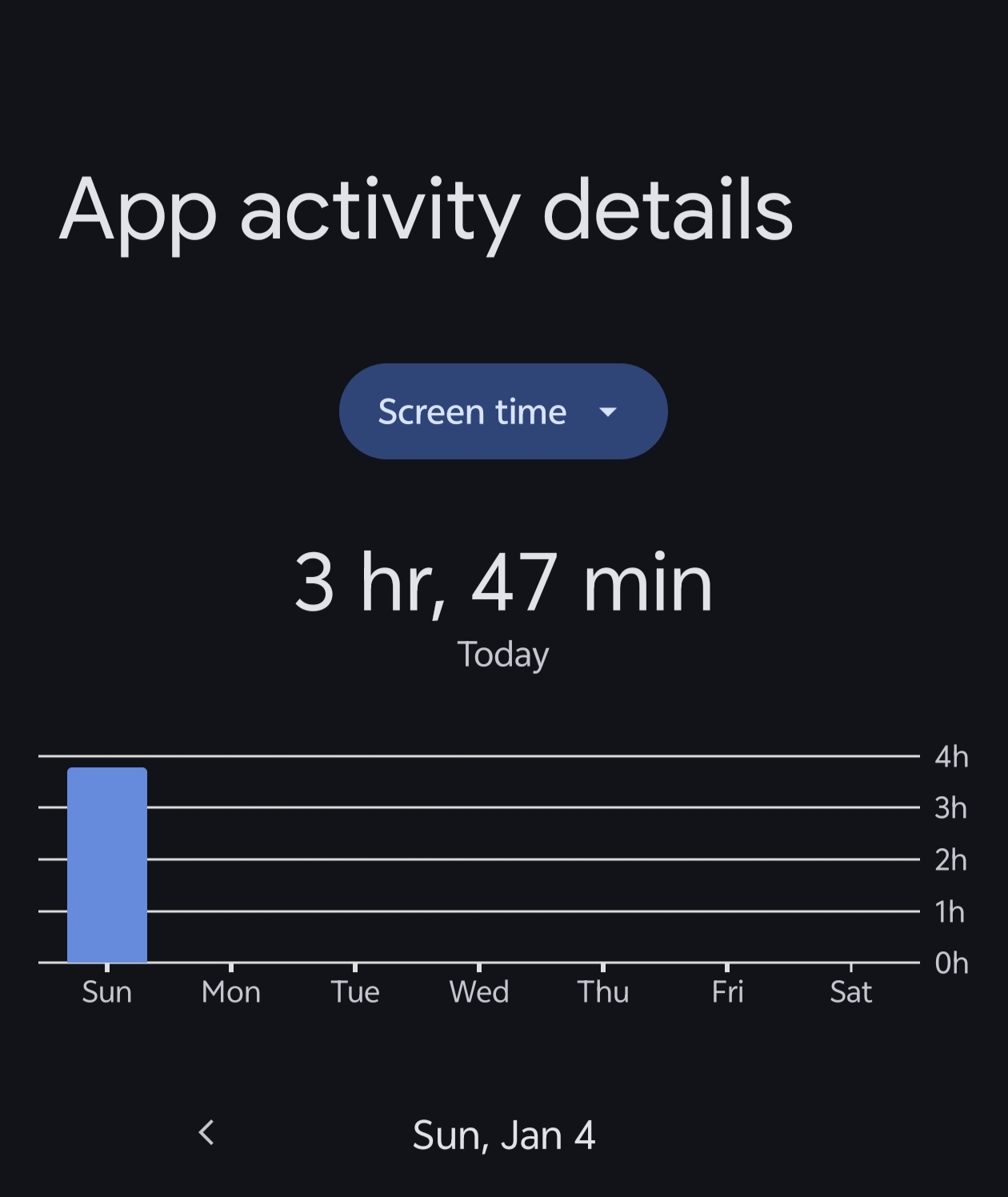
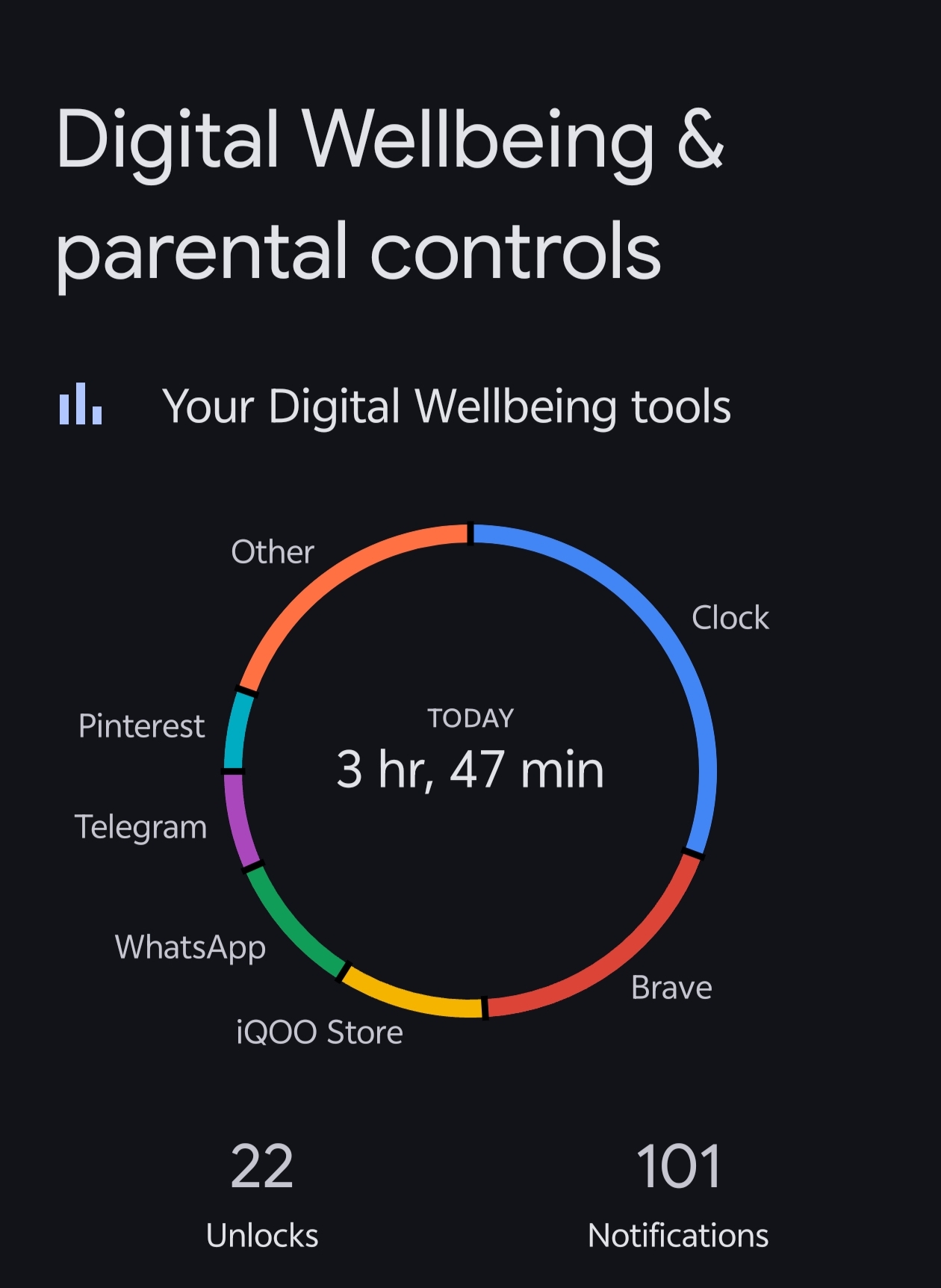
You can also check app activity details of the whole day . Thus you can track your mobiles screen time and u can manage your time for productivity.
Parental control
Core Parental Control Features
Through the Google Family Link integration, parents can perform the following:
Set Screen Time Limits: Establish a daily allowance for how long a child can use their device.
App Management: Approve or block specific app downloads from the Google Play Store and set individual timers for specific apps.
Enforce Bedtime: Schedule a "lock" period for the device to ensure children are not using it late at night.
Remote Locking: Instantly lock a child's device from the parent's phone to enforce breaks.
Content Filtering: Use SafeSearch to filter explicit search results and set age-based ratings for apps and media.
Location Tracking: See the real-time location of a child's device.
How to Set Up Parental Controls on Android
Open the Settings app on the child's device.
Tap Digital Wellbeing & parental controls.
Scroll to the bottom and tap Set up parental controls.
Follow the prompts to link the device to your own Google account using the Family Link app.
Please sign in
Login and share