



























How to Schedule Messages on Google Chat: A Step-by-Step Trick (Guide)

You can choose a specific send time up to 120 days in advance, which is useful when working across time zones or avoiding late-night messages.
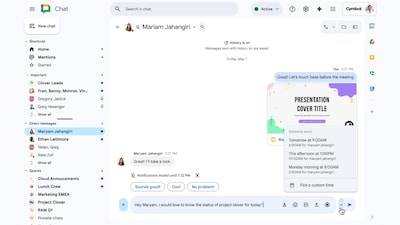
Google rolled out the scheduled messages feature in Google Chat in December 2025, giving you a built-in way to send messages at a later time or date. You can choose a specific send time up to 120 days in advance, which is useful when working across time zones or avoiding late-night messages. Once a message is scheduled, Google Chat shows a banner above the compose box and adds a Drafts shortcut, where you can edit, reschedule, or cancel messages before they are sent.
If you use Google Chat for work or group conversations, this feature can make communication easier. Whether you are following up on tasks, sending reminders during office hours, or planning messages for a busy day, scheduling helps you stay organised. In this copy, we will walk you through how to schedule messages on Google Chat step by step, so you can send the right message at the right time.
How to Schedule Messages on Google Chat on Desktop
1.To schedule a message, you need to first open Google Chat, either through Gmail or by visiting chat.google.com, and then select the conversation where you want to send the message.
2.Once the conversation is open, type your message in the compose box just as you normally would.
3.Instead of sending it right away, click the down arrow next to the send button, which appears as a paper airplane icon.
4.From the menu that appears, choose one of the suggested times or select Pick a custom time to set a specific date and time.
5.After choosing the time, tap the send button to schedule the message for delivery at the selected time.
How to Schedule Messages on Google Chat on Mobile
1.You need to first open the Google Chat app on your phone and select the conversation where you want to send the message.
2.After opening the conversation, draft your message in the text box as you normally would.
3.Instead of sending it immediately, tap the arrow icon next to the send button to open the scheduling options.
4.From the list, select one of the suggested times or choose a custom date and time that works for you.
5.Once you have picked the time, tap Schedule or Save to finalise the message.
Once you schedule a message, Google Chat shows a banner above the compose box with the scheduled send time. You can tap or click this banner to view the message and edit, reschedule, send, or cancel it. On desktop, Google Chat also adds a Drafts shortcut in the left sidebar, where you can manage all scheduled messages from one place.
Please like and follow .

Please sign in
Login and share