



























Help Me Write Feature on Gmail Explained: What Is It, How to Use, and More...

While it does not think for you, Google's Help Me Write feature can save time and make composing emails feel much less stressful.
Highlights
- Help Me Write creates full emails from simple prompts.
- Gmail lets Help Me Write summarise and rephrase text.
- Gmail supports Help Me Write on desktop and mobile.
Gmail now includes an AI writing tool called Help Me Write that makes drafting emails quicker and easier. It is meant for anyone who finds it hard to get the wording or tone right. Instead of typing everything yourself, you can simply tell Gmail what you want to say. The tool then creates a full email draft in a few seconds. You can use it for quick replies, work emails, or longer messages that need to sound clear and polished.
Help Me Write Feature on Gmail Explained
Help Me Write is part of Google's effort to add AI features to everyday apps. It works directly inside Gmail, so there is nothing extra to install. You can tweak the draft of an email by shortening it, making the tone more formal, or more friendly. While it does not think for you, it can save time and make writing emails feel much less stressful. Here's all you need to know about the feature.

What Is the Help Me Write Feature in Gmail?
The Help me write feature in Gmail acts like a built-in AI writing helper powered by Google's Gemini models. It is designed to take some of the pressure off when you are unsure how to start an email or how to phrase something clearly. Whether you are writing a brand-new message or fixing up an existing one, the tool helps you get there faster while keeping the tone appropriate.
You can ask Help me write to create a full draft by entering a short prompt about what you want to say. It looks at your instruction and the previous messages in the conversation to generate a suitable reply. If you already have text written, you can also use it to refine your message. The tool can make your email sound more professional, add more detail, shorten it, or polish the wording by improving grammar and clarity.
How Does Help Me Write Work on Gmail?
The Help me write feature works by carefully reading what you give it. This can be a short prompt explaining what you want to say, or an email draft you have already started. The tool also looks at the context of the email thread, including earlier messages, so the response feels relevant and natural.
Based on this information, the AI generates a draft that matches your intent and tone. If you are replying to someone, it tries to stay on topic and fit the conversation. You can then review the draft, make changes, or ask the tool to adjust the tone, length, or clarity before sending the email.
How to Use Help Me Write in Gmail Step by Step?
- Open Gmail on your device. If you are on a computer, click the Compose button to start a new email or open an existing message to reply. On a mobile device, tap the Compose icon at the bottom right of the screen.
- Make sure the email compose window is open. You should see the text field where you normally type your message.
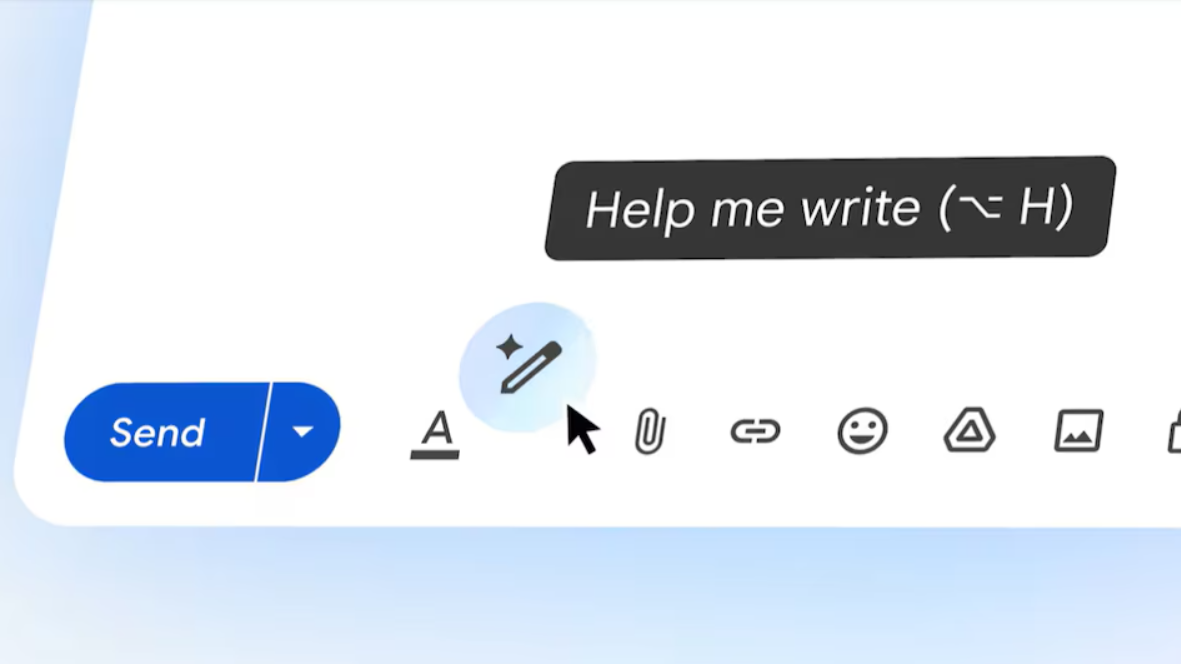
- Look for the Help me write option at the bottom of the compose window. It may appear as text or as an icon that looks like a star with a pencil.
- Tap or click Help me write to activate the feature. A prompt box will appear on the screen.
- In the prompt box, describe the email you want to write. Mention who the email is for, what it is about, and the tone you want, such as formal, polite, or friendly.
- Tap or click the Create button to let Gmail generate a draft based on your prompt.
- Read through the generated draft carefully to see if it matches what you want to say.
- If you like the draft, choose the Insert option to add it to the email body.
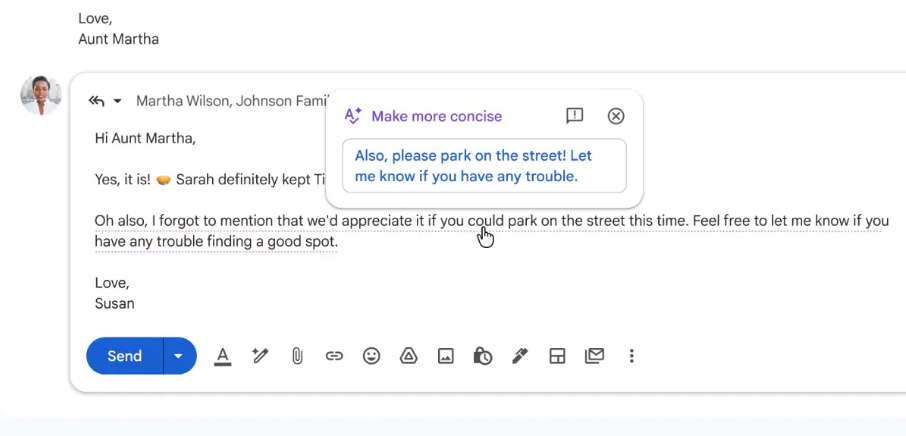
- If the draft needs changes, use the refine options to make it more formal, add more details, shorten it, or polish the wording. You can also edit the text directly.
- Once you are satisfied with the message, add the recipient's email address and a subject line.
- Review the email one last time, then click or tap Send to deliver it.
What You Can Do With Help Me Write?
The Google Help Me Write feature works on desktops, laptops, tablets, and smartphones and requires an active Google account or an eligible Google Workspace subscription.
It is available to personal Google account users worldwide and works directly in Gmail. For Google Workspace users, access depends on organisation-level admin settings, so availability may vary in work or school accounts.
On computers running Windows, macOS, Linux, or Chrome OS, the feature can be used in Gmail through a web browser and across Google Docs, Sheets, and Slides, as well as in the Chrome browser. On Android and iOS devices, it is accessible through the Gmail app, Google Docs app, and other supported Google Workspace apps.
Thanks for looking
.
.
.
.
.
.
.
Community member 😉
Prem Dharmik 🎮

Please sign in
Login and share