



























How to Enable FPS Meter on iQOO Devices 🎮 Track Your Gaming Performance!

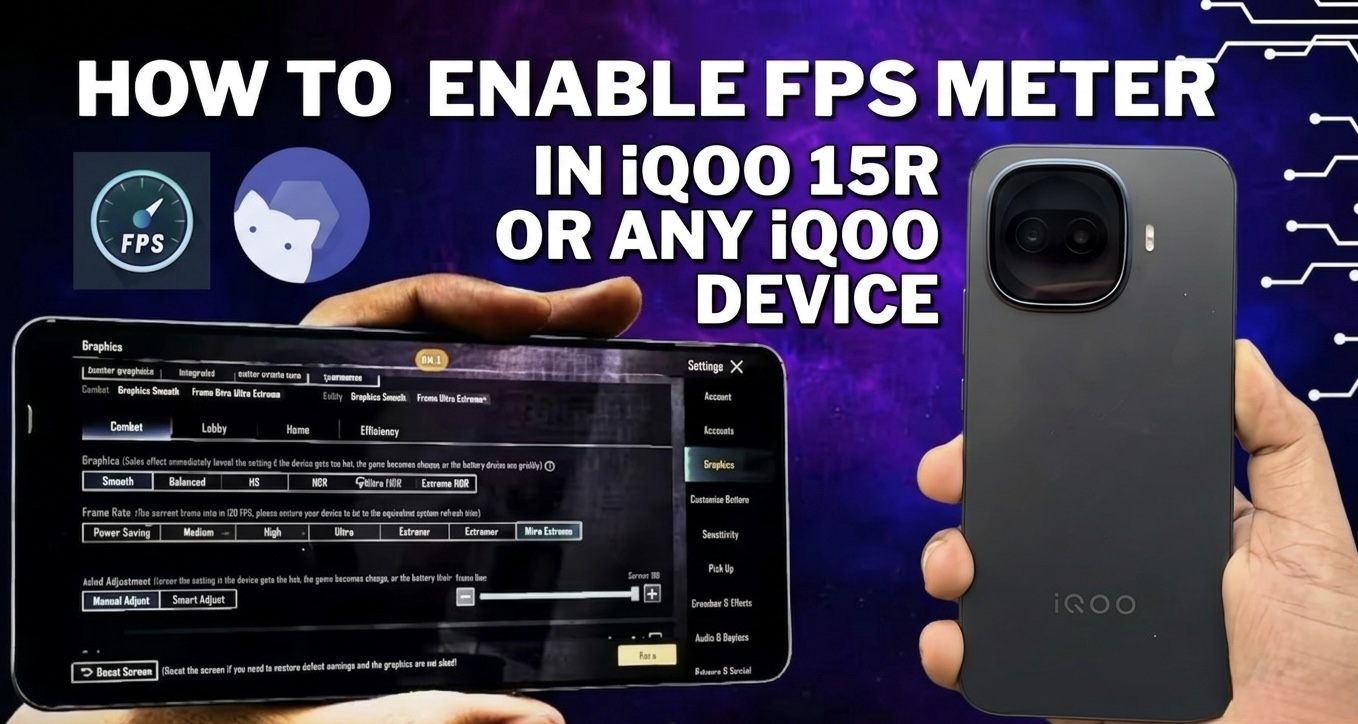
Hey Questers! 👋 I am Manab, and in this thread I will show you how to enable the FPS meter on your iQOO device step by step. 🎮
With this feature, you can monitor your games FPS (frames per second) in real time while playing, helping you understand performance, smoothness, and stability during gameplay.
I will guide you through the complete process with easy steps, so you can quickly turn it on and start tracking your game performance.
Lets start the guide ! 🚀
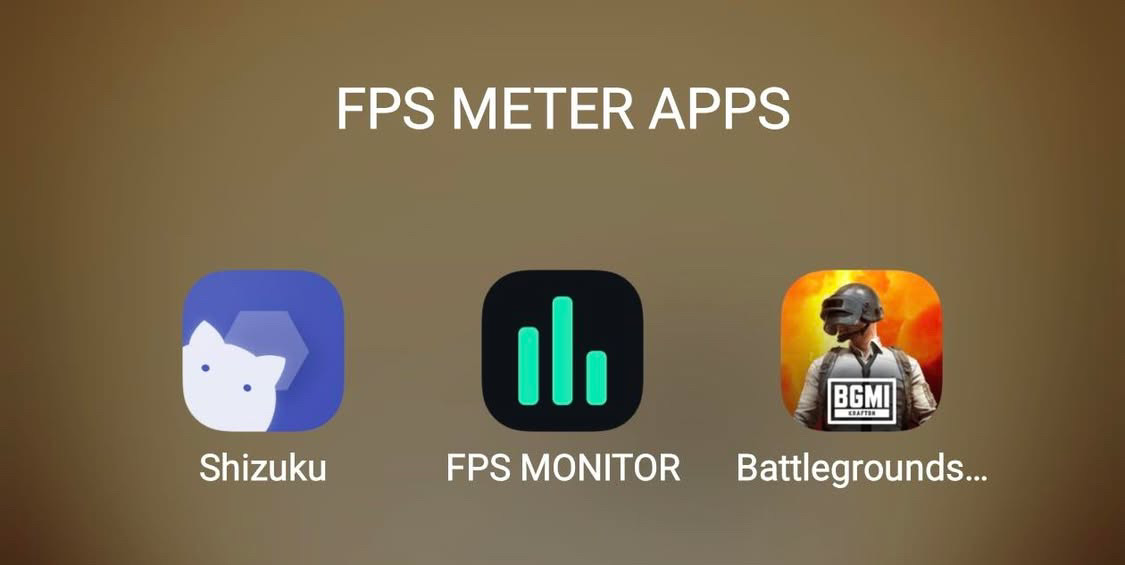
Step 1️⃣
First, download Shizuku and FPS Monitor apps from the Google Play Store.
Step 2️⃣
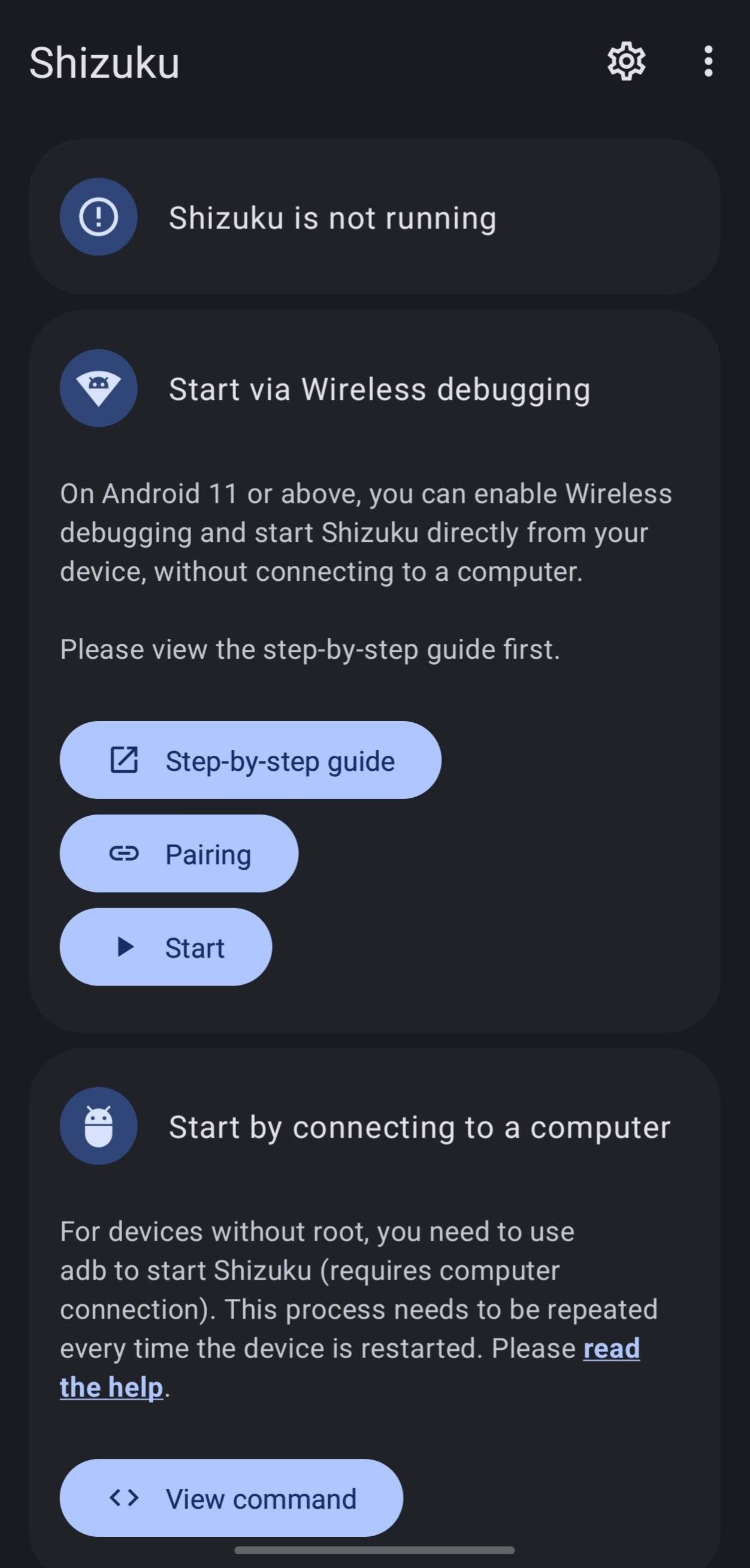
Open the Shizuku app. You will see the message “Shizuku not running.”
Tap on the Pairing option. It will start searching for a pairing device.
Step 3️⃣
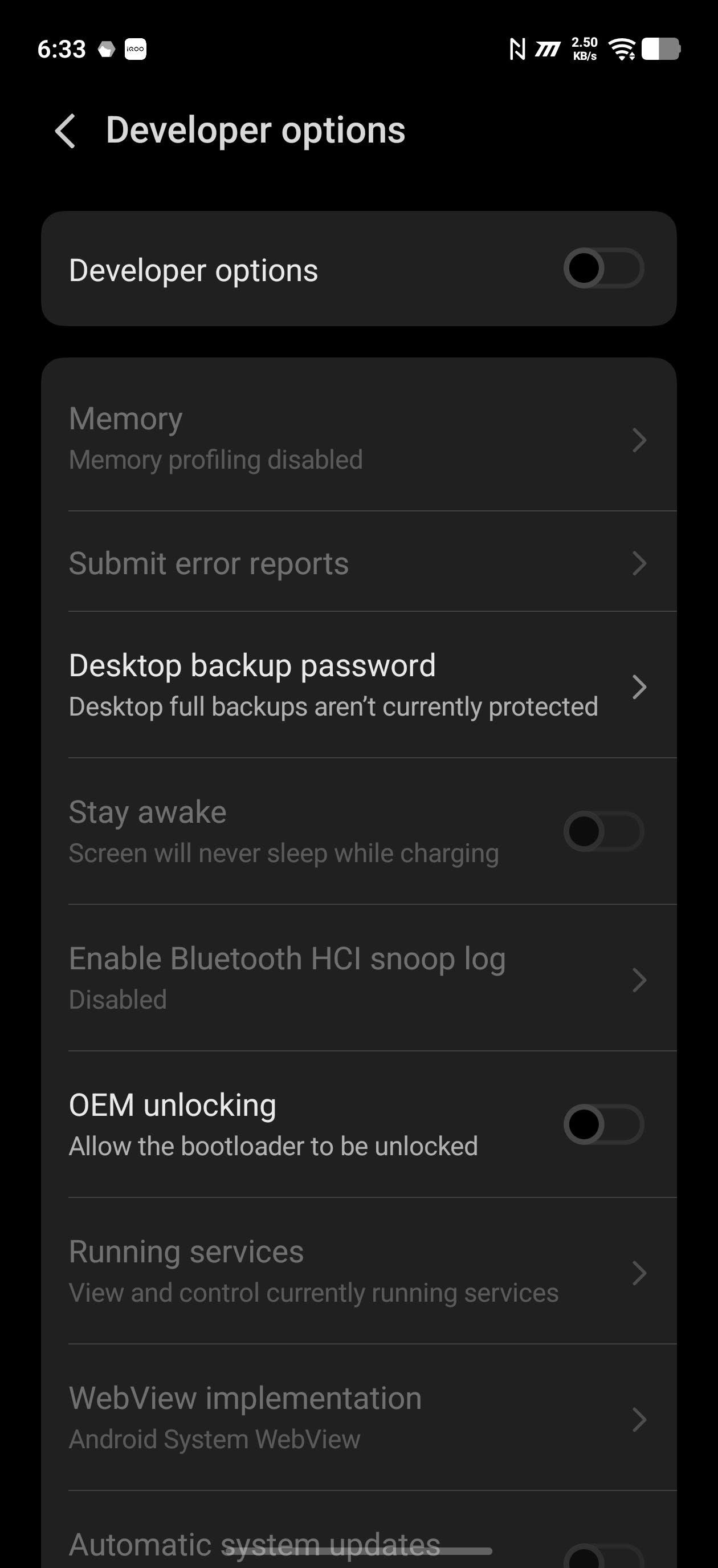
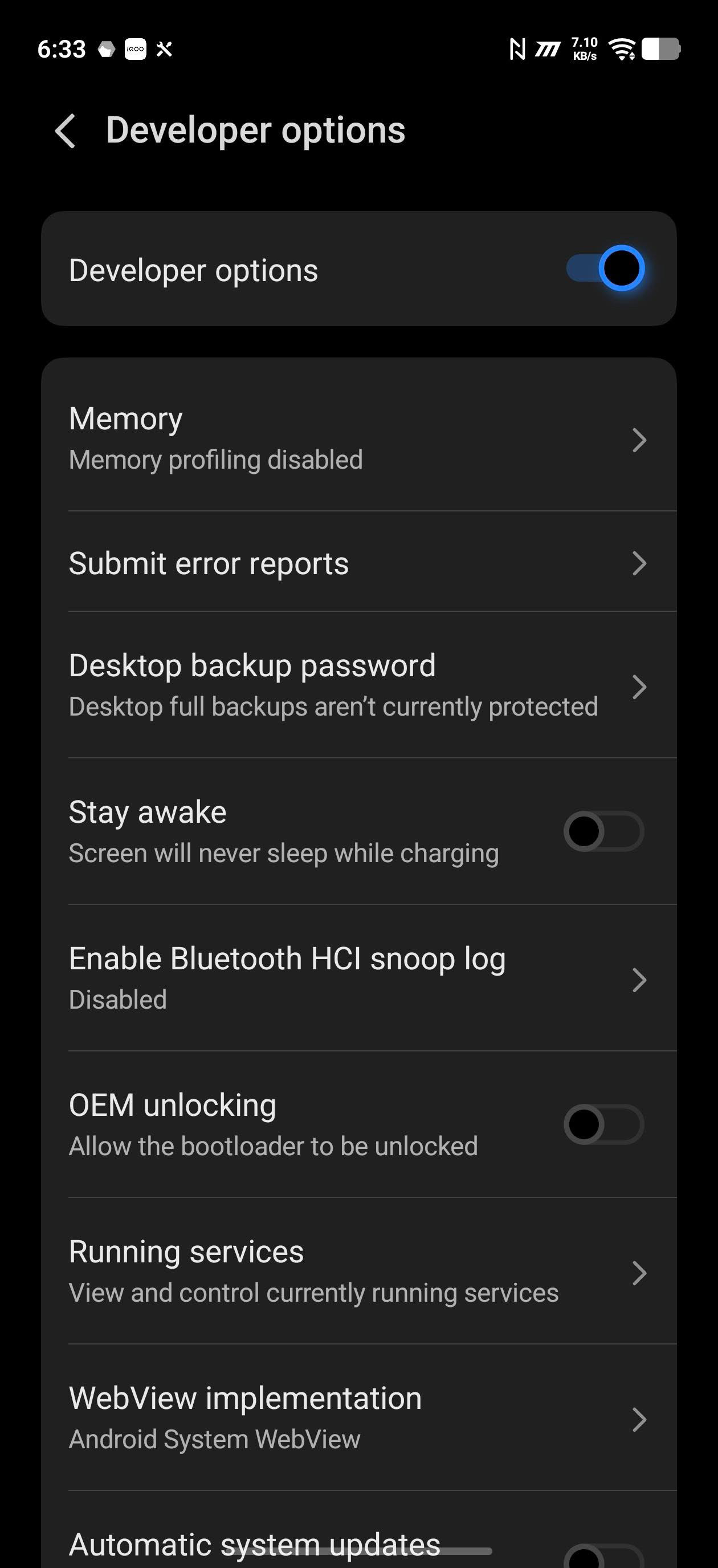
Now go to Settings → Developer Options and turn on Wireless Debugging.
Step 4️⃣
If Developer Options are off, turn them ON first.
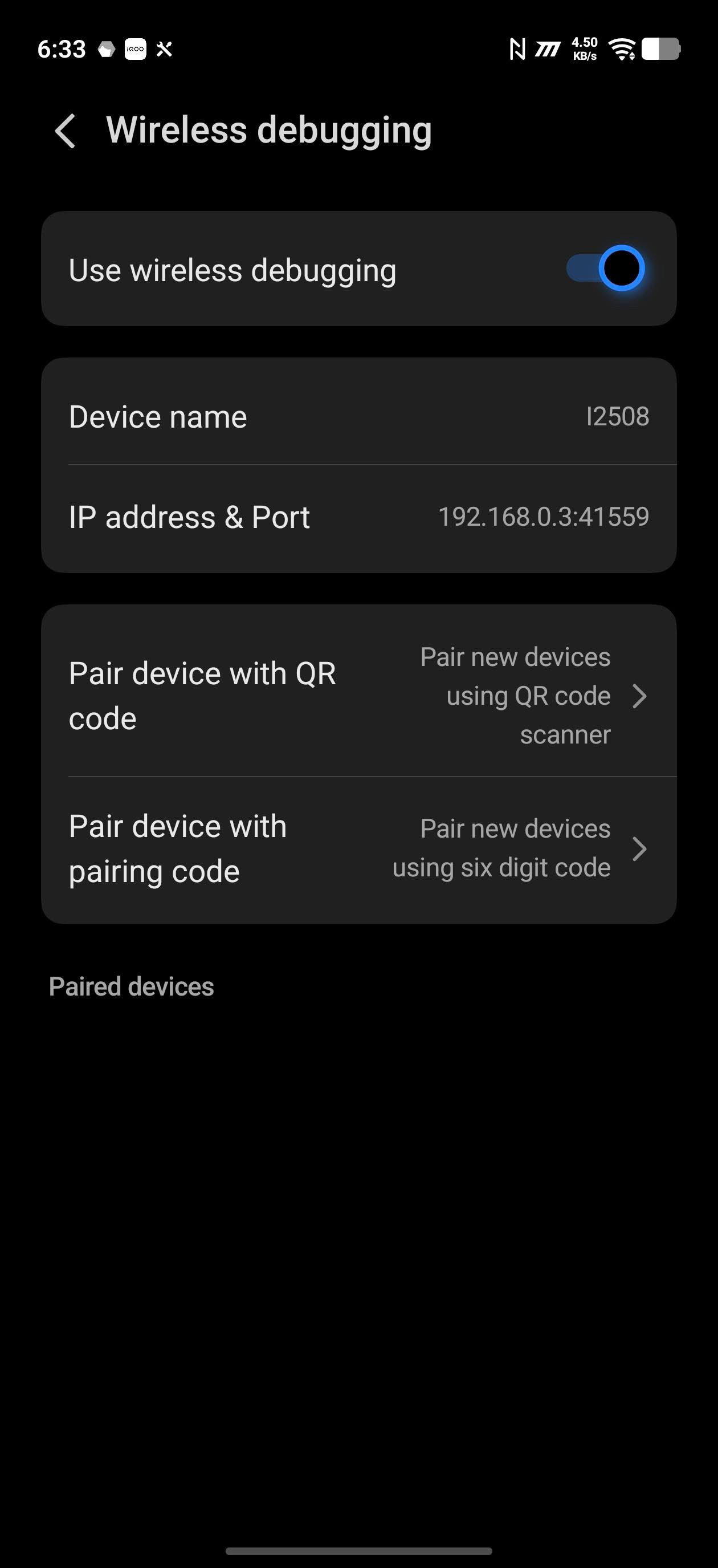
Then scroll down and find Wireless Debugging.
Tap it and open the menu. You will see two options:
- • Pair with QR Code
- • Pair with Pairing Code
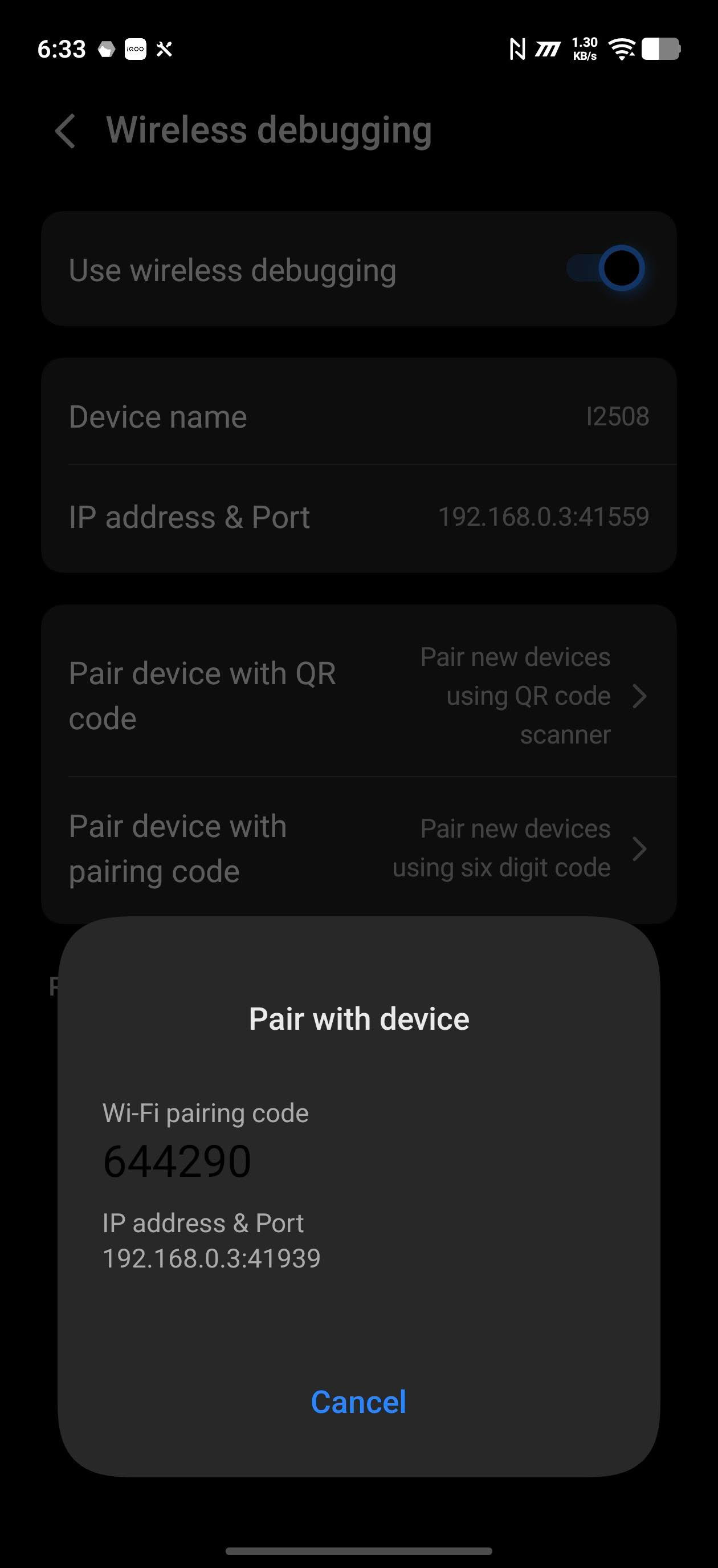
Tap Pair with Pairing Code, and a numeric code will appear.
Step 5️⃣
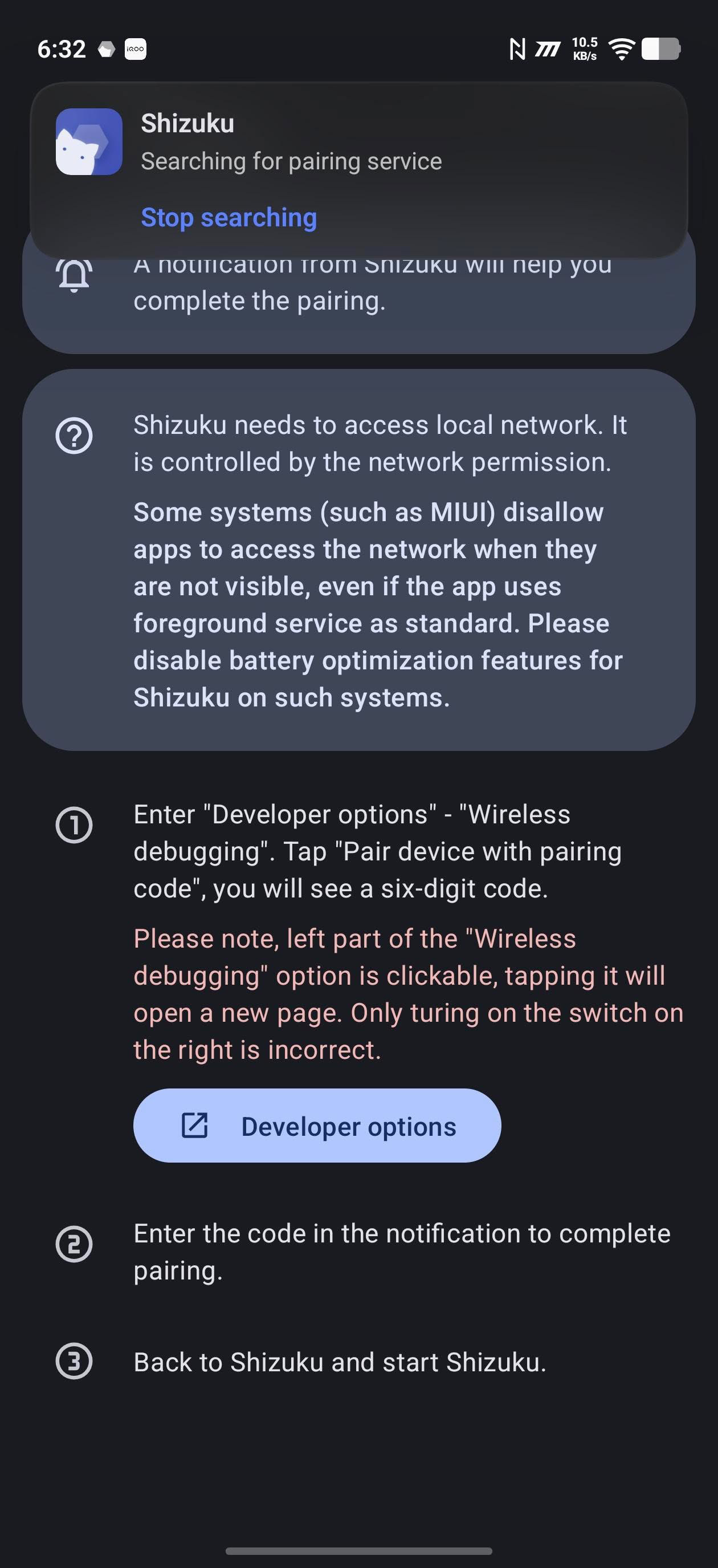
Now open the notification panel. You will see Shizuku searching for pairing device.
Tap Stop Searching, then select Pairing Service Found.
Enter the pairing code you received earlier.
After this, Shizuku service will start successfully.
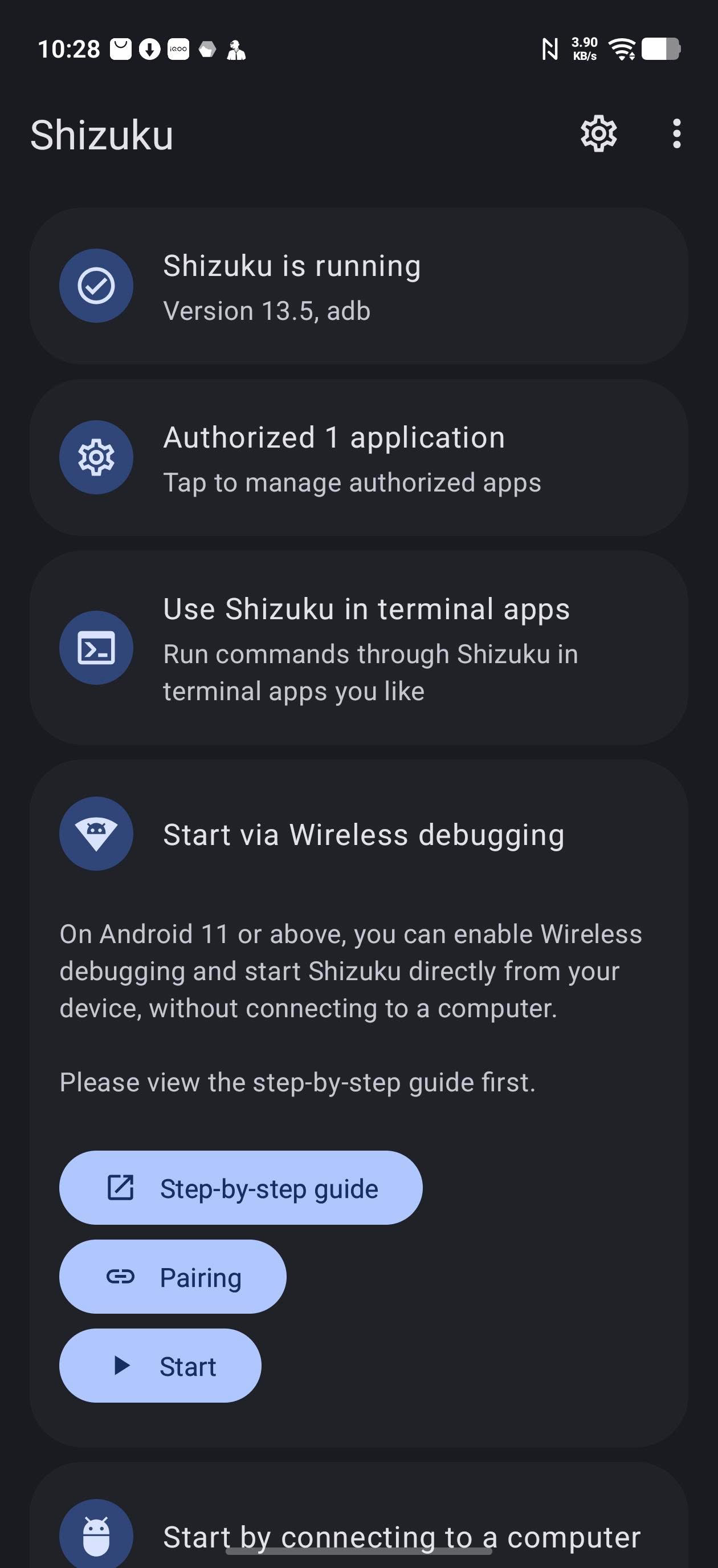
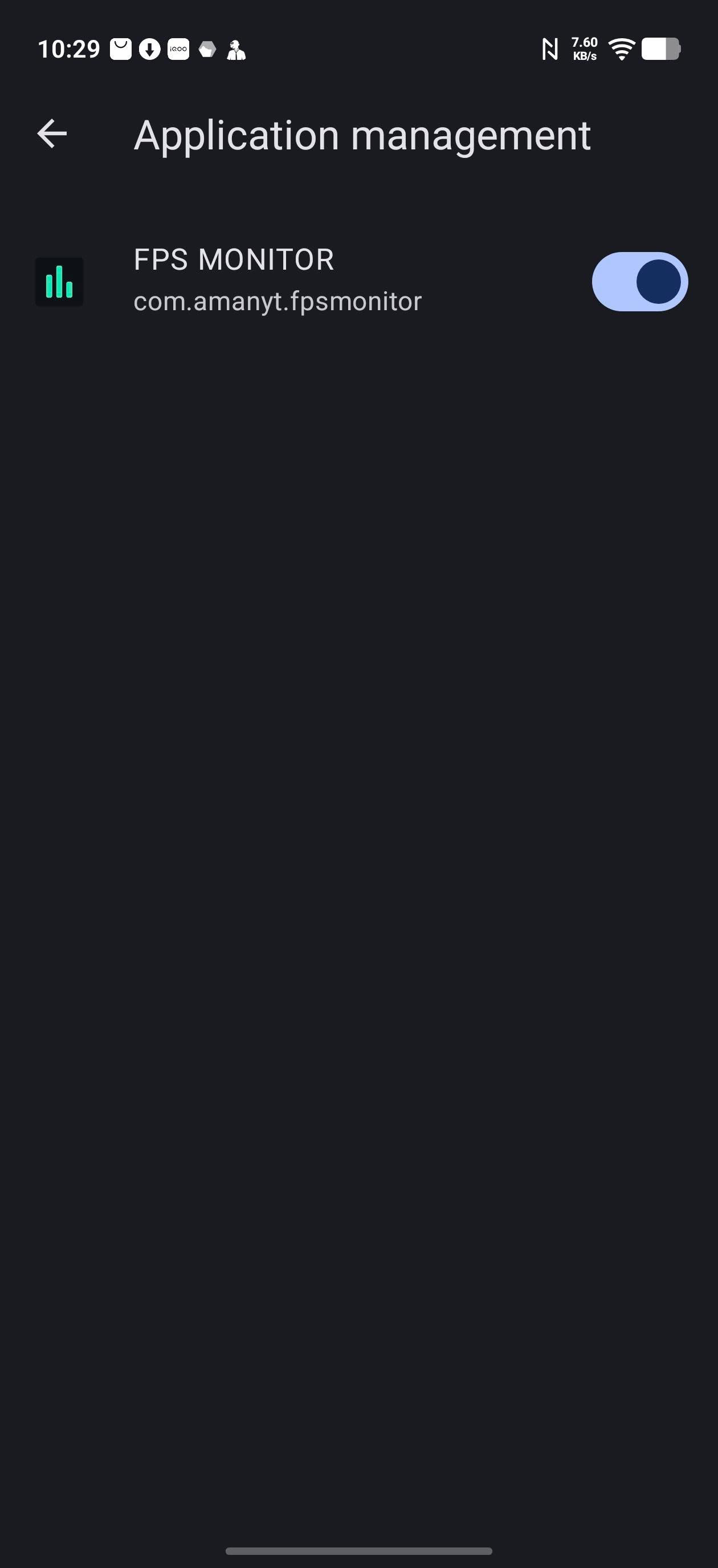
Step 6️⃣
Go back to the Shizuku app and press Start.
Then go to Authorized Apps and enable permission for the FPS Monitor app.
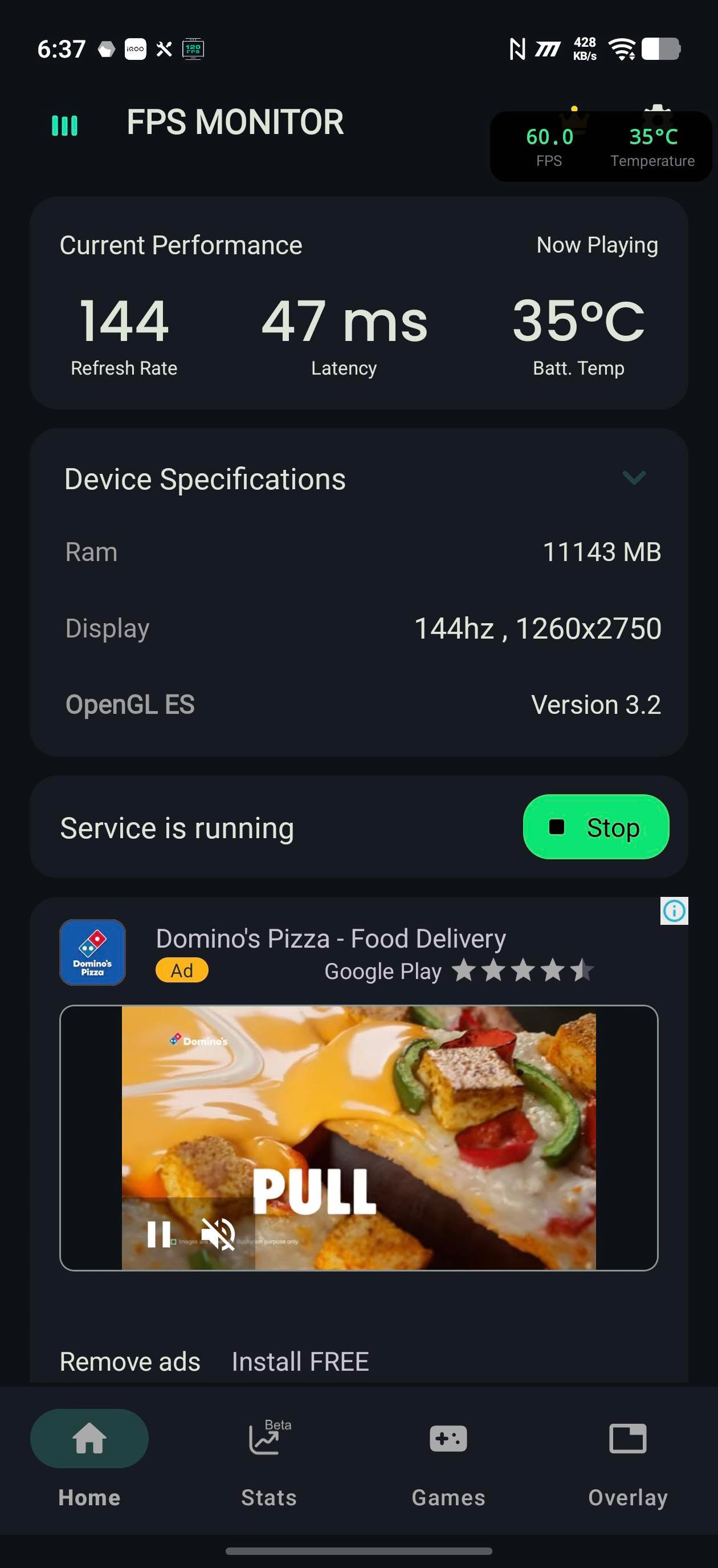
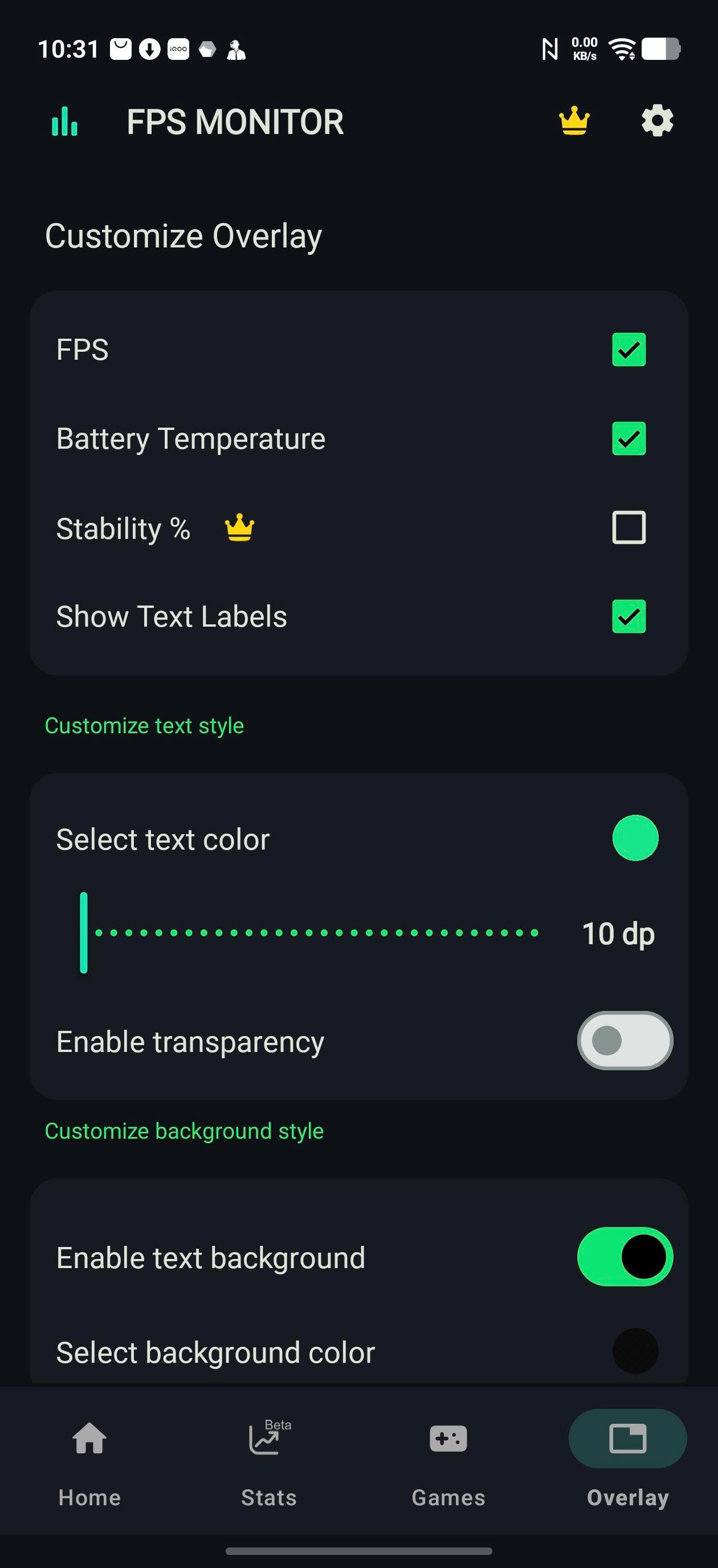
Step 7️⃣
Now open the FPS Monitor app and press the Start button.
You may see a small advertisement, then the FPS monitor overlay will start running.
You can also customize in overlay section :
- • Transparency
- • Size
- • Position
- • Temperature display
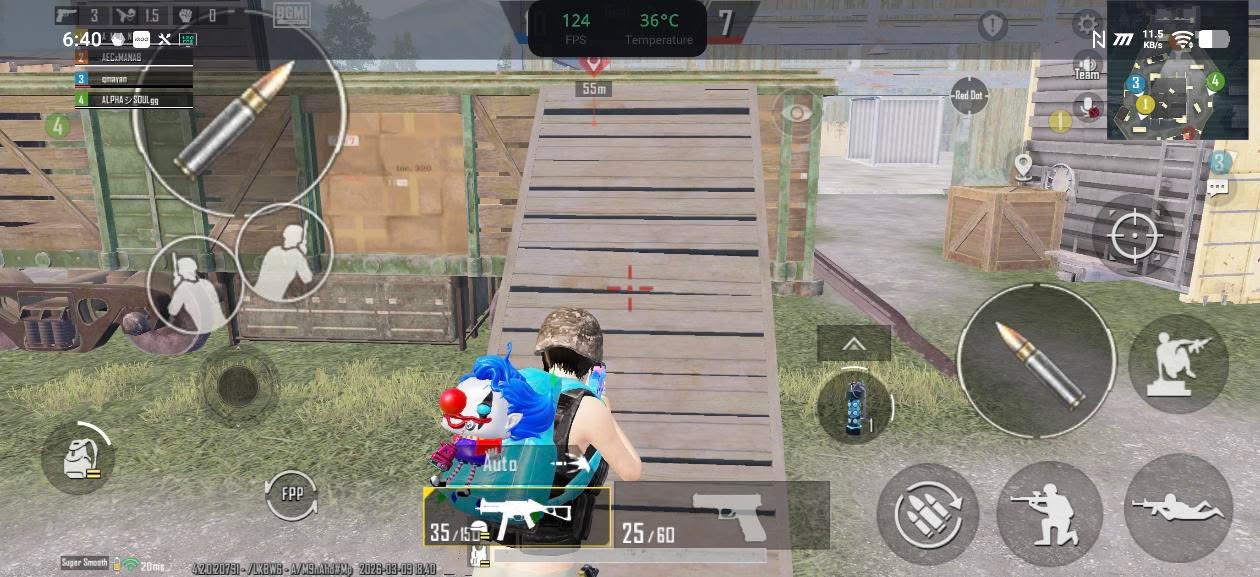
Step 8️⃣
Now launch your game (like BGMI 🎮).
The FPS monitor will show your real-time FPS during gameplay, whether it’s TDM, Classic, or other modes.
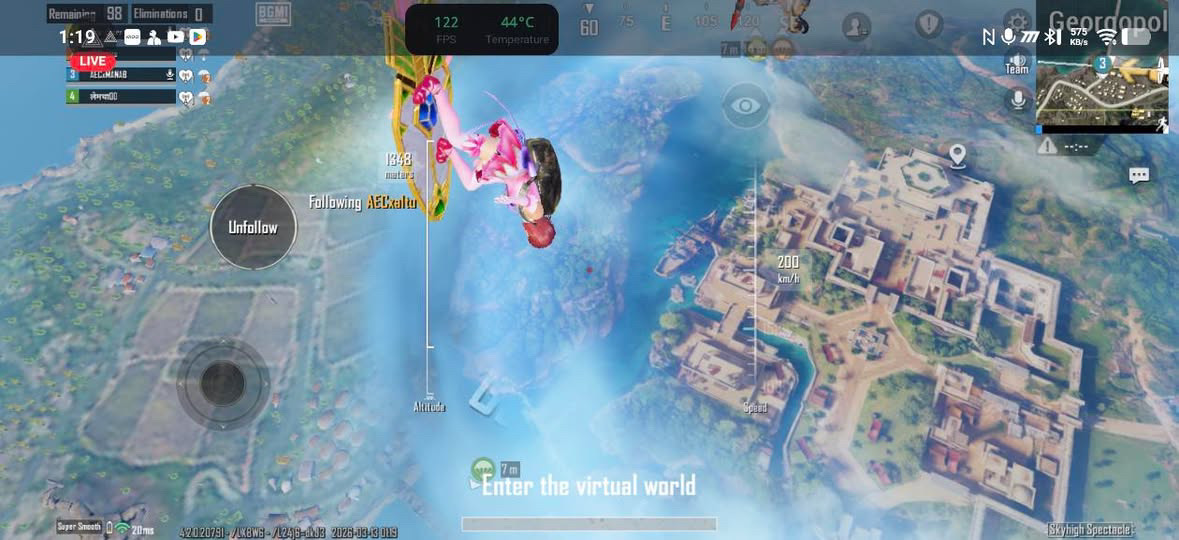
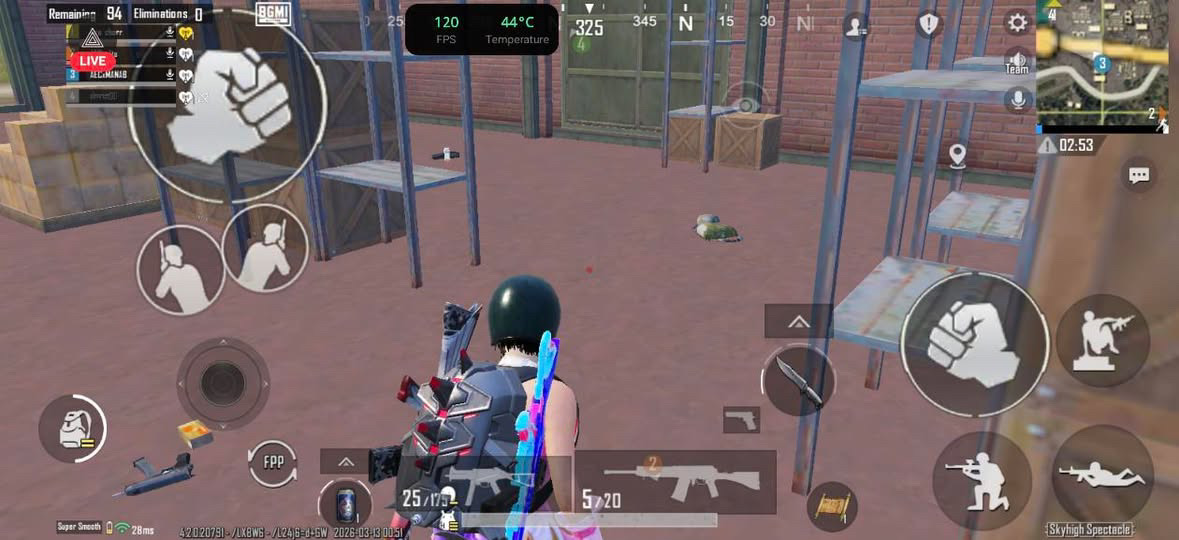
Thanks @iQOO Connect ❤️Thats the full tutorial! 🙌 Hope you liked this guide and found it helpful. Thanks for following !
@ParthNirmal @NITIN @YasirTheJOD @JStreetS @Swagg_rohit
Signing Off -@Manab10

Please sign in
Login and share