



























How to enable Advanced Protection on Android 16 - and why you shouldn't skip it

With Google's release of Android 16 last year, the company rolled out several hardened security settings you shouldn't ignore. Arguably, the most important change has been Advanced Protection.
Instead of hunting through many menus to secure your phone, you now have a quick way to lock down your Android device and better protect yourself against theft, unsafe apps, insecure networks, scams, and spam. Advanced Protection is a new one-tap mode that enables Google's strongest security and privacy features. It's like Apple's Lockdown Mode.
Also: How to enable Google's free VPN on your Pixel phone - it's easy
The thing is, it isn't turned on by default because it enforces stricter safeguards that create friction. While there may be some trade-offs, Advanced Protection is for those who care about security and want to be protected.
How to enable Advanced Protection
What you'll need: Advanced Protection requires Android 16; first, make sure your device is up to date. Go to Settings > System > Software update (or System update on some devices), then follow the prompts to install any updates. Android 16 is available now on most Google Pixel and major Android phone models. You also need to set up a screen lock on your device.
1. Open the Advanced Protection settings menu
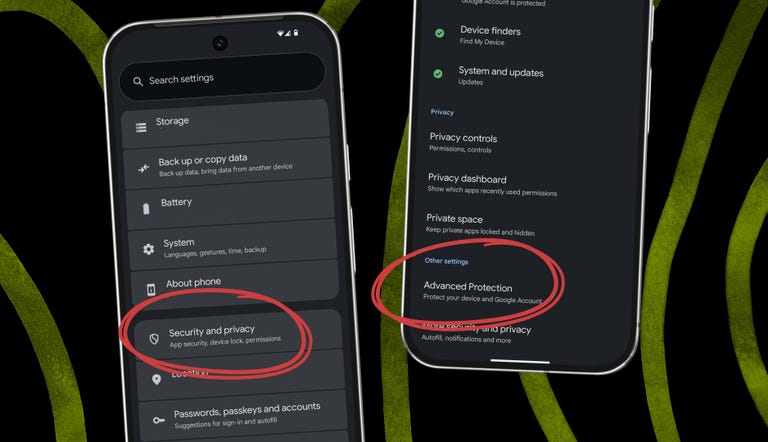
Advanced Protection brings multiple security features together in one place. Follow these steps to find it:
~Open Settings.
~Tap Security and privacy.
~Select Advanced Protection (you may find it under Other settings).
2. Turn on Device protection
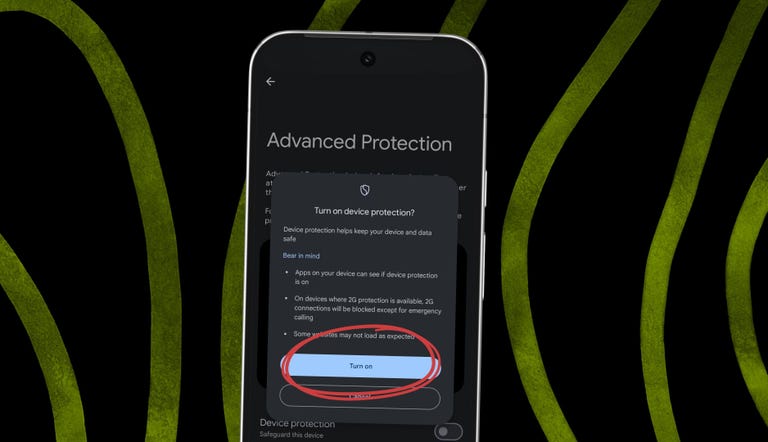
Advanced Protection is off by default on your Android device, so you'll need to switch it on to use it.
Under Advanced Protection, toggle on Device protection.
Select Turn on.
If prompted, restart your phone.
Also: How to clear your Android phone cache (and why it makes such a big difference)
Advanced Protection tucks several security settings behind a single switch. When turned on, it locks specific features so they cannot be disabled individually and activates additional safeguards. It forces always-on malware scanning, blocks sideloading, enables theft and offline device locks, filters spam and scam texts, restricts insecure 2G connections, strengthens call screening, tightens Chrome protections, and more.
3. Optional: Enroll your Google account
After turning on Advanced Protection on your Android device, you can also enroll your Google Account for broader protection across Gmail, Drive, Docs, and other cloud services. This is separate from the device toggle.
Android's Advanced Protection secures your phone and local data, while the Google Account Advanced Protection Program protects your online account. The program is opt-in and requires stronger sign-in methods, such as passkeys or security keys. It also restricts third-party app access to your data.
Also: How to enter Safe Mode on your Android phone - and when's the right time to do it
For maximum security, especially if you are at higher risk, consider enabling both the device-level and account-level protections.
To enroll:
~Go to Advanced Protection in your Google ~Account settings and sign in.
~Follow the on-screen steps. You may be prompted to set up a passkey or security key, and to add a recovery phone number and email address.
~Select Enroll to finish.
To unenroll, return to the same screen by going to your Google Account profile icon > Manage your Google Account > Security > Advanced Protection Program > Manage Advanced Protection, then select Unenroll.
Please sign in
Login and share