



























Mastering Google System Service Updates on iQOO 📱

Hey Questers 👋,
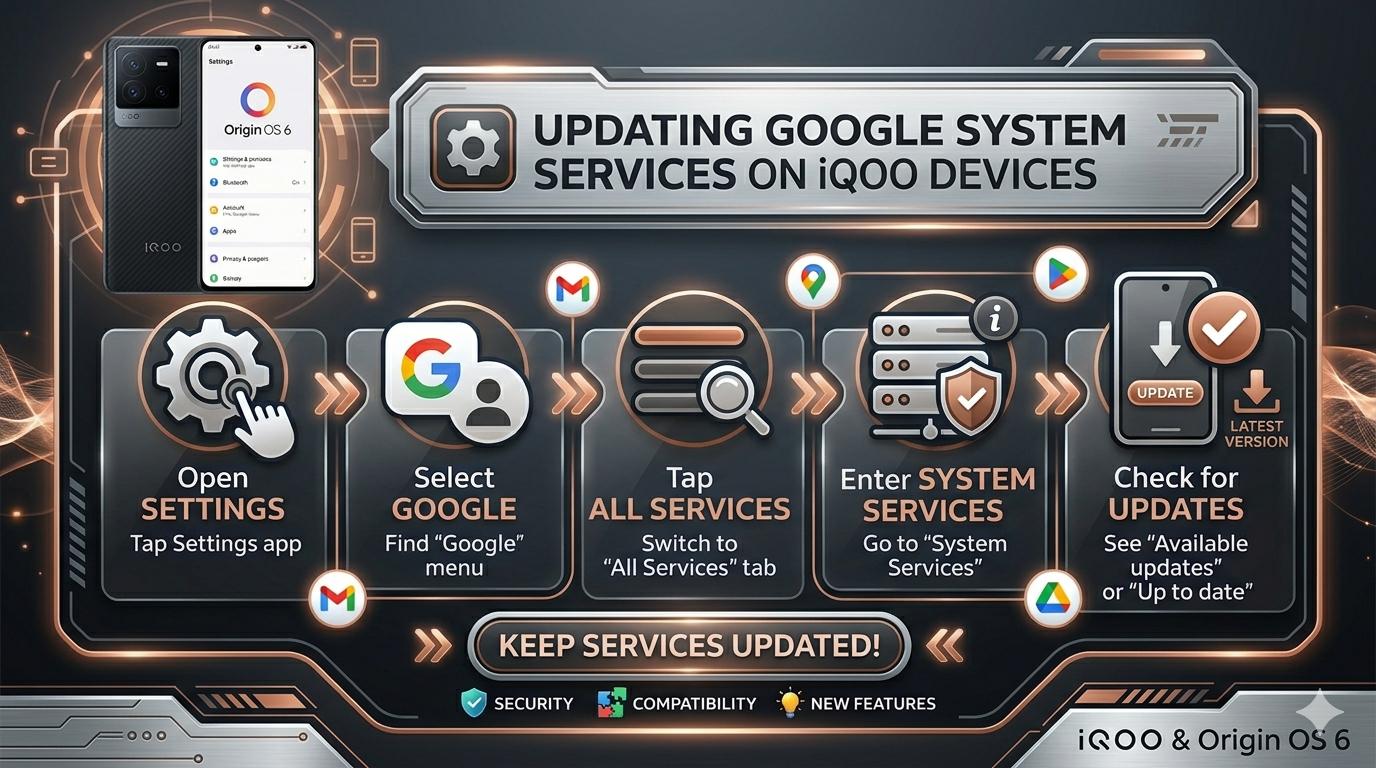
Did you know your iQOO has a "hidden" menu to force update core Google components? Beyond the Play Store, Google now groups essential background services under a dedicated section. Here's how to find and manage them.
Step 1: Open Settings
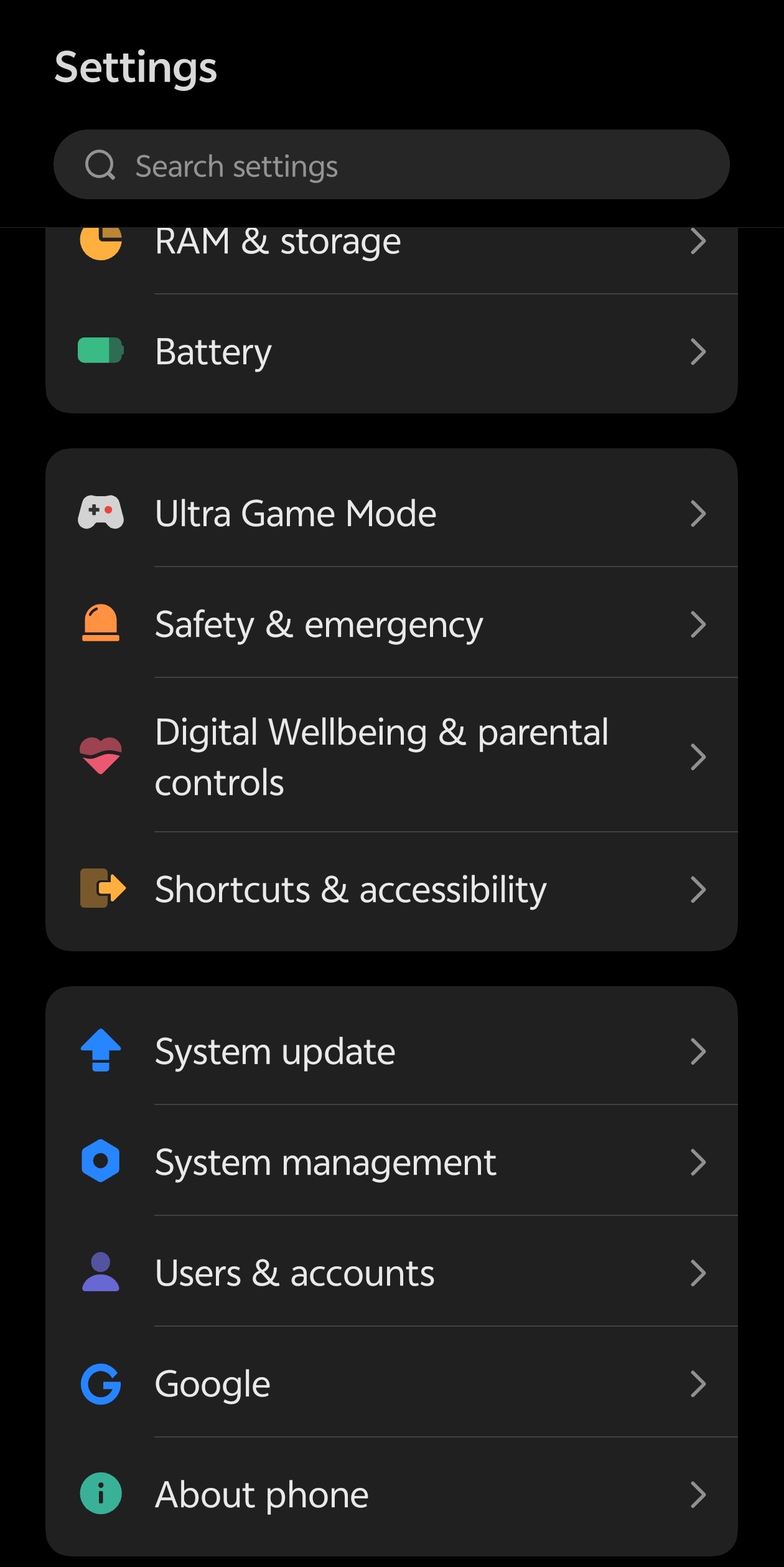
Unlock your iQOO device and head over to the Settings app. This is where all the magic starts for your Origin OS customization and system management.
Step 2: Locate the Google Menu
Scroll down until you find the Google option. Tap it to enter your Google Services & Preferences dashboard. This is where you manage your account, backup, and device sharing.
Step 3: Switch to 'All Services'
By default, you might see the "Recommended" tab. Look at the top of the screen and tap on the All Services tab to reveal the full list of Google-integrated features.
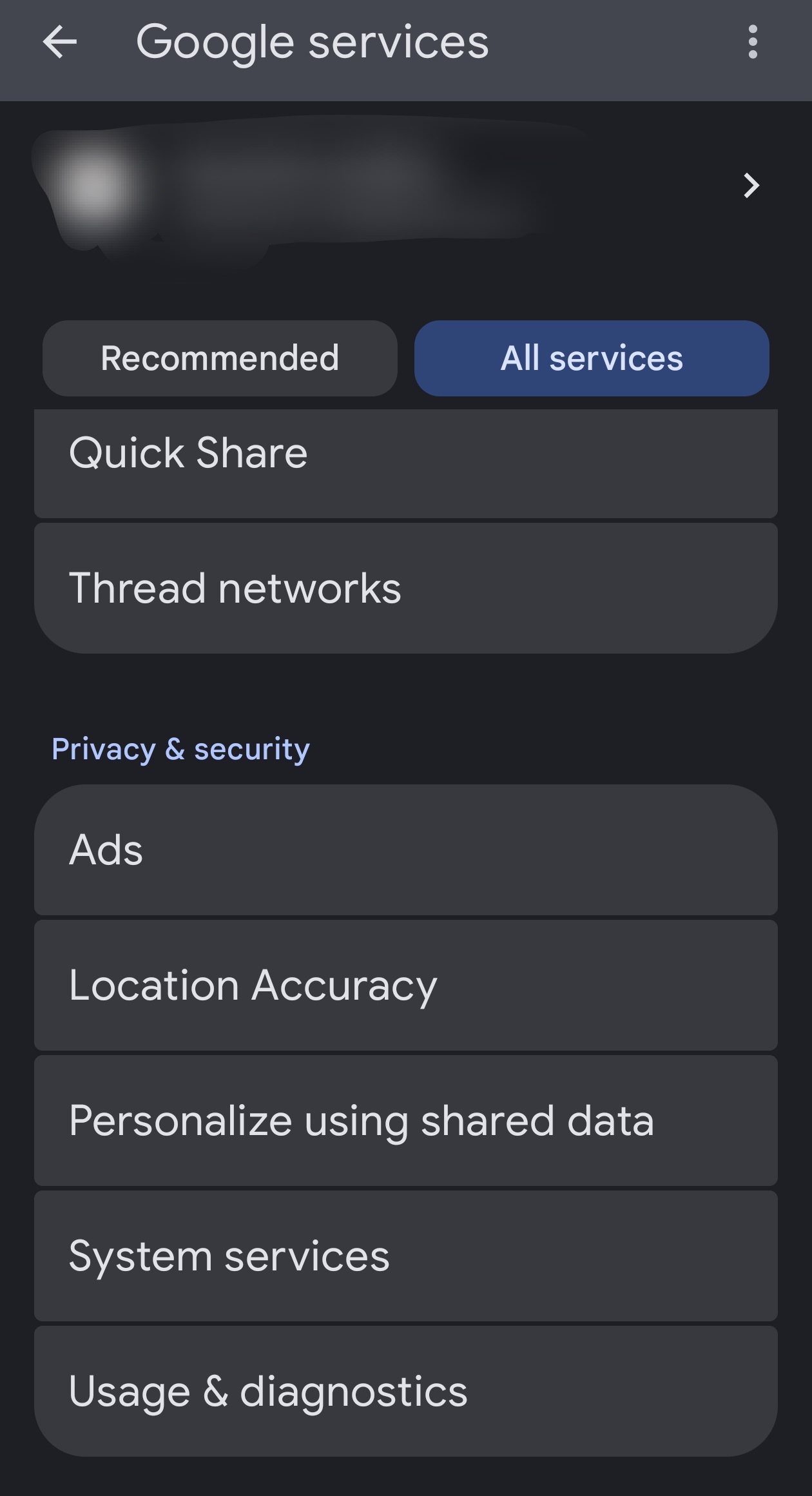
Step 4: Enter 'System Services'
Under the Privacy & Security section (or near the bottom of the list), you will see an option labeled System Services. Tap this to open the specialized update interface.
Step 5: Check and Update
Inside this menu, you'll see three main sections:
- Available updates: Any pending core service updates.
- Not installed: New modules or extensions (like Quick Share enhancements).
- Up to date: Services currently running the latest version.
Why bother? 🛠️
Updating here ensures that "invisible" features like Wi-Fi connectivity improvements, Autofill, and cross-device sharing work perfectly without waiting for a full Origin OS OTA update.
Pro Tip: If an app is acting glitchy (like Google Maps or Wallet), checking this System Services menu is a great first troubleshooting step before clearing caches!
Thanks
Please sign in
Login and share