

















Computer-like multi-tasking on Android phones

Android phones are the most used smartphones today. There are several hidden methods for Android phones that can be used to enrich your phone experience. We will talk about one such topic in this post. Many of us don't know that our smartphone or tablet device can do multitasking just like a desktop computer. Google has even brought various features like split screen or picture in picture from Android 7 version for multitasking. With this built in feature you can work on two different apps simultaneously using a split screen interface.
Using Android's freeform mode, you can open a small screen window just like on a PC that you can move around as you wish. Although this window facilitates multitasking, various manufacturers restrict this function in their OS depending on the device type.
As a result, some Android phones have the multi-window feature from the beginning, but many phones do not have this feature enabled. So you can easily turn on the multi-tasking feature by using some methods. However, there are some Android devices that do not support the multi-window feature at all.
Using Android's built-in split-screen mode
Using this feature you can use two apps side by side at the same time. But with this feature it is only possible to place two things side by side or top and bottom like this. This feature may not work for some apps. This feature requires Android 9 or later to work properly. You can easily use this feature by following the instructions below:
- First you need to tap on the virtual overview button whose icon looks like a square and is usually located at the bottom of the screen to the right of the home button. Also, you can see this overview by swiping up from the bottom of the screen.
- There will be a list of all your recently used apps. Press and hold the icon of the app you want to split-screen at the top.
- A sub-menu will appear from where you have to select 'Split screen' option.
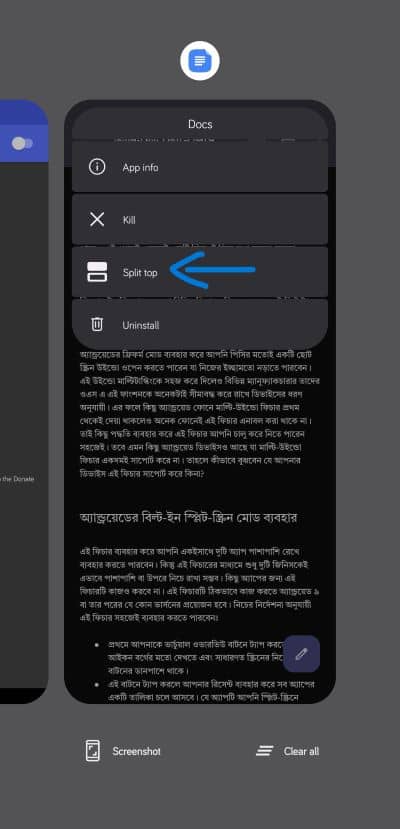
- Now you have to select another app to use in split-screen.

- To remove the second screen, drag the bar between the two screens to the corner of the screen.
Using the picture-in-picture feature for video
When you're watching a video in full screen on your Android phone, entering another app will automatically switch the video to picture-in-picture mode. Apps that support this feature usually have this feature turned on by default. To enable it if it is not enabled for a supported app:
- Open Android phone settings.
- Select 'Apps & notifications'.
- Select the app for which you want to turn this feature on from the list.
- Scroll down to the 'Advanced' section or tap on 'Advanced' if it is hidden.
- Tap on 'Picture-in-picture' option.
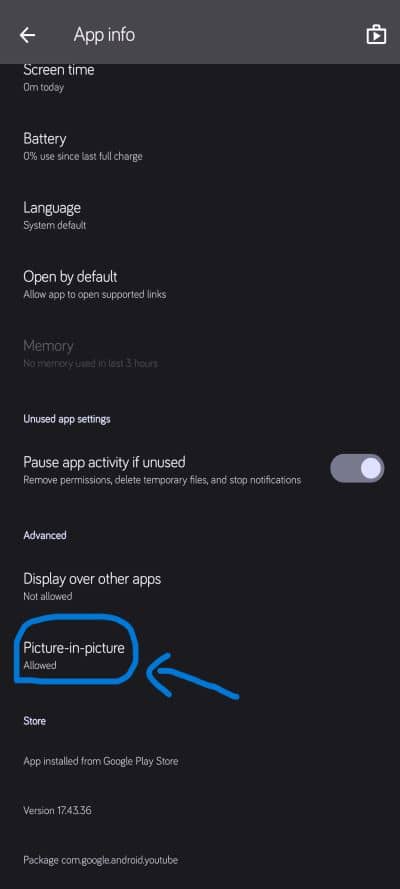
- Enable 'Allow Picture-in-picture' and tap the toggle.
- Now play any video in that app and go to full screen mode.
- Now if everything is fine, the video will continue in a small window even if you go to the home screen or go to another app.
- You can drag the video to any position you like.
- There will be an icon in the middle of this window which you can tap to go back to full screen.
How to multi-task more than two screens on Android
- First, go to your phone's settings.
- Select 'System' from the list and tap on 'About Phone'.
- Now find the text 'Build Number' and keep tapping on it until you see the text 'You are now a developer' at the bottom of your phone.
- Now go back to the system page and select 'Developer options'.
- Enable Developer Mode by tapping the toggle.
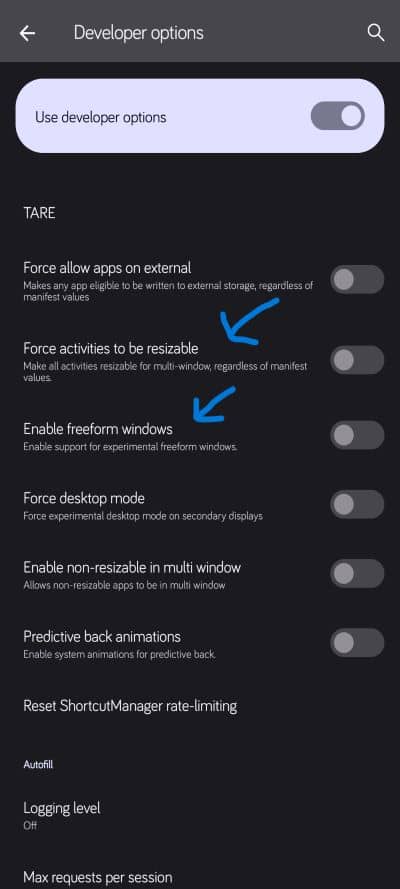
- Now scroll down to find the text 'Enable freeform windows' and enable its toggle. Similarly find the 'Force activities to be resizable' option and enable it in the same way.
Now you need to download and install a third party app. Install this app named Taskbar from Google Play.
- Open the app and turn on the toggle from the top.
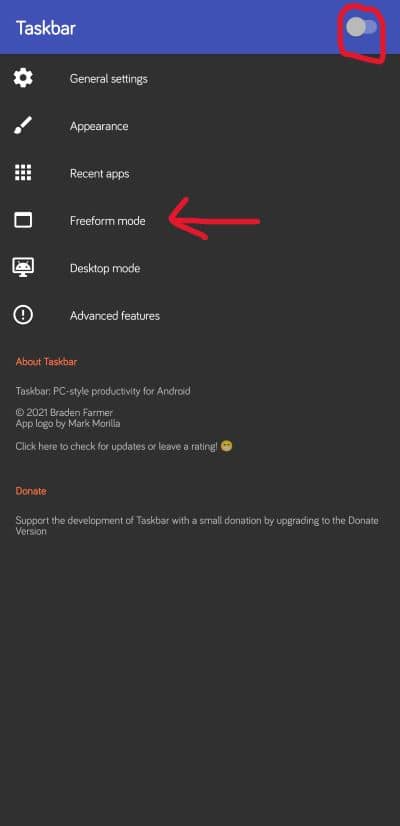
- Now give the permissions you want.
- Tap on 'Freeform mode' option.
- Here tick both 'Freeform window support' and 'Always open apps in new windows' options.
- Now whenever you open an app from the phone's taskbar overlay button, it will open in a separate window.
- Now you can drag the app window to the desired position. You can easily resize the window by dragging the corners.
- Now you can close all the windows at once by pressing the home button or you can close the windows separately by pressing the 'X' button in the corner of each window.
Please sign in
Login and share