













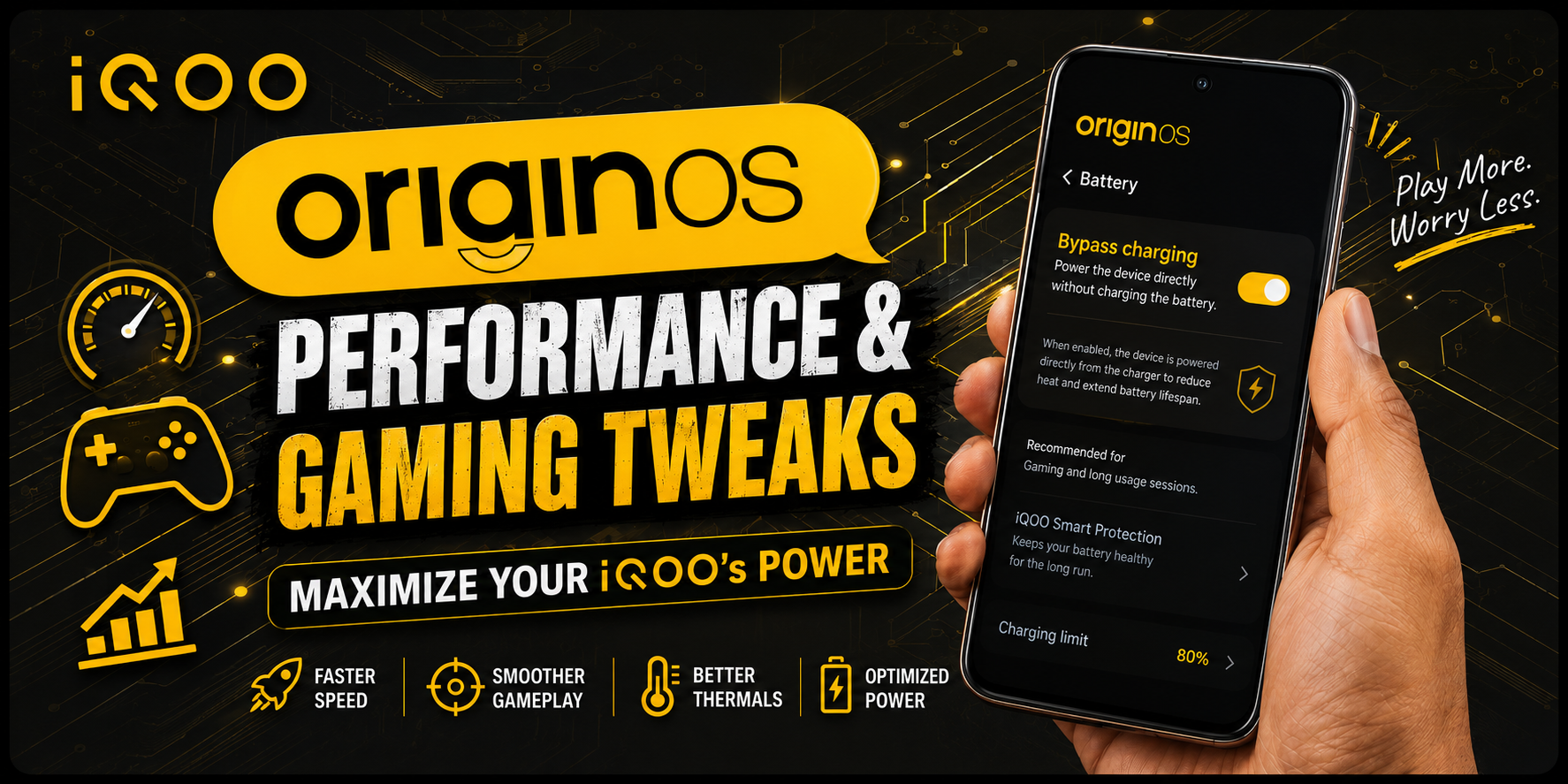
OriginOS Performance & Gaming Tweaks | Maximize Your iQOO's Power 🚀

Hey Questers!
Since iQOO devices are built for ultimate gaming, making sure your system is fully optimized can mean the difference between winning a clutch fight or lagging out. If you want to squeeze out every single frame while keeping your device cool, these settings are a must-try!
🎮 1. Configure Ultra Game Mode & Multi-Turbo
To get the most out of your hardware, you need to ensure OriginOS knows you are prioritizing game performance over everything else.
Go to:
Settings → Ultra Game Mode
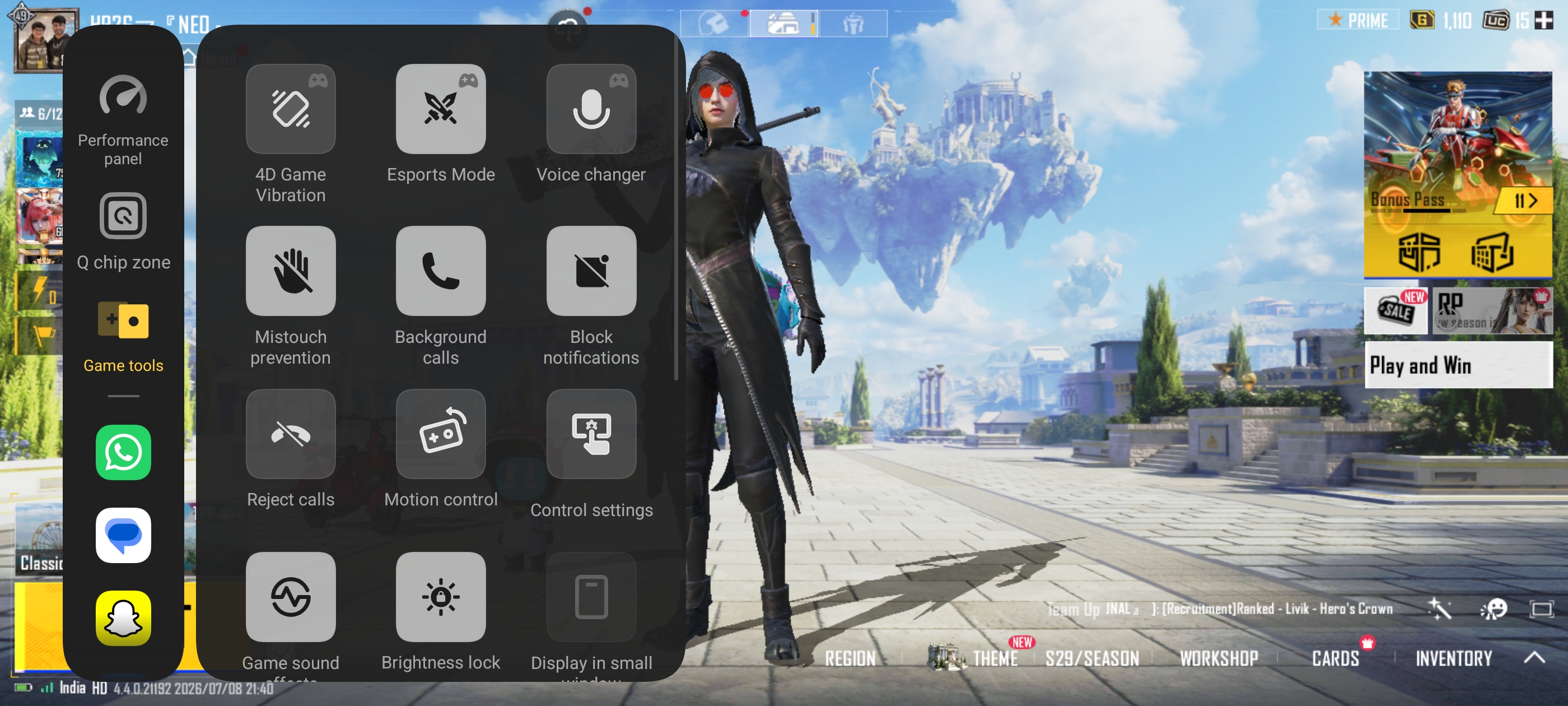
- Enable Side Bar: Turn this on so you can easily swipe it out mid-game to tweak settings on the fly.
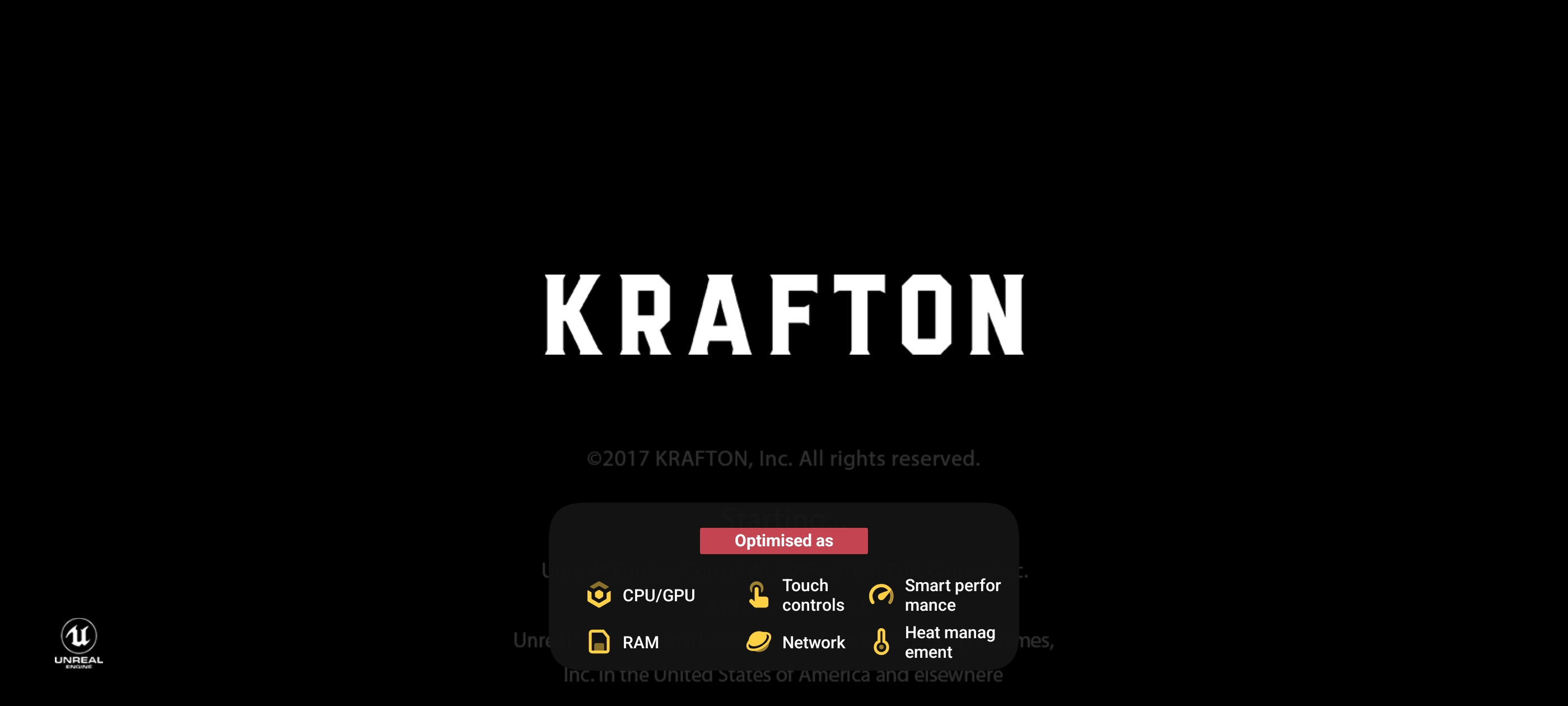
- Turn on Multi-Turbo: Ensure all network, system, and thermal acceleration toggles are switched on under the Multi-Turbo submenu.
Why?
- Allocates maximum CPU/GPU resources to your game.
- Prioritizes your Wi-Fi/data bandwidth to reduce ping spikes.
- Dynamically manages system heat to prevent aggressive thermal throttling.
⚡ 2. Master Your Performance Modes: BOOST vs. Balanced
Swiping out the Game Sidebar gives you options for performance profiles. Knowing when to flip the switch is crucial.
Bring up the Game Sidebar mid-game and choose your mode:
- BOOST Mode (Monster Mode): Use this for heavy, competitive titles (like BGMI, Genshin Impact, or COD) where maximum frame rate is required.
- Balanced Mode: Use this for casual gaming or lighter titles.
Benefits:
- BOOST Mode: Unlocks the maximum refresh rate and forces the processors to run at higher clock speeds, minimizing frame drops.
- Balanced Mode: Saves battery and keeps the phone much cooler during long, casual sessions.
⚠️ Note: Only use BOOST mode when plugged in or if you don't mind extra battery consumption!
3. Pre-Game System Clean & RAM Optimization
Before launching a heavy game, you want a completely clean canvas so background processes don't hijack your processing power.
Steps to take before opening a game:
- Open the native iManager app.
- Tap on Space Cleanup and clear your system cache.
- Open your Recent Apps menu and tap the "X" icon to close all running background apps.
Why?
- Frees up system RAM so the game engine has maximum breathing room.
- Prevents rogue background apps (like social media or browsers) from causing micro-stutters during gameplay.
🎯 4. Set Up Custom Touch Control & Sampling Rates
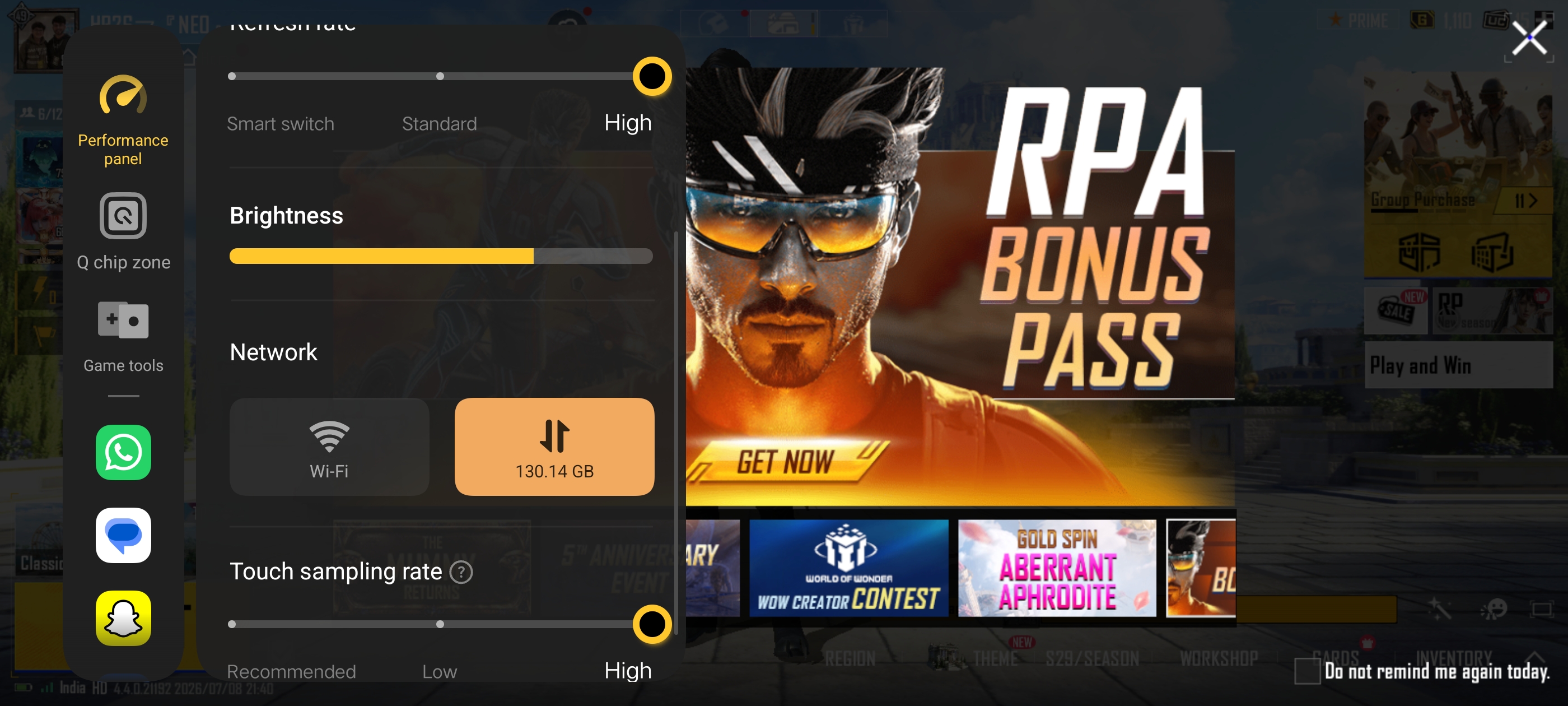
For competitive gaming, millisecond responses matter. OriginOS allows you to fine-tune how sensitive your screen is to your fingers.
Go to:
Launch your game → Swipe out the Game Sidebar → Tap on "Touch Control"
- Touch Sensitivity: Slide this higher for faster response times.
- Precision Control: Enable this to filter out accidental edge touches if you hold the phone tightly.
Benefits:
- Gives you a massive advantage in fast-paced shooter games.
- Customizes the touch response specifically to your playstyle.
💡 Bonus Tip
If you are playing in a warm room, turn off your phone case while using BOOST mode. This allows the back glass panel of your iQOO device to dissipate heat much more efficiently into the air, preventing the system from automatically reducing frames to cool down!
✅ Final Thoughts
By properly utilizing OriginOS's built-in gaming toolkit, you can turn your iQOO device into an absolute competitive beast without needing any third-party optimization apps. Give these settings a shot before your next gaming session and feel the difference!
What game do you play the most on your iQOO? Let me know your favorite setup in the comments below! 💬
Happy Questing,
@ARITRA (Follow For More)
Please sign in
Login and share