



























How to improve fingerprint accuracy on your iQOO Smartphone

Friends, dear Questers, hope you are doing well.
Mobile phones you use, have fingerprint sensors on their backs, fronts, side buttons, or under the displays or on screen. Although the technology behind fingerprints has advanced, there are moments when phones fail to recognize a registered fingerprint. Depending on the sensor technology, making it more accurate is often a quick fix. Here's how to make your fingerprint sensors more accurate.
Register the same finger more than once
If you frequently encounter errors when unlocking your iQOO phone with the same finger, register that finger again. Android system allow you to register multiple fingerprints, and they can be from the same finger. To do so:
👉 1. Tap the Settings icon on your iQOO device.
👉 2. Select Security.
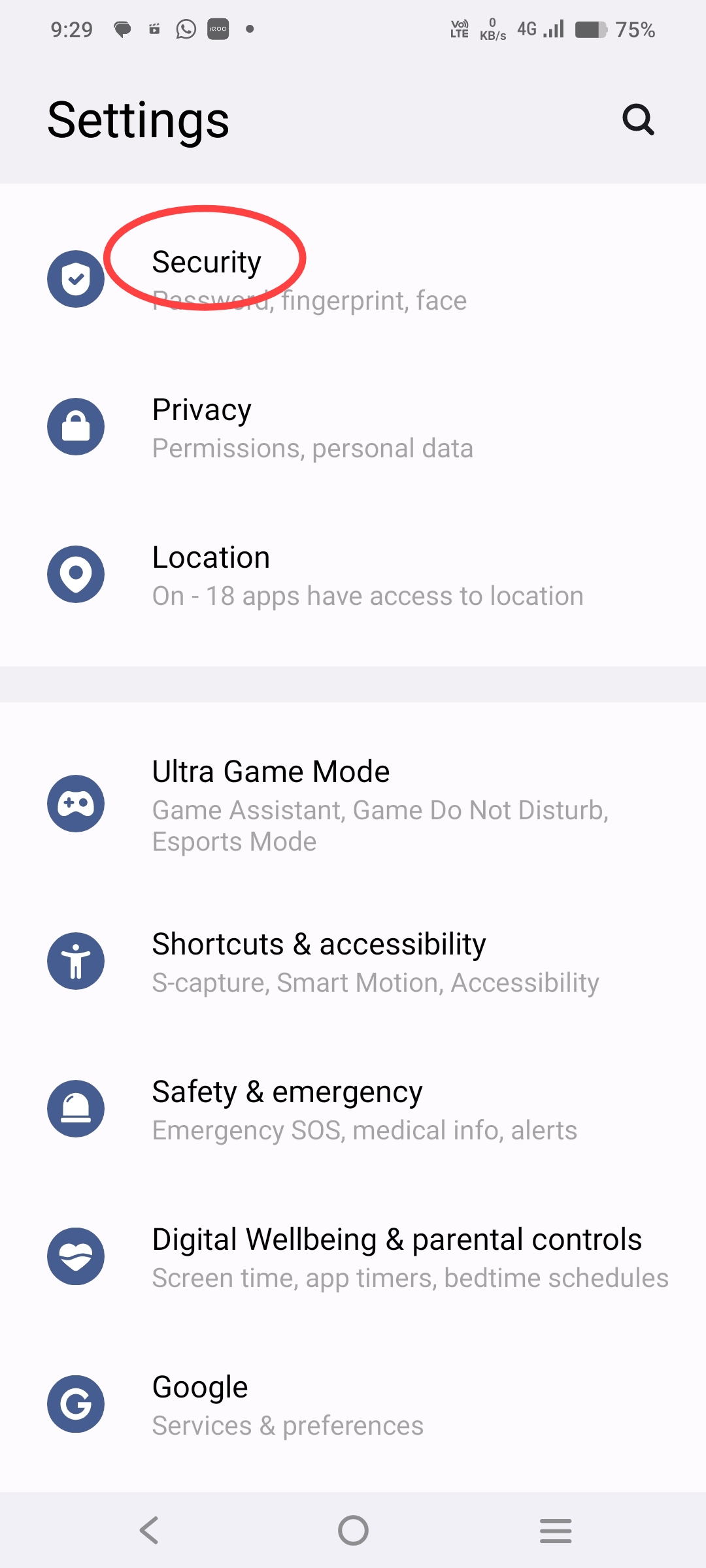
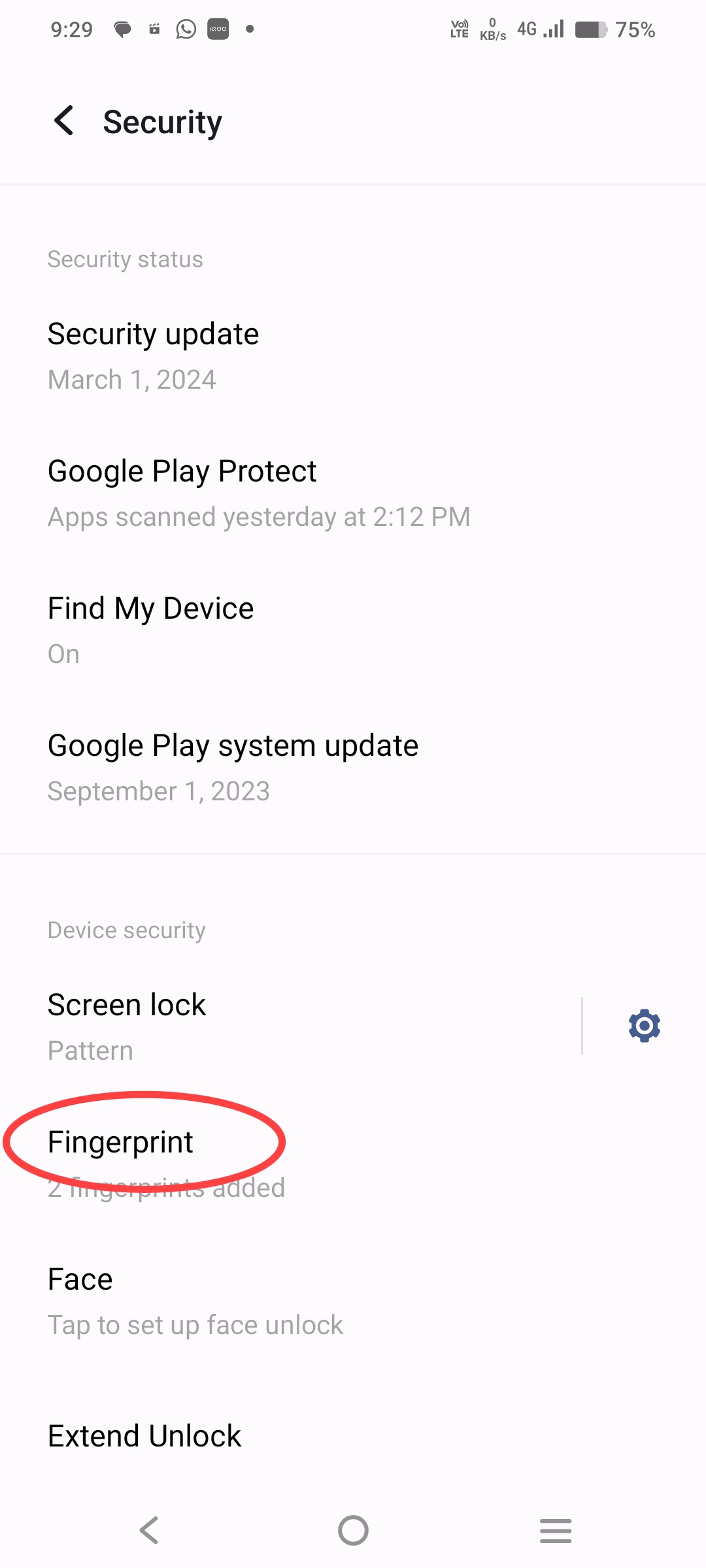
👉 3. Scroll down and tap Fingerprint
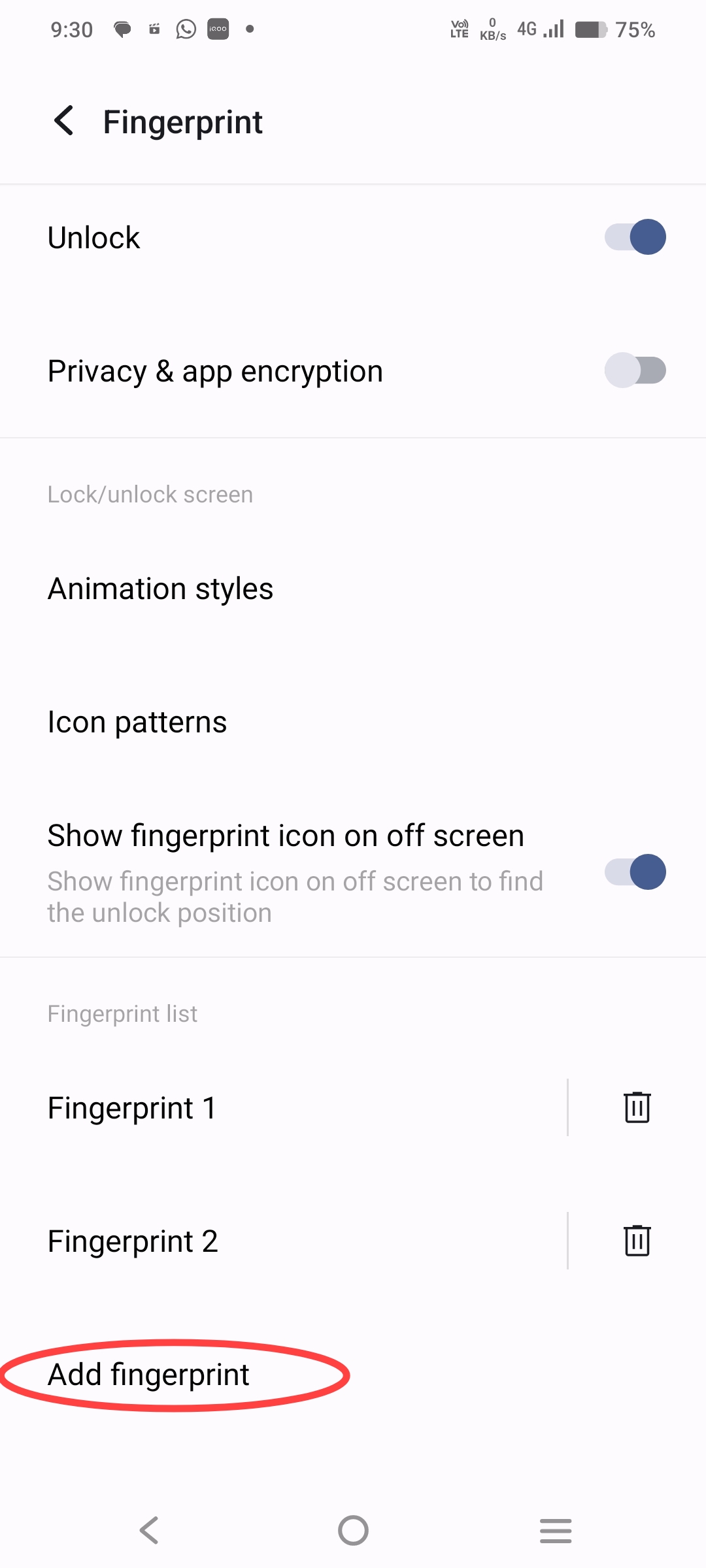
👉 4. Draw your pattern and Add your fingerprint by following the on-screen instructions and completing the wizard setup.

The logic behind this is that the first time you register your finger, the scan might not capture every detail. By registering the same finger multiple times, you provide the system with more data points to work with. More scans means more data for the system to match your fingerprint, increasing accuracy and reducing errors.
Have backup fingers registered
Generally, fingerprint sensors perform less effectively on oily or dirty surfaces, except for ultrasonic ones. If the finger you usually use is dirty, occupied, or moist, set up a backup fingerprint for improved accuracy. It's often handy to use the index finger of your alternate hand, as this finger typically aligns well with the scanner.
Hand sizes and scanner placements vary, so use any finger from the alternate hand that feels comfortable and reliable. Assign names to your fingerprints. This practice doesn't make your fingerprint reader more accurate, but it has advantages. Identifying and troubleshooting fingerprints that don't work correctly is easier when you name them.
Align your fingers correctly
Finger placement is key to getting the best performance out of your fingerprint scanner. Cover the scanner fully with your fingertip, placing it flat without any tilt, either vertically or horizontally. This ensures that the fingerprints captured are flat and centered.
Apply gentle pressure until your finger slightly compresses against the sensor. Also, your finger needs to be clean. If you just washed your hands, your fingertips may be wrinkled due to moisture, which can impede the fingerprint scanner's ability to read your prints accurately. Make sure your hands are dry but not overly so. A little moisture can help before you do a fingerprint scan.
Keep your sensor clean
If the scanning surface area of the fingerprint sensor is dirty, you'll have trouble scanning fingerprints during the authentication process. To avoid this, start by cleaning the surface.
1. Gently wipe the sensor's surface with a soft, lint-free microfiber cloth to remove dirt, dust, or smudges.
2. Moisten a cotton swab or Q-tip with 70% isopropyl alcohol, ensuring it's damp but not soaking wet. Apple, Samsung, and Google recommend using isopropyl alcohol-based cleaning wipes on their devices.
3. Use the moistened swab to gently wipe the fingerprint sensor's surface in a circular motion, removing remaining dirt, smudges, or residue.
4. Air dry the sensor for a minute to let the isopropyl alcohol evaporate completely.
Since a dirty phone can transfer dust and oils from the screen to the home button, leading to a dirty fingerprint scanner, make it a habit to keep your entire phone clean, not only the scanner.
Questing On and On
Quester, iQOO Connect Community
@parakram_h @NITIN @TechSAM009 @Sourav @varunganjoo @Tilak @RockyFTW @Chandan_Cv18 @Sourab_Paul @Swagg_rohit @Ayushpandey20 @ayuu @ARITRA @Nasim_446
Please sign in
Login and share