
























Tech Insights | Part 6 - Unveiling the Hidden Gems of Funtouch OS 15

Hello everyone!
Welcome to Tech Insights, our dedicated series where we delve into the intricacies of your iQOO devices. With the recent launch of Funtouch OS 15, we're excited to explore the hidden features that can elevate your smartphone experience. Whether it's enhanced security, intuitive interactions, or performance optimizations, Funtouch OS 15 has something for everyone. Let's uncover these gems together!

Cleanup Suggestions
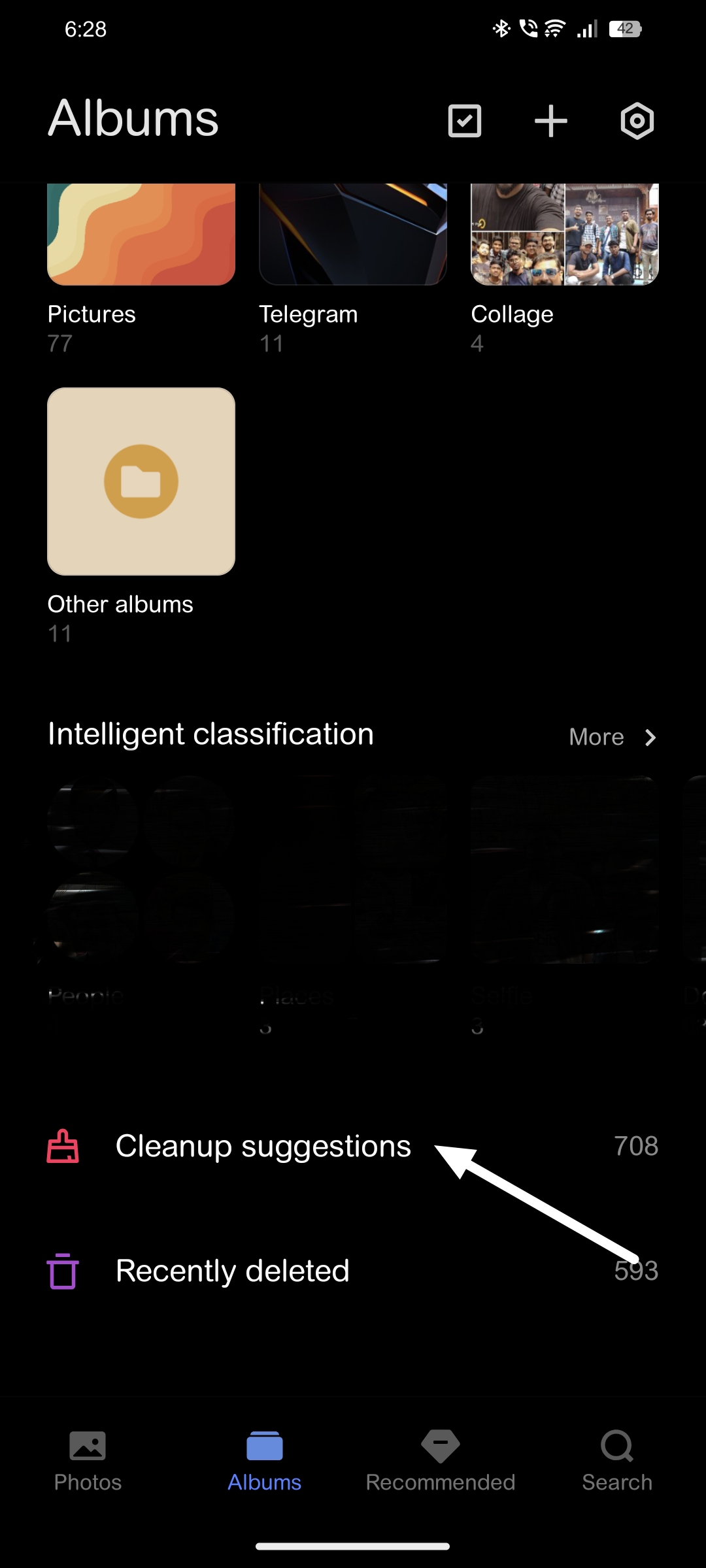
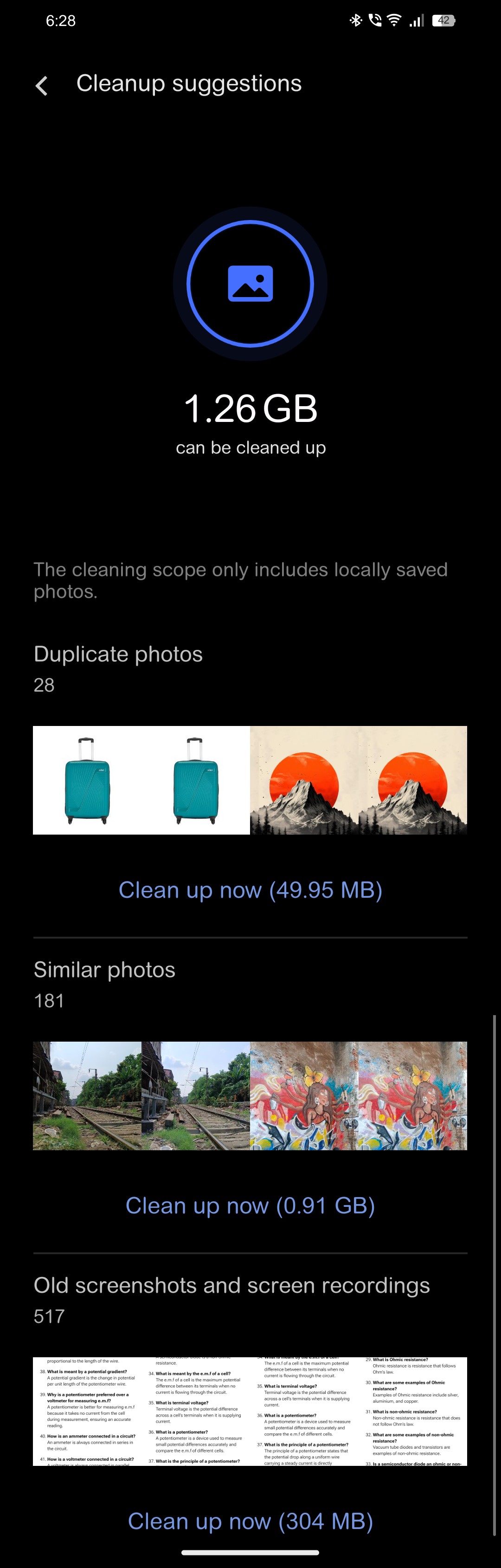
This feature quietly scans your photo library to flag duplicate and similar images, as well as old screenshots and screen recordings, so you can free up storage without much hassle.
To activate:
- Open the Gallery app.
- Navigate to the Albums section.
- Tap on Cleanup Suggestions.
Once set up, your device will analyze your photos and suggest items for deletion, helping you maintain a clutter-free gallery.
Cloud Media Sync
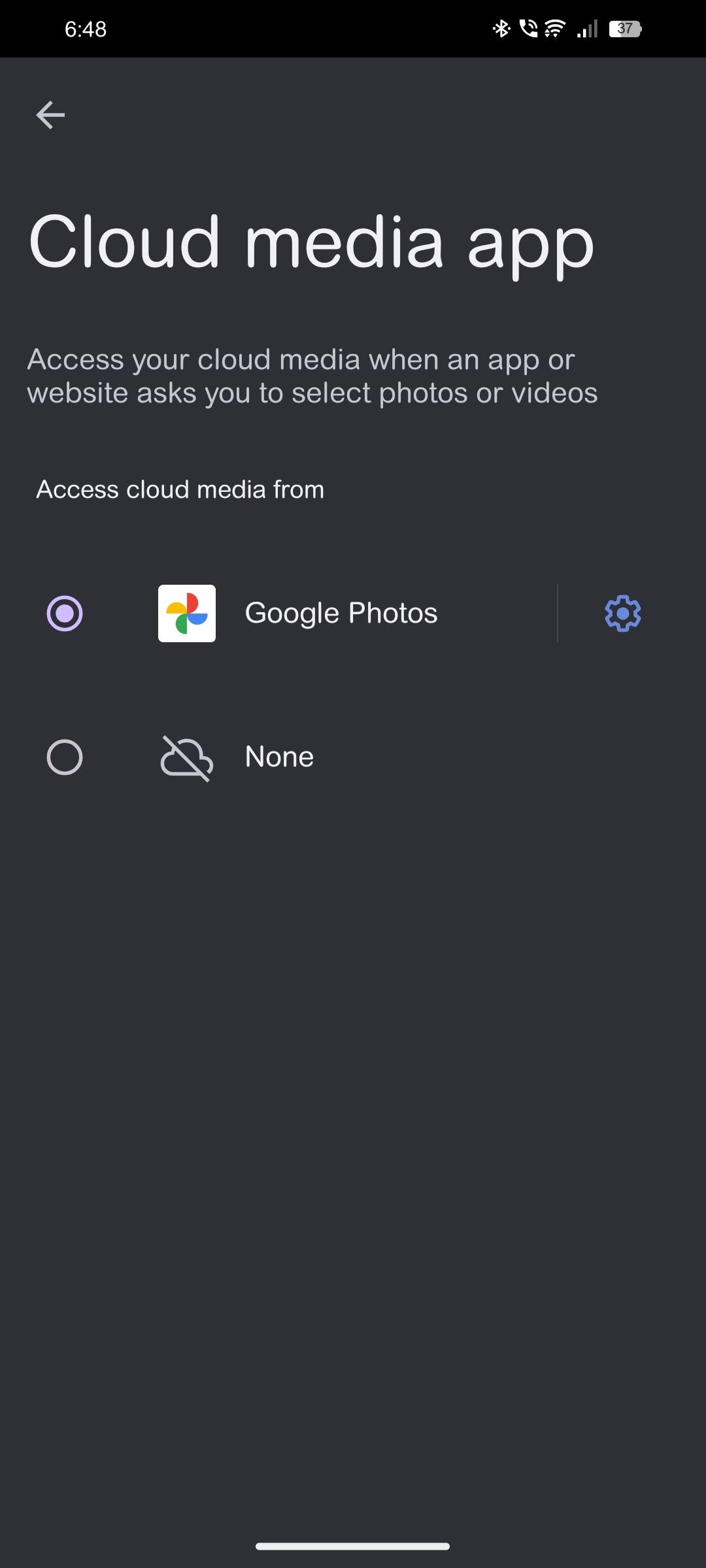
This handy feature lets you automatically access or store your photos and videos in a chosen cloud service (e.g., Google Photos). Whenever an app or website requests media, it can pull from your cloud library instead of just your phone’s local storage.
To enable:
- Go to Settings.
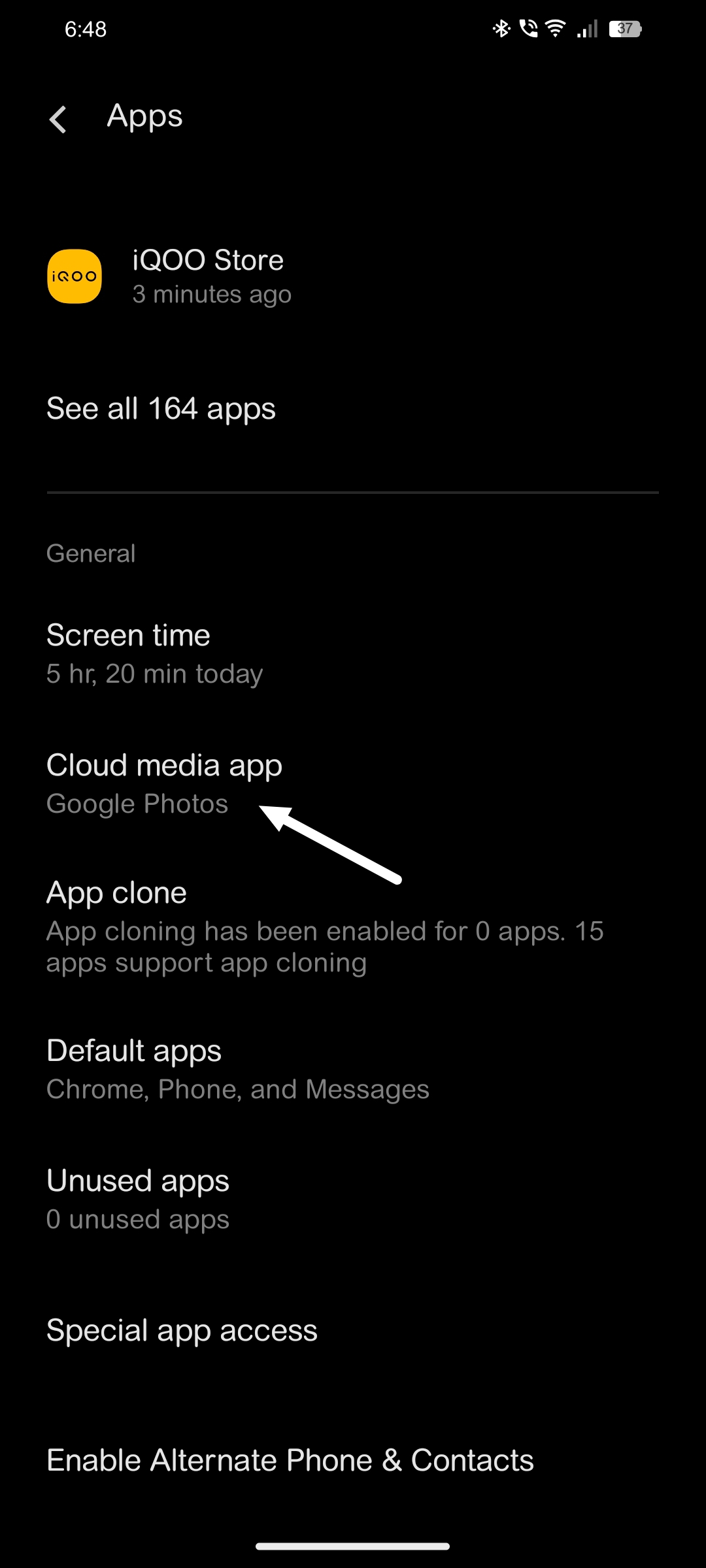
- Select Apps.
- Tap on Cloud media app.
- Choose your preferred service (e.g., Google Photos) or None.
With Cloud Media Sync, you can keep your device storage lighter and still quickly share or retrieve photos across apps and websites—making media management simpler than ever.
Screen Time Reminder
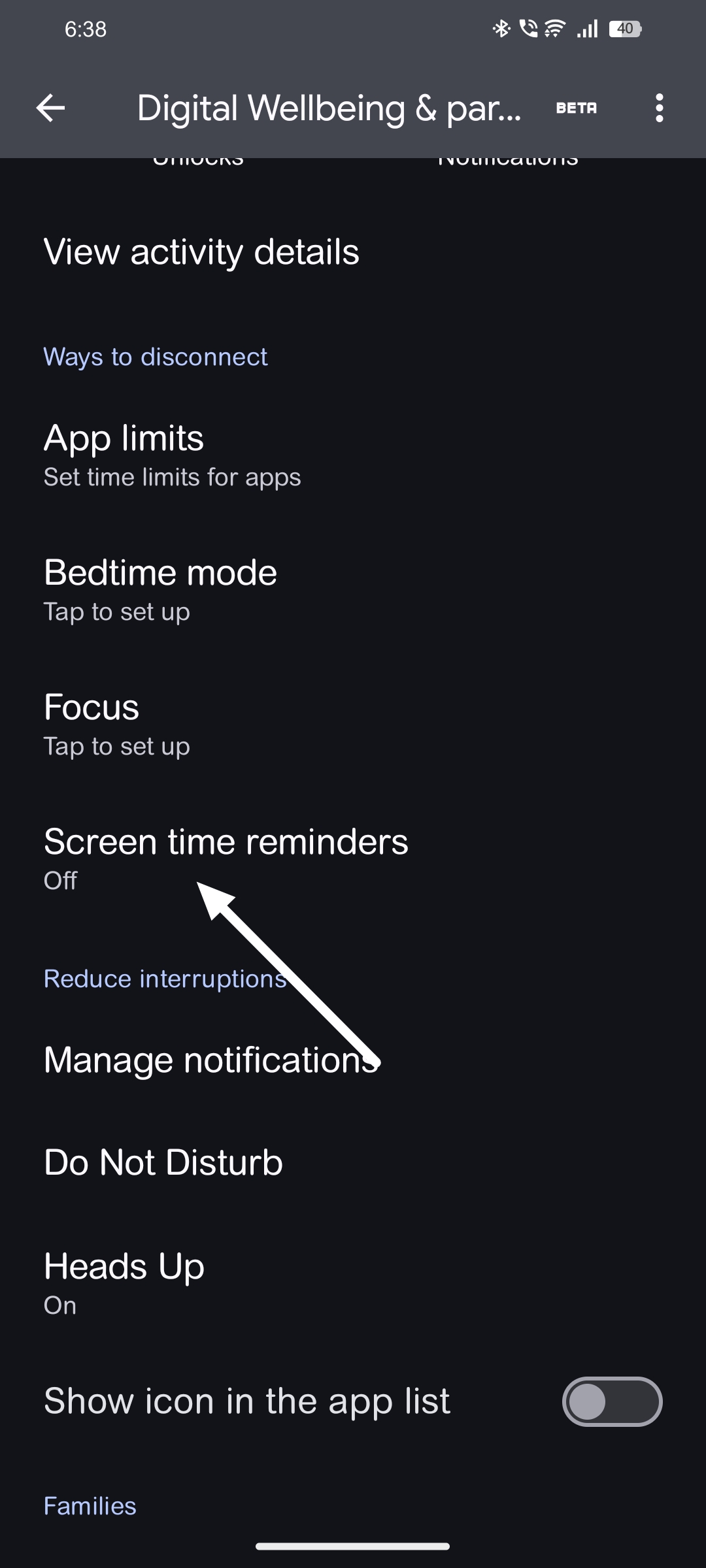
This feature automatically notifies you when you've spent a specific amount of time on an app, helping you manage your digital habits. Unlike manual timers, it provides real-time alerts after a preset duration, such as 15 minutes.
To enable:
- Go to Settings.
- Navigate to Digital Wellbeing & Parental Controls.
- Tap on Screen Time Reminders.
- Toggle it On.
- Select the apps you wish to monitor.
Once activated, you'll receive a notification when your usage exceeds the set time, promoting a balanced digital lifestyle.
AI Screen Translation
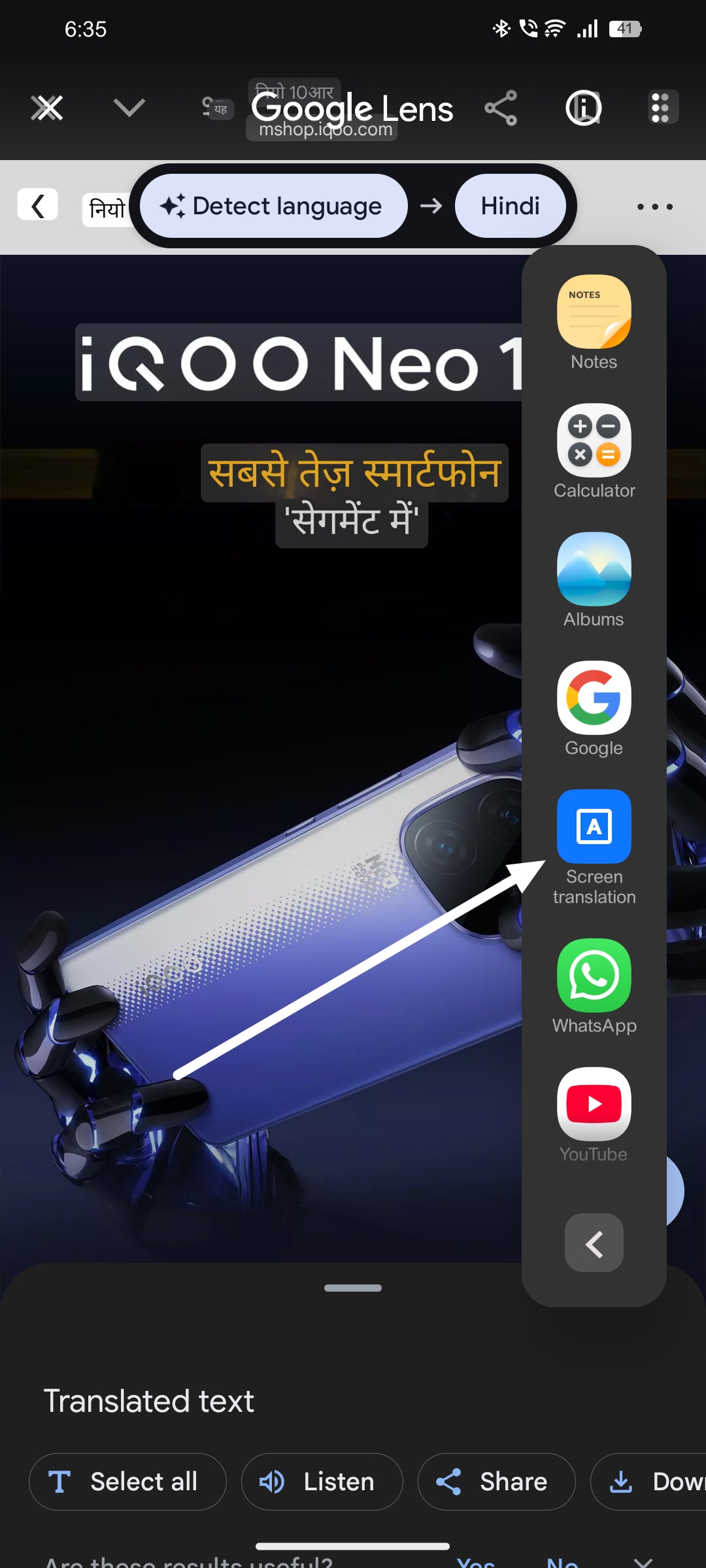
Accessible via the smart sidebar, this tool can translate any on-screen text in real time. It works across apps, so whether you're browsing a foreign website or reading a message, you can quickly switch the language to your preference.
To activate:
- Swipe from the side to open the Smart Sidebar.
- Tap on Screen Translation.
- Select your desired language.
This feature enhances accessibility by breaking language barriers across applications.
Lock Screen Icon Customization
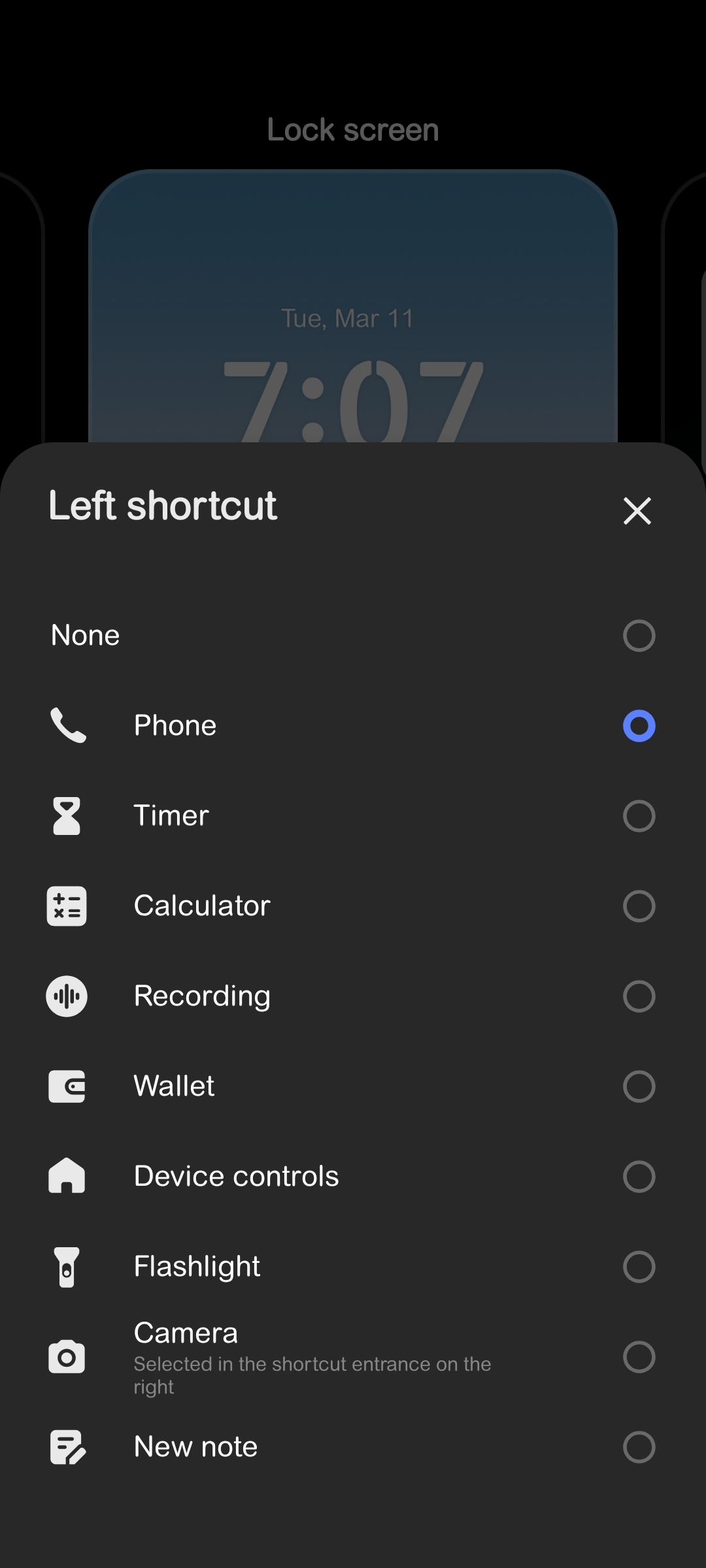
A brand-new addition in Funtouch OS 15 lets you replace the default lock screen icons (commonly Phone and Camera) with apps of your choice. This provides quick access to your favorite functions without unlocking your device.
To enable:
- Go to Settings.
- Tap Home Screen, Lock Screen & Wallpaper
- Click on Lock Screen Settings, then click on Edit button .
- Toggle Custom Shortcuts on and select which apps you want to appear at the bottom of your lock screen.
Once activated, you'll see your chosen shortcuts on the lock screen, letting you jump into key apps instantly
This brings us to the end of Part 6 of the Tech Insights series.
Thank you for taking the time to explore these features.

@NITIN @TechSAM009 @Chandan_Cv18 @NaveenYerradla @Andybitts @arjunbansal @TechieGuy @Swagg_rohit @YasirTheJOD @JStreetS @ayuu @Hasratsingh @Anilyadav007 @Lakshay @adarshaj @Kvkartikji04 @Rahul S @ARITRA @SahilSingh @RZ Nitin @Chandra_07 @SagarMedda66 @MKJEDI @Ashu._.pandit__ @Manab10 @Ramesh17 @KrishnaQ @HasanRazaKhan @V J ANANTH KRISHNA @Jash13 @Jabir007 @sukrit @Inzamam @TESVIPER10 @Sameer Shaikh @KETAN @Rohan6383 @prasad.photos @Syedali
Please sign in
Login and share